Many of us have been sorely frustrated by how difficult it is to pack up media for work on the road. In a typical situation you want to take a scene or a couple of scenes home and work on them on a laptop. You don’t want all the media for your show, just a small subset. You need to identify all the media for a specific bin and copy it to a portable drive.
The old and slow way to do this is to reveal file on each of your master clips and then copy those files in the Finder. It’s a laborious process and easy to screw up.
But it turns out that there’s a much easier way. It’s hidden, but when you know how to set it up it does what you want with a lot less work. It’s under the Export menu.
Open the bin you’re interested in. Select all your source clips — master clips, subclips or groups. No need to find the source master clips.
Then select Export from the File menu.
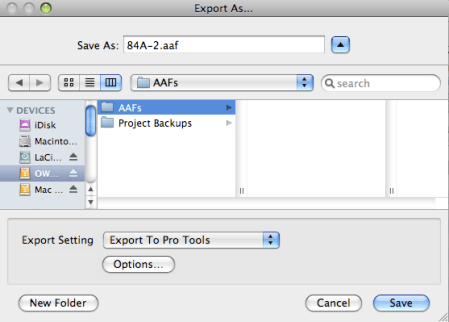
Start by selecting an export setting. The easiest place to begin is with “Export to Pro Tools.” Then click the options box.
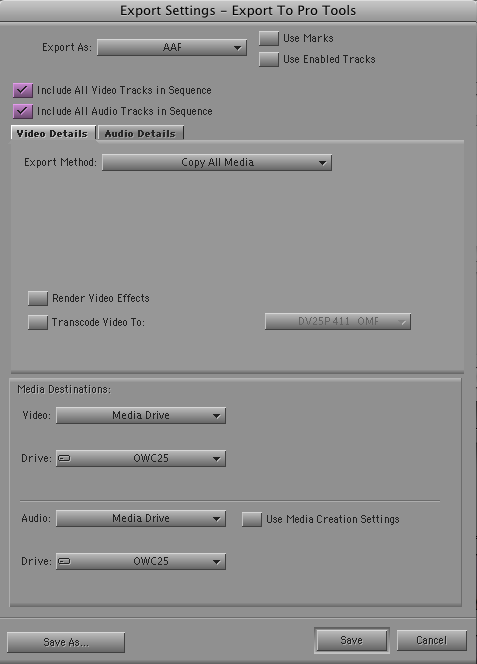
Here’s where things get counter-intuitive. For “Export As:” select AAF (or OMF). You have to make an AAF for every clip. You won’t need these files, but the MC insists on creating them. To keep them organized, ceate a folder on your export drive for them.
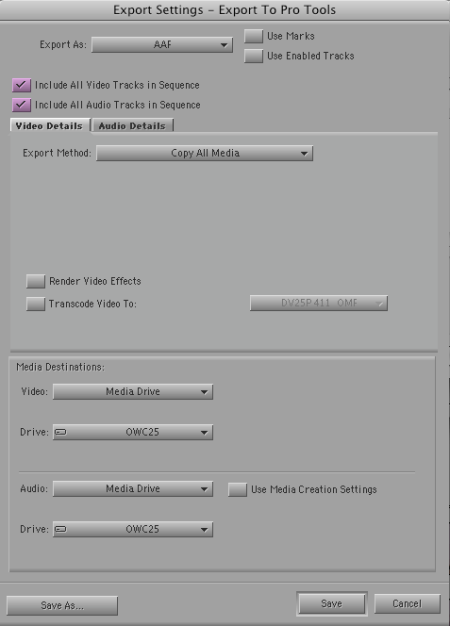
Then select “Include All Video Tracks in Sequence” and “Include All Audio Tracks in Sequence.” This is true even though you aren’t exporting a sequence at all.
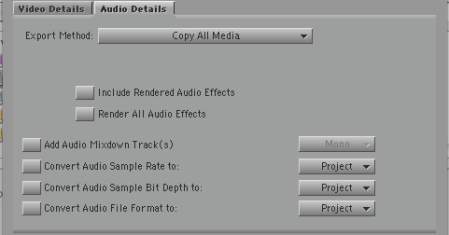
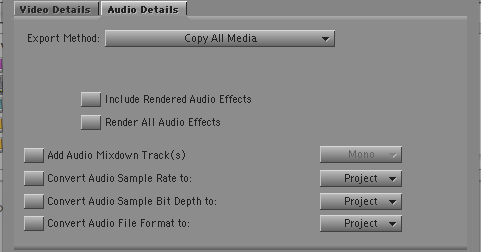
In the audio and video tabs, select “Export Method: Copy All Media.” This is the crucial step. You’re not consolidating — just copying. If you don’t, you’ll create a bunch of “.new” clips. Leave all other options unchecked. Select a destination drive (a “media drive” not a “folder”) for both video and audio.
Here’s the video tab:
And the relevant part of the audio tab:
When you’ve got your options set up correctly, hit Save and then select Save again in the Export dialog.
A new MediaFiles folder will be created on your target drive and the MC will copy all relevant media to it. The folder you made to hold the AAFs will get an AAF file for every source clip. You won’t need those files and, for reasons that will be clear in a moment, you probably want to delete them.
You’ll have to copy the bin (or bins) you need to your laptop manually, but that should be easy. It will automatically link to the new media — no relinking needed. (I’m told that on PC-based systems you may have to delete your media databases on the portable drive.)
One nice additional feature is that in the future, if you add a material to a bin and need to export the media again, the MC will intelligently decide which files already exist on your external drive and will copy only those that aren’t already there. And that’s why it’s handy to delete your AAFs/OMFs. If you leave them alone, the MC will ask to overwrite them, one laborious file at a time, and you’ll have to confirm a separate dialog box for each clip. It’s much easier to have the MC recreate them all.
This process isn’t exactly intuitive, but it’s easy to do once you know a few tricks. It should make it a whole lot easier for editors to take work on the road.
Technorati Tags: avid, edit, film, video
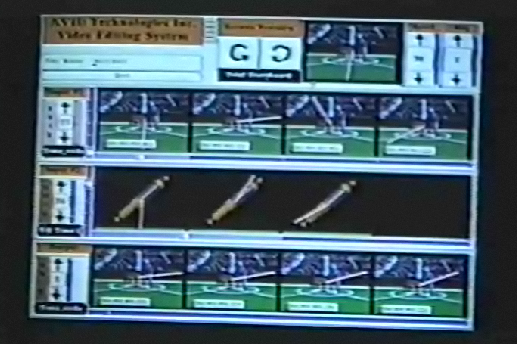
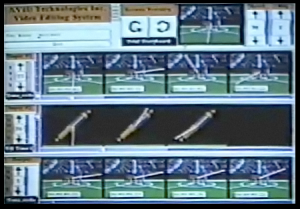 Bill Warner, Avid’s founder, has posted some fascinating early videos, from as far back as 1987, on the Viddler site. Several cover the earliest Avid prototype, a system that simply played a few clips and could assemble them together. Everything ran out of RAM — on an Apollo minicomputer. They had no way to digitize anything, so for testing they created short clips out of stills with a superimposed moving line to let you know something was changing.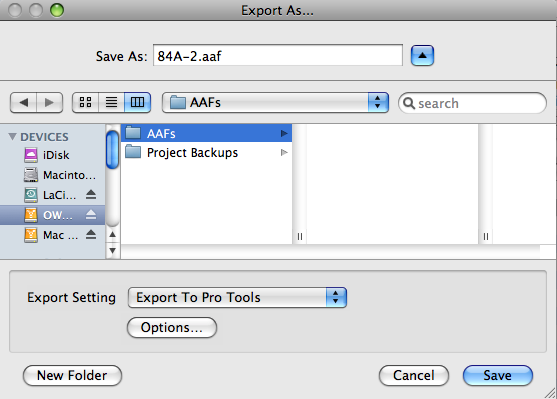



 Splice Now
Recent Comments