Archive for the ‘Avid’ category

More Comments on Avid Agility

October 27, 2010

Media Composer senior product designer Frank Capria has posted some very positive comments about “Avid Agility” on his blog, Capria.TV. Quoting briefly (the full post is here):

“Very rarely is the reincarnation of a classic pulled off successfully, but Steve Cohen’s done it … Avid Agility is the first book I know of that goes into depth covering the new features of Media Composer 5 — the Smart Tool, Advanced Key Frames, etc. It’s an easy read, logically laid out, and useful to novice and experienced editor alike. I highly recommend this book.”

Frank joined Avid in ’08 and has been a key part of the dramatic transformation we’ve seen there over the last couple of years. We all owe him a debt of gratitude for his commitment to editors and editing.

More on the Smart Tool

October 20, 2010

Avid’s new Smart Tool  promises a more intuitive, drag-and-drop approach to timeline editing and is designed to compete head-on with Final Cut and Premiere. But for many long-time Avid editors, the first response is, “how do I turn it off?”

The dilemma is a classic one and goes to the heart of how we learn to use any tool. For newbies, an interface wants to be immediately obvious and welcoming. But power users want speed. The best interface combines elements of both and is malleable enough to grow with you as your needs evolve.

I’m just finishing a show on MC5, and have tried several approaches to the Smart Tool. Here’s the setup that I’ve settled on (so far):

  1. Upgrade to one of the recent patch releases (5.0.3.1 – 5.0.3.4). Trim mode in these builds will be much more familiar to long-time Media Composer users. Then enter trim mode by lassoing, or by hitting the Trim Mode button (not the Smart Tool). This gives you something closely approximating old-style trim mode. For details, see this post.
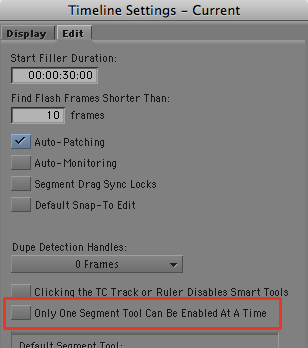
  2. Go to the Edit tab of Timeline settings and select the following. You may also want to select “Clicking the TC Track or Ruler Disables Smart Tools.”
  3. Then activate only one Smart Tool — the keyframe tool. Leave all the others off. This gives you permanent access to audio keyframes, which matches past behavior. But more important, because you are leaving one tool on all the time, the tool palette won’t reset itself when you start up MC. It’ll come back as you left it when you quit. (If a tool is on when you quit, that’s the way the system will start up. If nothing is on, the tool resets itself.)
  4. Assign the segment tools to your keyboard and turn them on and off from there, as needed. (By default, you’ll find them on Shift-A, and Shift-S.)

You’ll probably have to do some experimentation to get things to work for you, but those are the key ingredients in creating a more familiar, version 4-style editing experience.

Conforming Red

October 17, 2010

Red is now Hollywood’s great science experiment, with workflow options proliferating almost every day. How do you do dailies? How do you transcode and sync? Who is archiving your media? We’re finally starting to get our arms around those issues, but there are still too many options. And the bigger question now is how you conform.

“The Social Network” team actually did it in their offline cutting room, moving from Final Cut to Premiere and from there to After Effects, using EDLs (not XMLs) and dpx files (not the native R3D files). They then turned over to a Pablo for timing. (Adobe has posted a video laying this out.) I’m finishing a TV movie that was cut with Media Composer 5, conformed in Smoke and timed in Lustre using the native R3Ds, which gave us all kinds of color control. And those are just two of the dozens of permutations available. Before we started shooting, I spent a full week going over them, and at the end, the conversations were so filled with jargon that a normal mortal listening in would have thought we were nuts.

We do more and more visual effects work in our offline editing rooms. In television, I’ve gotten very spoiled seeing my work conformed perfectly using Symphony. There’s a tremendous sense of freedom in that — if you get something right, it’s finished and you never need to think about it again. But in features we don’t generally experience that particular thrill, because above HD resolution everything has to be rebuilt, and too often, by eye. Each system has its strengths and weaknesses. Smoke is powerful, interfaces with Lustre for timing and understands many MC4 effects — but MC5 is another story. Baselight understands XML (but not all effects). After Effects is cheap but doesn’t understand either one. And that’s just the tip of the iceberg.

The whole thing is a mess. Conforming complex visual effects by eye is crazy, and somebody is going to make real money straightening it all out. More fundamentally, will we be conforming in our cutting rooms or at a post house? Or will increases in processing power make the whole thing moot?

Meanwhile, be prepared for a new workflow on every show you do, with new options, new gotchas, and new things to learn each time.

First Review of Avid Agility

October 15, 2010

Norman Hollyn, an accomplished editor and the head of the editing track at the University of Southern California School of Cinematic Arts, posted a brief review of Avid Agility on his blog last week, and I’m very proud to quote him here.

“It is an amazing work — for both new and old Media Composer users. Sensibly organized into editing functions — Basic Editing, Timeline, Audio, Effects and much much more — it has taught me tips and tricks that I didn’t know. … I’d recommend that each and every one of you who are editors — whether you are on Avid, Adobe or Apple, rush up to that link above and order the book.”

Check out the full review here. You can order the book from Amazon via this link. (International customers order here.)

Look Inside Avid Agility at Amazon

October 5, 2010

“Avid Agility” has been selling briskly, and I’ve gotten lots of compliments from those of you who’ve bought it — thanks very much to all of you for the kind words. Meanwhile, Amazon’s “Look Inside” feature has gone live, so you’ll be able to get a better look at the content and layout. And, in a surprise move, they’re now offering a substantial discount.

Check it out. If you like this blog, I think you’re going to like the book a lot.

• Avid Agility at Amazon

• More info and additional sample pages

Tweaking the Smart Tool

October 4, 2010

Avid has quietly released some important improvements to the Smart Tool — features that go a long way toward making Trim and Segment modes function the way they did in Version 4. The updates are incorporated into recent “patch” releases, and therein lies a rub. Patch builds are designed to quickly solve specific customer problems, and they aren’t as fully tested as regular releases are. But I’ve been using version 5.0.3.1 for a month now, and I wouldn’t want to go back.

What are the changes? The first is in Trim Mode. Since the early ’90s, when you hovered your mouse over the Composer Window you saw three selection cursors: left, center, or right.
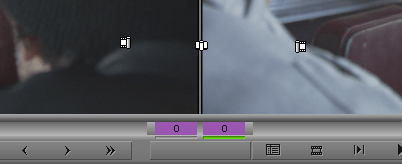
If you hovered your mouse over a transition in the timeline, you’d saw only two — left and right, no center. That made roller selection easier and more positive.
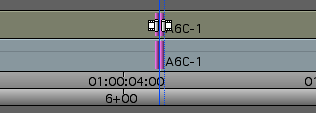
But now, with the Version 5 Smart Tool, you see three cursors in the Timeline, just like you do in the Composer.
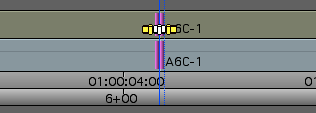
This makes it much harder to predictably select one side or the other — that pesky center cursor gets in the way.

But Version 5.0.3.1 changes all that. If you enter Trim Mode by lassoing transitions or by clicking the Trim Mode button, and if the Smart Tool trim buttons are off, the center cursor doesn’t appear in the Timeline. (It’s still present in the Composer Window.) So roller selection feels much more predictable and much more like it was in Version 4. If you’ve been frustrated with Trim Mode in MC5, this fix is going to make you a lot happier.

The second change is in Segment Mode. In Version 4, you couldn’t have both red and yellow segment modes on simultaneously. If red was on and you clicked yellow you simply switched from one to the other. Version 5 allows both modes to be on simultaneously — you’ll see red when you hover over the top of a clip and yellow over the bottom.
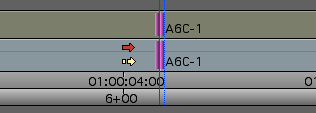
For some people that’s more flexible, but if you prefer the old way, you can now have it via a selection in the Edit tab of Timeline Settings: “Only One Segment Tool Can Be Enabled At A Time.” Turn it on and you’ll get the Segment Mode of your choice — but when you turn one on, the other goes off.
Together these changes amount to a major improvement for folks like me who work in dense, multitrack timelines. The catch is that the only way to get them is via a patch release. If you’re willing to take a chance, jump in. If not, waiting till the next point release should get you these fixes in a fully tested build.

Avid’s patch releases are here. Keep in mind that with Avid’s new installer, upgrading is much easier. For more about the upgrade process, see this post.