Sometimes it would be helpful to transfer an individual setting pane from one system to another — without bringing in an entire user profile. It turns out that this is trivially easy, but few people seem to know about it.
First, click the settings tab in the project window. Then select “New Setting File” from the File menu. An “untitled” window appears.
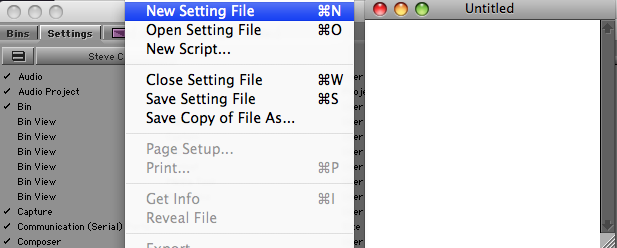
Now just drag a setting or settings from the project window to the untitled setting window. It will be duplicated into the new settings window.
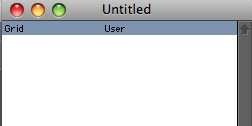
Now simply select “Close Setting File” from the File menu, indicate that you want to save it, and specify a location. This will create a .avs file on your disk. Note that you don’t want to select “Save Setting File,” because, perversely, you won’t see a Save dialog this way. The file will be saved to your Avid user folder with the name “Untitled,” and you’ll have to navigate there to find it.
Move the .avs file to another system, click on the settings tab and select “Open Setting File” from the File menu. The setting window you saved will open. Then just drag the setting to your project window. The MC will ask you if you want to overwrite the existing version of this setting or create a new one. You’ll probably want to create a new one so you can go back to your old setting as needed. Name the new setting as needed, and activate it by clicking to the left of the name.
Note that you don’t want to double click on the .avs file. On my Leopard Mac, the OS sees the file as a Photoshop file and opens Photoshop rather than MC.
That’s it. You’ve moved a setting from one machine to another.



 Splice Now
Recent Comments