Archive for the ‘Avid Technical Tips’ category

Using the Stabilize Effect

February 17, 2008

Late model Media Composers include Avid’s tracking engine, a potentially powerful addition to your visual effects arsenal. The tracker is included in several effects, the simplest of which is stabilize. If you’ve got a shot that’s too rocky to include in a scene, the stabilize effect might just make it usable again. It’s realtime and it’s easy to set up — once you understand how to do it.

Rather than explain the use of this tool with images and text, I’ve posted a little 3-minute video that will introduce you to it. If you can’t see the screen clearly enough in the small version here, check it out on Vimeo.

I’m thinking about doing more of these. Let me know how this works for you and whether it’s useful.

In more advanced applications, the tracker can be used inside the 3D Warp effect to connect one shot, typically a matte, to the motion of another. Avid has a very nice video tutorial that will show you how to do this. It’s in the free part of their Alex education site, near the bottom of this page.

Technorati Tags: , , ,

Clip Color

December 18, 2007

I’m sure this will be obvious to some of you, but I’ve found that many people don’t use Avid’s powerful ability to colorize clips in the timeline. It’s not always intuitive, but once set up, this can be very helpful in finding things visually.

You can colorize clips in no less than four ways:

  1. The timeline can show you all offline material in red. This can be very helpful if you want to do a quick check before making a digital cut.
  2. You can change the color of an individual clip anywhere in the timeline. Useful to tag something so you can easily find it again.
  3. You can have the MC show you every instance of a particular source clip in a specific color. This offers a quick answer to “Where did I use this shot?” or “How many times did I use this shot?”
  4. You can have the MC distinguish clips based on their resolution or whether they are standard def or high def.

Each feature is invoked in a slightly different way — and therein lies the confusion.

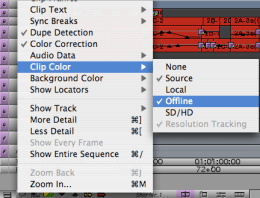
1. To invoke “offline” clip coloring, simply select that option in the timeline popup menu.

offline-color.png

Now, every offline clip will be displayed in red.

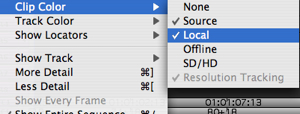
2. To colorize a specific shot — Avid calls this “local” color — several steps are needed. First, make sure that local color is turned on by selecting that option in the timeline popup.

Turn On Local Color In Tl

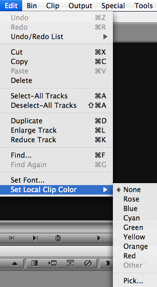
Then select the clip you’re interested in using segment mode, and change it’s color via the Edit menu:

Set Local Clip Color

The shot you selected via segment mode will change color.

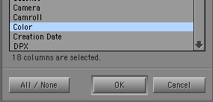
3. To colorize every instance of a particular source clip, first turn that feature on in the timeline by selecting Clip Color > Source. Then go to the bin that contains the clip and activate the “color” bin column.

Turn On Clip Color In Bin

Finally, put your cursor into the “color” bin column. A popup menu will appear and you can select a color for that source clip. Every time you use that shot in a sequence it’ll be shown in the color you choose.

4. To have the timeline colorize SD and HD clips, select that option from the timeline popup. For more about resolution coloring (using Avid’s “MultiRez” feature) see your manual.

Technorati Tags: , , ,

Totally Portable – Not!

December 9, 2007

I’m about to start a mix and I thought that it would be nice to have my whole show available on a laptop while we worked. This can be helpful in a pinch, and I figured it would be easy to arrange. Four hours of frustration later, I’m not so sure.

We have about 7,000 OMF media files taking up about 200 gigs of space and living on six Unity partitions. Each partition has a separate media folder, and each one contains two “msm” files, which constitute an index of what’s on the drive. The MC needs those files, and if they’re not there, it will create them.

My task was to move all that of our media into a single folder on a firewire drive and open that up with the laptop system. The folder would be re-indexed and all would be well.

Trouble is, MC-software won’t index that media folder. Roughly half way through the initial scan it consistently crashes. That seemed awfully strange to me, so I tried using our main Adrenaline machine to create the index (taking Unity offline, connecting the firewire drive and starting up the MC). That worked fine. So I figured I had a good index and could now open the firewire drive on the laptop. Nope — even with a good index, the laptop wants to scan the drive — and crashes halfway through.

There are differences between the desktop and laptop systems: one is a quad-G5 tower with four gigs of RAM, the other, and core duo Mac Pro with 2 gigs. I’ve never known one to be allergic to drives indexed with the other, but you never know.

So I created a much smaller media files folder with just a couple of hundred clips — the laptop was able to index that just fine. And I was able to add media files to that folder successfully — but only until I got to around 3,000 files, at which point the laptop would crash halfway through the scan — leaving behind a corrupted index.

After four hours trying all of the above and everything else I and our rental house could think of, I gave up.

Maybe a system with 2 gigs of RAM can’t read a big index. Maybe an Intel system can’t read a big index. Maybe an Intel system can’t read an index created on a G5. But one way or the other, I can’t take my show on the road.

Technorati Tags: , ,

New Bugs

October 7, 2007

With every Avid I’ve ever used, problems grow as your project, bins and sequences become larger and more complex. Avid has never done a good job testing in this kind of environment.

My brand new Adrenaline system worked like a charm for the first month or so. That was a welcome change from the past. But now that I’m working with 20-minute reels and large bins I’m seeing new issues. For example:

  • EDL manager won’t load a bin until you quit from MC. If you don’t quit MC first, you crash. Yes, you read that right. It’s a known bug — but it somehow doesn’t affect everybody. And it seems that nobody knows what causes it or how to deal with it except to quit MC when you want to make a list.
  • Project funkiness. My assistant and I are sharing a project over Unity. The other day the assistant’s system started crashing during saves. Any saves — but only from our main project. Two days of attempted fixes later we narrowed down the problem to a gremlin — something to do with the name of the assistant’s machine. The solution was to create a new project. Not difficult, but it sure took a lot of juju to figure it out.
  • Unable to copy multiple bins to Unity. Yes, you read that right, too. It turns out that with Mac clients, you can’t copy more than about fifty or sixty bins at a time from the client workstation to the server. If you try to do more you’ll run into a Mac “-36” error, and the copy will stop before it completes. Avid says that this is a known bug and the way around it is to copy your material to a closed folder. I haven’t tested this yet, but I’m a bit skeptical. Bottom line, if you want to restore from a local backup of your project, be prepared to copy it in batches of fifty bins at a time. Doing that and not missing anything can take some real concentration.
  • Can’t make a list from FilmScribe with any templates except HTML. The solution is a new set of templates that Avid says they’ll distribute with the next point release (after 2.7.3). Your supplier should be able to get this — but there has apparently been no announcement of its availability.
  • Slow performance with large bins. Once your bins get bigger than about twelve or fifteen megabytes performance deteriorates. The system is slow to move icons around, slow to load sequences into monitors. It’s a subtle thing — a matter of feel — and probably more noticeable when you’re in frame view. But it can be very annoying, nonetheless.

These aren’t catastrophic problems, and we’ve found the workarounds. But they sure put a kink into our lives over the last couple of weeks.

Technorati Tags: , , ,

Adrenaline Progress Report

September 18, 2007

I’ve been working with Adrenaline 2.7.3 for a little over a month now and I thought I’d pass on a progress report. In general, I’m very happy with it. There are still some quirks, but the advantages now far outweigh the disadvantages. I’m working with 14:1 media on a quad-core G5, with two users sharing a project over Unity.

Pros:

  1. Fast and very stable. Only one minor crash in four weeks of intensive work.
  2. Plays video responsively.
  3. Scrubs audio very responsively.
  4. Updates waveforms quickly.
  5. Saves very quickly.
  6. All the other advantages of Adrenaline:
    – 16 tracks of playable audio
    – realtime audio dissolves (indispensible for me now)
    – powerful effects capabilities, most realtime
    – restore previous trim command
    – unified mixer

Cons:

If the list below looks long, it’s only because I’m providing a lot of detail. These are relatively minor problems.

  1. Slow performance with frame view big bins. With bins over about 10 or 15 MB, dragging clips around, renaming them, or loading them into monitors feels very sluggish. In addition, whenever you open a new bin, all clip frames in all open bins, and all timeline waveforms, are reacquired, which can make opening a new bin feel pretty sluggish.
  2. Quirky stops. On the source/record window (the computer monitor) stops are precise, but the client (the big TV) often flickers badly for a second or so after you hit stop.
  3. When you hit “L” twice quickly, the system says you’re moving at 48 fps, but you’re still going at 24. You have to pause briefly between keypresses to really move at 48.
  4. We’re shooting on 16mm film for an HD finish, and if I enter a trim or dissolve duration in feet and frames it’s always interpreted incorrectly. The only way to enter durations properly is to work in time or total frames. In addition, you can’t measure 16mm durations as if they were 35mm. Even though the system offers to let you do this, you always get 16mm.
  5. I use iTunes for music and sound effects and couldn’t live without it anymore. The only quirk is that you can’t drag from iTunes to a bin (you can’t do this in FCP either). The solution is to drag to the desktop and then drag to your bin from there. But if your cursor moves over a frame view bin on your way to the target bin, you’ll get all kinds of horrible artifacts, which won’t go away until you’ve closed and reopened the bin.
  6. If you use “Dual Image Play” in trim mode (so that both sides of a trim move together) you’ll discover a very annoying bug in Adrenaline. Everything works fine in the trim mode window. But on the client monitor you see a frozen frame when you’re rolling a cut.
  7. If you open a Unity bin and try to rename it you’ll often get an error message. You’ll have to close and re-open the bin to see the change.
  8. Dragging clips from one bin to another in frame view will cause the clips to “align to grid.” If you’ve got a bunch of clips nicely organized and you move them to another bin they end up spaced differently, removing a lot of the organization.

Technorati Tags: , , ,

Two Useful Buttons for Your Keyboard

September 13, 2007

Here are a couple of keyboard shortcuts that I’ve grown very fond of recently:

Return to Previous Trim

Option-Trim

As my sequences get more complicated, I set up more complex roller combinations in order to trim them. I’ll trim something, drop out of trim mode to check a cut in context and often want to return to the previous trim and make an adjustment. We’ve been asking for “return to previous trim” for a decade or more, and Avid has finally added it in recent versions of Adrenaline. It’s invoked by holding down the option key and hitting the trim mode button. I like it so much that I’ve added it to my keyboard. Doing so is a two step process. First drag the Trim Mode button from the Other tab in the Command Palette to your keyboard settings. Then drag the “Add Option Key” button on top of the trim mode button. This creates a trim mode button with a little dot on it. When you hit it, you’re hitting option-trim.


Turn Waveforms On and Off

Waveforms On-Off

When making a first cut I now leave waveforms on all the time. It’s just too useful to have them visible and with a fast G5 or Intel Mac they display quickly. But with longer sequences it’s another story — it just takes too long for waveforms to update. So I’ve come to use a keyboard shortcut to turn them on and off. That makes it trivially simple to leave them on most of the time but quickly get them out of the way when they’re slowing things down. To do this, select “Menu to Button Reassignment” in the command palette, and click on the key you want to dedicate to this function. Then click on the timeline popup menu (the timeline “hamburger”) and select Audio Data > Sample Plot. The letters “SP” will appear on your chosen key. Just hit that key to turn waveforms on or off.

.

Technorati Tags: , , ,