Archive for the ‘Workflow’ category

Assistant Editors and AMA

September 4, 2009

The more we move away from tape as a way to get in and out of an Avid — and the more we move to HD — the more people start to wonder what the assistant’s role is. Assistants used to have primary responsibility for input and output. Of course, that’s just one part of the job, but it’s a key part.

If you’re working with Avid Media Access (AMA), input seems to get a lot easier. All you do is hook up a drive, point the Media Composer at the drive and within a couple of seconds you’ve magically got yourself a bin populated with clips and containing column after column of neatly organized metadata. The first time you do this the whole world tilts before your eyes. Instant ingest. AMA works with many formats and, because Avid makes it possible for vendors to add formats on their own, more are coming.

But that initial, mind-bending experience is deceptive. First, AMA isn’t a slam dunk for projects that originate on film. So far, nobody has figured out how to get all the telecine data (key numbers and audio timecode) into AMA clips. But that’ll get worked out, soon enough. The real challenges are more mundane — organizing and archiving.

AMA allows you to work with media that does not live in an Avid MediaFiles folder. And that makes it much easier to lose it. Not as bad as Final Cut, where people have coined the phrase “the reconnect dance,” — but though AMA is reputedly smarter, things can still get lost.

More important, if we move to file-based ingest then in many cases assistants are going to be responsible for handling original materials. And that means making multi-terabyte backups religiously, keeping them organized, and storing them securely offsite. Editors and assistants are not used to this responsibility.

My sense is that after the initial euphoria of “instant bin creation” wears off, we’re going to realize that file-based workflows, like so many other digital innovations, while slick as can be, actually complicate things and create work rather than eliminate it.

It used to be that every show inaugurated a new sound workflow. Now, with digital camera formats proliferating, every show inaugurates a new vide0 workflow, too. Things are getting more complicated. And our responsibilities and workloads grow bigger, not smaller.

Editing DVD Material in an Avid

June 23, 2009

I recently had to re-edit some source material that lived only on a DVD. And I had to do it at home on a software-only Media Composer system. Many friends told me not to attempt this–too many settings, too many ways to screw yourself up. Better to use a good DVD player, using component or SDI outputs, and digitize via hardware: Adrenaline, Mojo or Nitris. But I didn’t have the hardware, so I persisted.

There are indeed, many, many ways to convert DVD material to Avid media, and by now, it seems like I’ve tried them all. I’ll describe the workflow I came up with below. It seems to work well and once you figure it out, it’s not all that hard to do. Quality is quite good.

The process begins with software to get the video off the DVD. On a Mac, you can use Handbrake, Cinematize, and MPEG Streamclip, among other applications. MPEG Streamclip has two advantages: it’s free, and it’ll digitize directly into Quicktime formats, including the Avid QT formats. Handbrake will only transcode into different MPEG flavors or AVI, so to get into a Media Composer you have to transcode twice. Video captured that way looked okay, and if you’ve got Handbrake I wouldn’t be afraid to use it, but I wanted to skip the extra step. I ended up with MPEG Streamclip.

Settings are critical. You want to digitize into a 480-line format. Video on DVD is 480 lines high. But standard def is usually 486 lines and those extra six lines can create problems, putting horizontal bars into your video when you output. The most common 480-line non-mpeg format is DV. But it turns out that there are several flavors of DV. If you use the standard Quicktime DV codec in an Avid, you can end up with elevated blacks. Better to use the Avid DV codec. The Avid version has another  advantage. You can work at DV50, which offers twice the bandwidth and more color resolution (422) — roughly equivalent to Digibeta.

Insert your DVD and open MPEG Streamclip. Select File > Open DVD and point the application to your DVD. Pick the track you’re looking for. If necessary, open each track and play it to figure out which is which. Streamclip asks if you want to fix timecode breaks. I skipped that step.

Choose the audio track you want. If you have a two-track (dolby stereo) version on the disk you’re probably better off with that. MC doesn’t understand 5.1 and you’ll have to load the individual tracks separately. Then select File > Export to Quicktime. Here’s where the fun begins.

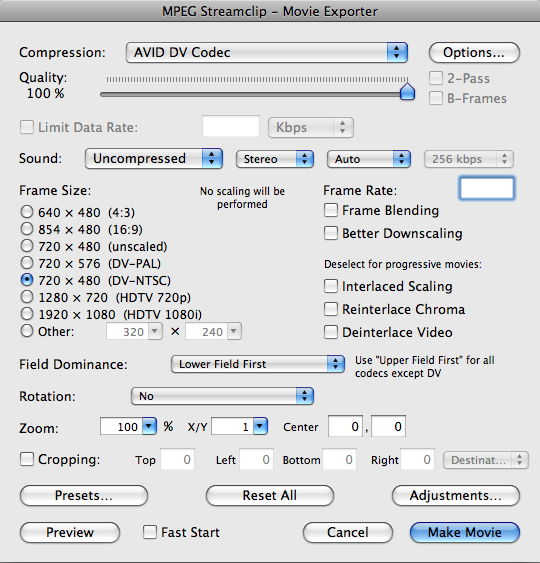
I set the basic import options as follows (if you have trouble seeing the screenshots, click them and they’ll enlarge in a new window). The main idea is to use the Avid DV codec at 100% quality, lower field dominance. If you’ve got 24p material on your disk you’ll want to de-telecine it, and you may need another application. I didn’t experiment with that.

MPEG Streamclip Options

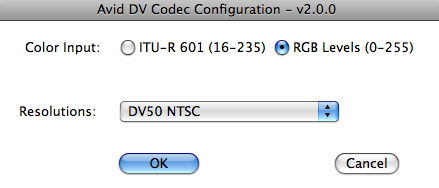
Click the Options button to reveal the Avid DV Codec options. Be sure to select DV50 and RGB levels.
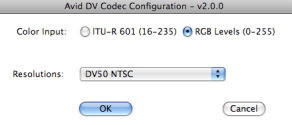
Avid DV Codec Options

Then click Make Movie to begin digitizing. On a dual-core Macbook Pro this took roughly real time. When you’re done you’ll have a Quicktime-wrapped Avid DV file.

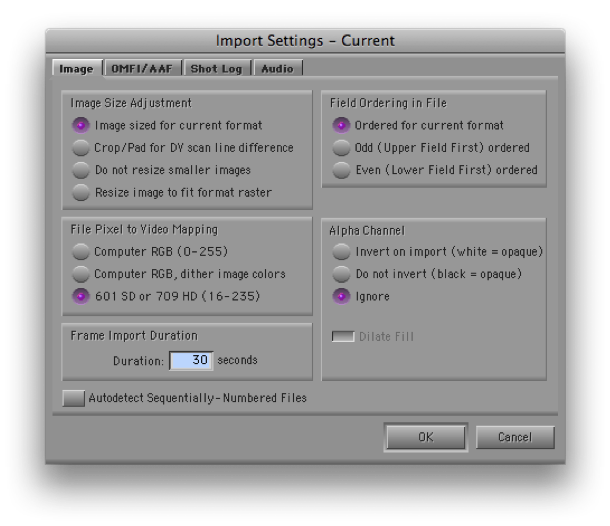
You now have to import this into the MC. The idea is to simply remove the Quicktime wrapper without altering the underlying video. To do that, you have to get the MC to do a “fast import.” Open your Import settings and set them up like this:

Import Settings

The critical settings are “Image sized for current format,” and “601 SD.” That’s right — you want RGB, but if you select “Computer RGB” the video will be re-encoded. The button is apparently misnamed — “601” really means “don’t muck with it.” Audio will come in first. When video starts loading make sure the progress bar says “fast import.”

When you’re done you should have a very clean-looking piece of Avid media. Mine was also very responsive, using a laptop with nothing but a Firewire 400 drive. To see the video in its full glory be sure to select the green/green quality setting at the bottom of your timeline.

Edit away, as needed.

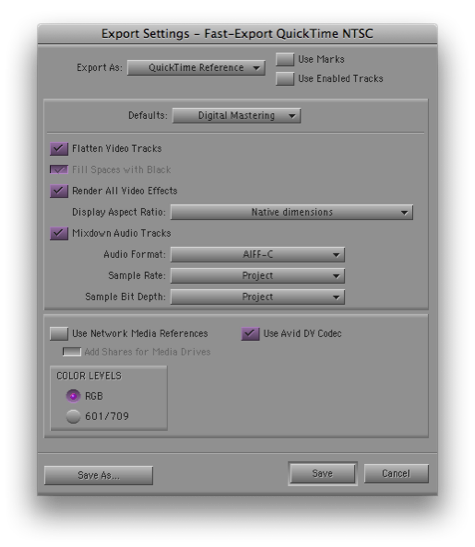
When you’re ready to output, your best and fastest option is a Quicktime Reference file. This references your Avid video media and avoids re-encoding it. You’ll want to use the Avid DV codec and set RGB levels, which is where you’ve been all along. (Of course, the reference file won’t work on another machine unless you bring your Mediafiles folder with you.)
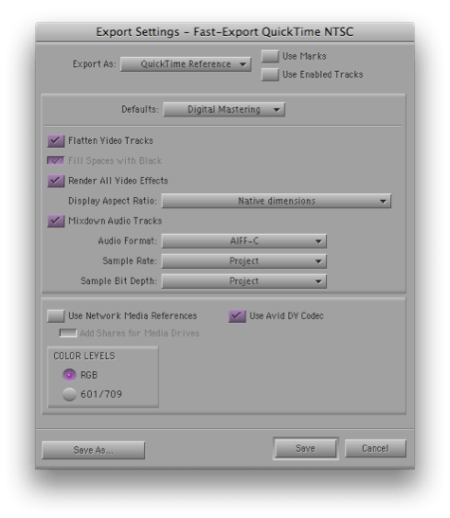
Export Settings

And that’s it. Seems easy now, doesn’t it? But I must have done 25 tests over a period of a week to get all this worked out, and there are issues I didn’t fully deal with (de-telecining and using the 5.1 audio, among others). There really ought to be a better, simpler way. But without extra hardware, this approach, or something like it, looks like the best you can do right now.

Many thanks to Rainer Standke, Michael Phillips, Jeff Ruscio, Michel Rynderman and everybody on Avid-l for their help with this.
“That Post Show” on Media Composer 3.5

May 5, 2009

that_Post_show_logo.pngI recently participated in the latest episode of the podcast “That Post Show.” It’s now on line and available for your listening enjoyment.

The group consisted of: Norm Hollyn, Bob Russo, Michael Phillips, Jason Diamond, Scott Simmons, John Flowers and me. We talked mostly about Media Composer 3.5, but also covered the FCP/MC competitive landscape, how to put together a unified set of software tools for editing, and other issues, as well.

For details, bios and to download the show go to John’s site: That Post Show.

Or you can just grab the episode from the iTunes Store.

It was a diverse and interesting group and I thoroughly enjoyed the experience. I’ll be curious to hear what you all think of it.

Whither Apple?

May 4, 2009

Now that NAB has come and gone and Apple made no big announcements, we turn to the ever-fascinating question of what’s coming from Cupertino. Final Cut Studio has gone two years without an upgrade. They are surely working on something, but they’ve also been distracted with the iPhone.

A story I like is that Final Cut Studio 3 will be revealed at the World Wide Developers Conference on June 8. Several sources suggest that the new version will focus on integration. Apple’s business model so far has been to buy promising Mac software, loosely integrate it, keep the price low, and democratize the market. You have to buy a Mac to use the software, so if necessary, it can be a loss leader.

Regardless of the power of the individual aps, smooth integration is what makes such software effective for editors. I’ve never been a fan of a loosely integrated suite. (See this post: Is the Suite Sweet? for more.) In my ideal editing environment you put all the tools to work on what some people have started calling a “common timeline.” Whether your tools are actually separate aps or simply modules within the same ap, the key is that they don’t create separate projects that have to reconciled. I don’t want to be conforming my own picture changes.

Adobe has promoted one way of doing this in its desktop publishing applications, allowing you to embed, say, an Illustrator file inside an InDesign document—you right-click on the embedded image to open it in Illustrator. That works, but you’ve still got separate files for each ap that you have to manage and back up. At some point, you start to wonder why everything isn’t under the same roof.

Apple is well-positioned now to focus on integration because they’ve already got a good collection of components. The question is whether they can roll it all together in a way that works for editors.

We’ll know soon enough whether Apple’s going to upgrade FCS at WWDC. In the meantime, what are you looking for from them?

The Ground Shifts

April 12, 2009

As we move into NAB time (the show starts Saturday), it seems to me that the Apple/Avid competitive landscape has shifted significantly. Final Cut hasn’t delivered a major upgrade in two years and won’t have a booth in Vegas. But Avid has been busy modernizing their feature set and doing serious work on reliability and performance. Two years ago Final Cut seemed almost unbeatable, and many people were predicting the end of Avid. Today, things look a bit more balanced. I participated in John Flowers’ “That Post Show” podcast recently and the consensus of the participants was that Media Composer’s new “Advanced Media Architecture” (AMA) is a big win for Avid. (The show isn’t online yet. I’ll post a link here when it is.)

You can work with just about any Quicktime media in FCP, and you can do it without conversion. That used to look like an important advantage. But today, many file-based cameras don’t shoot in QT formats. You can usually convert (“rewrap”) your media to QT — but if your format is supported by AMA, MC doesn’t ask you to do any conversion at all. You just grab the media and start cutting. Avid’s Achilles heal, the fact that it forced you to convert everything to its native formats, has morphed into a big advantage. And, strange as it may seem, the fact that Final Cut is tied so strongly to Quicktime begins to look like a limitation.

MC 3.0 brought big performance and stability improvements that were long overdue. I was able to work for three months with version 3.05 and could count the number of crashes I had on one hand. Final Cut isn’t nearly that stable. Version 3.5 brought additional improvements. And MC still beats FCP hands down for precise and complex trimming, something that many long-form editors, myself included, can’t live without.

It would be foolish to assume that Apple has been standing still these last two years, and I expect we’ll hear more from them soon. But in the meantime, MC is looking better and better.

24-fps Turnover to Sound

March 21, 2009

same-as-source-qt-export1In the old days, film shows turned over to sound via videotape and OMF. That meant sound got a 29.97 version of a show that was cut at 24, complete with the 3/2 telecine-style cadence inserted. It was an awkward and slow hand-over for both picture and sound.

Today, though most shows no longer deliver tapes to sound, many still create 29.97 Quicktimes, often for no better reason than, “it’s what we’ve always done.” But if you’re working on a 24-fps show, the easiest and simplest way to turn over is with 24-fps Quicktime.

Why are 29.97 QTs problematic? First, because creating a 29.97 QT from a 24 or 23.976 fps project doesn’t just mean introducing 3/2 — it means duplicating frames. That makes it awfully hard to cut sound effects precisely. Second, 29.97 QTs take a long time to make, wasting hours that picture assistants don’t have.

But if we turn over 24-fps Quicktimes, what settings should be used? And how should sound handle it in Pro Tools?

I’ve spent several days hashing this out with a music editor friend. I made a simple sync test: a head and tail leader with sync pops, separated by three minutes of filler and overlaid with an Avid Timecode Burn-In effect. From this I exported Quicktimes and OMFs, which my friend imported into PT. Then he added his own counters, compared them with mine and checked the pops. A pulldown sync error is about 1.5 frames per minute, so at the end of 3 minutes, if we’d screwed up, he’d be out by over four frames.

The whole thing is complicated by the fact that the Media Composer allows you to work in two kinds of 24-fps projects: “23.976p” and “24p.” The 23.976p project works like digital videotape. The 24p project works like film. (For details, see the post, Clarifying Avid Project Types. To figure out what kind of project you’re working in, go to the Project window and select the Format tab.)

Either way, you should select “Current” frame rate when you make your Quicktime. This will produce a Quicktime that is frame-for-frame identical to what you’re seeing in the Avid. (In a 23.976p project Quicktime will display a frame rate of 23.98, in a 24p project, it will display 24.)

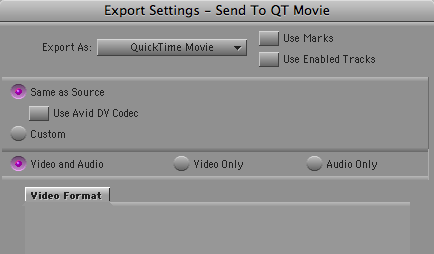
Choose any codec that you and your sound editors prefer. But consider using the Avid codec. That’ll produce the fastest QT conversion, and your sound editors will see exactly what you saw in the Media Composer. You won’t need to fool around with Quicktime export settings, either. Just select “Same as Source” in the Quicktime Export dialog and you’re all set.

To play these QTs, your sound editors will need to install the Avid codec. Many sound editors don’t have this, but it’s a trivial download and a simple install. You’ll find the codec here. (Avid really ought to make it easier to find.)

In Pro Tools, your sound or music editors will work as follows: If you are working in a 24p project, they’ll run picture and timecode at 24-fps. If you’re working in a 23.976p project they’ll run picture and TC at 23.976. Either way, they’ll play back audio at 48K (or 44.1 in the unlikely event that you’ve been working that way in MC).

That’s all there is to it. If you take the time to create a test like I did (always a good idea), your sound editors will see the tail pop from your OMF line up with the tail sync mark in your QT, and their TC counter will line up with yours. They’ll see exactly the same frames you did in the Media Composer, and your exports will be quick and relatively foolproof.