Restore Default Patch

Posted October 20, 2009 by Steve
Categories: Avid, Avid Technical Tips

It’s the end of a long day and you’re working on a complex timeline: eight or ten audio tracks, many video tracks. You’ve been patching your source material all day long and the patch panel is scrambled. Now you want to cut something straight across. Maybe you’re assembling two sequences together, maybe you’re integrating part of an old version. You want all your patching to go away, so you carefully re-patch, one track at a time. But all those track numbers start looking the same and sure enough, you make a mistake.

There’s an easier way. Hidden in the Special Menu is a option that instantly and reliably patches everything straight across: Restore Default Patch.
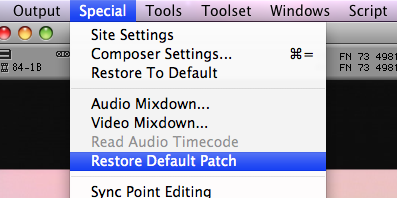
restore default patch 2

If you’re like me, you’ll probably want this command assigned somewhere on your keyboard. Then, with one button press, you’ll know you’re inserting material where it belongs.

Open the Command Palette (Command-3) and your Keyboard settings. Select “Menu to Button Reassignment.” Click the button you want to change, pull down the Special Menu and select Restore Default Patch. The letters RD appear on your chosen key. Hit it and standard patching is restored. I use it many times a day.

Undo Record Events Only

Posted September 15, 2009 by Steve
Categories: Avid Technical Tips

It doesn’t happen often, but running out of undos can be pretty frustrating. MC 4.0 makes that a lot less likely by increasing the number of undos from 32 to 100. (And of course it allows you to jump through multiple steps using the  Edit menu.)

One problem that many people encounter is how easily the redo list can be cleared. Just about any action (any “do”) will wipe out the list. That includes making a mark, or even just loading a clip into the source monitor. You’re working away, you undo a series of steps, thinking you can always redo them. And you load a clip, or make a mark. Bye, bye redo list.

But it turns out that there’s a setting for this. You can force the system to remember only record-side events. This makes the redo list significantly more resilient — making a source mark or loading a source clip will not clear it. The trade off is that you won’t be able to undo anything you did in the source monitor, but I find that I rarely need that. I haven’t used it extensively yet, but I’m optimistic that it’s going to work out nicely in practice. It’s called “Undo Only Record Events.” It’s in the Edit Tab of Composer Settings.

composer_settings 2

An Introduction to Transition Preservation

Posted September 11, 2009 by Steve
Categories: Avid Technical Tips, With Video

Media Composer 4 introduced Transition Preservation, Avid’s term for a group of enhancements that improve the handling of dissolves during editing. It’s one of those features that’s so intuitive that it immediately feels like you’ve been using it for years — and then you wonder how you did without it for so long. It’s all about timeline dynamics, and that makes it difficult to explain in words. So I’ve posted a video that explains it.

As mentioned in a comment from Grant yesterday, Transition Preservation might be all the reason you need to move to 4.0. Watch the video below or check it out a larger version on Vimeo.

New Features in Media Composer 4

Posted September 10, 2009 by Steve
Categories: Avid, Laptop Editing

16_track_mixer

Avid unveiled Media Composer version 4.0 today (press release). The headline feature is what Avid is calling Mix and Match — the ability to combine different frame rates in the timeline and play them without rendering. The demos I’ve seen are impressive. It’s so simple that there is almost no user interface. You just bring the clips in and play them. When you cut them into a sequence the mismatched clips get tagged with a frame rate in parentheses (similar to motion effects) and you see a tiny green realtime dot in the middle of the clip. And that’s all. The clips just play, and for the most part they look quite smooth. If you want to get fancy, you can change the interpolation method, and you can render. But generally, you don’t have to.

AMA got a few tweaks and stereo video editing got some improvements, as well. Neither of these will affect the majority of users, so I’ll leave them to others to discuss. More important to me, there are several useful editorial improvements, as follows:

  1. 16 tracks in the audio mixer.
    Yes, it’s true. You can finally see as many tracks as you can play. It seems like small thing, but every time I look at that big mixer I get a warm feeling inside.
  2. 100 Undos
    This will be a boon to anybody doing visual effects, where you seem to run out of undos all the time. (That’s because if you change a parameter by hitting the up or down arrow key a few times, every key press is remembered as a separate undo.)
  3. Auto-cropping in the stabilize effect
    You used to have to laboriously crop a stabilized shot. Now the effect will do it for you.
  4. Easier number entry on laptops.
    You no longer have to use Number Lock.  Just tap the control key twice, and you can use the number row.
  5. And the pièce de résistance — Transition Preservation.
    Briefly, this is a set of timeline modifications that make it possible to do three things:

    • Move clips around in segment mode without losing dissolves.
    • Edit from one sequence to another even when a dissolve is involved (no more error messages about breaking a transition effect).
    • Drag the edge of a clip through a dissolve and have the dissolve reattach itself.

Avid has been adding editorial features like these in each release and though some of the changes might seem minor, they have large implications for editors. And they’re beginning to add up.

More later — that’s just an overview. The official release date is September 30. (And for you students out there — upgrades to v4 are free.)

Assistant Editors and AMA

Posted September 4, 2009 by Steve
Categories: Quality of Life, Workflow

The more we move away from tape as a way to get in and out of an Avid — and the more we move to HD — the more people start to wonder what the assistant’s role is. Assistants used to have primary responsibility for input and output. Of course, that’s just one part of the job, but it’s a key part.

If you’re working with Avid Media Access (AMA), input seems to get a lot easier. All you do is hook up a drive, point the Media Composer at the drive and within a couple of seconds you’ve magically got yourself a bin populated with clips and containing column after column of neatly organized metadata. The first time you do this the whole world tilts before your eyes. Instant ingest. AMA works with many formats and, because Avid makes it possible for vendors to add formats on their own, more are coming.

But that initial, mind-bending experience is deceptive. First, AMA isn’t a slam dunk for projects that originate on film. So far, nobody has figured out how to get all the telecine data (key numbers and audio timecode) into AMA clips. But that’ll get worked out, soon enough. The real challenges are more mundane — organizing and archiving.

AMA allows you to work with media that does not live in an Avid MediaFiles folder. And that makes it much easier to lose it. Not as bad as Final Cut, where people have coined the phrase “the reconnect dance,” — but though AMA is reputedly smarter, things can still get lost.

More important, if we move to file-based ingest then in many cases assistants are going to be responsible for handling original materials. And that means making multi-terabyte backups religiously, keeping them organized, and storing them securely offsite. Editors and assistants are not used to this responsibility.

My sense is that after the initial euphoria of “instant bin creation” wears off, we’re going to realize that file-based workflows, like so many other digital innovations, while slick as can be, actually complicate things and create work rather than eliminate it.

It used to be that every show inaugurated a new sound workflow. Now, with digital camera formats proliferating, every show inaugurates a new vide0 workflow, too. Things are getting more complicated. And our responsibilities and workloads grow bigger, not smaller.

Multitaskers Ain’t Good at It

Posted September 3, 2009 by Steve
Categories: Media and Society

In case you missed it, researchers at Stanford recently published a study about the abilities of heavy multitaskers. And they found that heavy multitaskers were less able to organize information, less able to ignore irrelevant information, less able to switch from one task to another. This is exactly the opposite of what the scientists expected.

Some key quotes:

“We kept looking for multitaskers’ advantages in this study. But we kept finding only disadvantages. We thought multitaskers were very much in control of information. It turns out, they were just getting it all confused.”
— Eyal Ophir, lead investigator.

”The huge finding is, the more media people use the worse they are at using any media. We were totally shocked.” “Multitaskers were just lousy at everything.”
— Clifford I. Nass, investigator.

Details are in these two New York Times articles:

Study Finds People Who Multitask Often Bad at It
The Mediocre Multitasker

It seems that we are drawn to newness and novelty like moths to a flame. No wonder people are texting at the wheel. Call it information addiction. Chemicals not needed.

