New Avid Video Tutorials

Posted March 11, 2009 by Steve
Categories: Avid Technical Tips

Avid has begun to put up well-designed video tutorials for some of the new features in Media Composer. There are only a few so far, but they’re tight, effective and very useful. You can find them on this page, under the “Take A Tour” button. (Older tutorials are here.)

Assistant editors who aren’t familiar with the new timecode plug-in will find an excellent introduction to that powerful feature. You should note that the plug-in is even more powerful now, in version 3.5. It not only lets you burn in any numerical data that can be displayed above a monitor, but you can also add info from any bin column. For example, you can now easily make a tape that displays running timecode (24, 25 or 30 fps), keycode, tape roll and source timecode for every clip, as well as “property of” text — all in real time.

Congratulations to Lesley Glorioso, Michael Phillips and Steve Holyhead and for putting these tutorials together. Keep up the good work, folks.

Your Avid on the Mixing Stage

Posted March 6, 2009 by Steve
Categories: Avid Technical Tips, Laptop Editing

Tags: , , ,

It’s rare to see an Avid on a dubbing stage. The conventional wisdom is that it’s not needed because everything has been turned over to sound and you’re (hopefully) not planning on any picture changes. The sound effects editors are going to bring an OMF copy of your cut and that’s supposed to be sufficient. In the past, it’s also been difficult to move your Avid, and that, more than anything, has ensured that we picture editors don’t come to the stage equipped with our gear.

But with the advent of MC software and big, inexpensive drives, that equation has changed. You can bring your entire project and all your media with you, and it turns out that this can have some significant advantages, namely access to your original cut, and to your track layout. So if you hear dialog that doesn’t sound right, or if a sound is missing, you can quickly figure out what went wrong.

Editors, producers and directors all fall victim to what we call “temp love” at some point. The mix you did in the Media Composer has been evolving for months and it’s inevitable that there will be some things that people will want to preserve. But recreating those things usually stops the mix cold and frustrates everybody. Being able to identify exactly what you want and where it is can be a big win for all involved.

Here are some tips:

  • You’ll create a drive with all your media on it. And it’s going to take many hours to do, even with Firewire 800. Don’t wait till the last minute.
  • Be sure to quit your Media Composer while you’re copying — otherwise the MC will see all that duplicate media, which is likely to cause problems.
  • If you’re running from Unity with many partitions, it’s probably a good idea to format your portable drive to mirror the Unity partitions. That makes it easier to confirm that you’ve got everything. It also makes it possible to let your portable drive double as a full media backup.
  • To confirm that you’ve got everything, you’ll want to use some kind of software comparator. A good and inexpensive solution is Compare Folders. You simply point the application at two folders and it tells you whether they match, and if not, what’s different. Sure beats the heck out of trying to do it by hand.
  • Unity creates individual folders for each user on every partition. But Media Composer software can’t see OMF media in those subfolders. This is a real pain and something Avid ought to deal with (MXF media works differently, which is one advantage of that format). The solution is to copy each partition with the subfolders intact, then color-code each folder and all the files within, and only then pull all the media out of the subfolders. You should also trash the indexes — the .pmr and .mdb files. Sort by “kind” to find them.
  • Once you’ve got your media copied properly, you’ll want to “flight test” it on your laptop. Be sure to allow time for this. Copy your project to the laptop, connect the drive and start up the MC. Each partition will be indexed. This can take several hours.
  • If all goes well, your entire project should be on line. To confirm it, select Clip Color > Offline in the timeline popup menu. (And turn off everything else in that submenu — different coloring options can interfere with each other. See this post for details.) Then open each sequence of your cut show. You should not see any red clips.
  • If you have two copies of your project, make sure you know which one you’re working from. If you copied your project partition to the portable drive, you’ll have one there, and probably should use it. But you also may have one on the laptop’s internal drive. Changes in one won’t be reflected in the other.

That’s way too many potholes for something that ought to be simple and routine, and Avid really needs to take another look at simplifying media copying (more at this post). But even with all the hassle, having your Avid on the stage can be a big advantage and well worth the effort.
Avid Improves Red Support

Posted March 5, 2009 by Steve
Categories: Avid, Workflow

Avid introduced native Red camera support today via an upgrade to Avid DS that permits it to import native Red (R3D) material directly. The idea is that you’ll convert your red footage to DNxHD via Avid’s Metafuse product (PC only, or on Mac under emulation). You’ll then edit as usual in Media Composer, using the compressed HD material. And you’ll conform and color correct in DS at full resolution with proxies, if needed, for realtime playback.

For more, see today’s press release, or the Avid Red site.

Media Composer 3.5

Posted March 2, 2009 by Steve
Categories: Avid

Tags: , , ,

Avid is releasing Media Composer 3.5 today (with parallel updates to Symphony and Newscutter). It’s a big release and should have something for everybody.

Here’s an overview, based on an Avid conference call, Friday. There are some revolutionary changes, and some more pedestrian improvements, as well.

  • The End of the Dongle. Yes, it’s true. 3.5 will allow you to license your software over the net and get rid of that pesky little piece of plastic. (You can still use your dongle with this version if you prefer, but over time Avid plans to phase it out.) The software will give you 14 days to register, which results in a 14-day free trial period.
  • Avid Media Access (AMA). This is Avid’s new plug-in architecture for diverse media types. Initially it will support Sony XDCAM and Panasonic P2 flash media, allowing editors to work with these files on the flash card or on any drive that they’re copied to. You won’t have to import any longer — the MC will work the media in it’s native form. And you can store and work with this media anywhere you like — no need to keep it in a MediaFiles folder. This breaks one of our longest standing traditions, namely that your Media Composer takes care of organizing your media. The new approach is easier and faster, but it makes it easier to lose your media. Avid will encourage camera manufacturers to write plug-ins for AMA themselves, speeding development and improving compatibility with new media types.
  • Support for 3D Cinema. Avid is now offering simultaneous tracking of both cameras. You can work on either one or see them displayed together, one over the other.
  • Keyframeable Color Correction. You’ll finally be able to ramp corrections within a shot.
  • Fluid Stabilizer. A new, more intelligent motion tracker.
  • Media Composer and Pro Tools on the same workstation. You won’t be able to run them at the same time, but you can put them on the same CPU without problems.
  • 12 Channels of audio I/O via HD-SDI.
  • Simultaneous output of SD and HD. In Symphony, with frame accuracy.
  • Audio Improvements. The ability to set clip gain on import, and to change clip gain on a group of clips all at once, which should save a lot of keystrokes for some people. And the inclusion of several new AudioSuite plug-ins.
  • Improvements to the Timecode Burn-In Tool. You’ll now be able to display the contents of any bin column, live over video, without rendering. Clipname, ink number, audio timecode, whatever you like.

That represents a whole lotta work for Avid’s engineers and I applaud them for it. It modernizes the application in some important ways. Dumping the dongle is a big win in my book. The little thing is a hassle and I’m always afraid of losing it. AMA is a big win for people in documentaries and reality TV, and over time it will probably affect all of us. The same is true of the new tools for 3D — you probably don’t need it now, but you might in the future. The Fluid Stabilizer and keyframable color correction are nice features that I’ll be happy to use from time to time.

For details, see Avid’s press release, or the Media Composer product pages. Strangely, the home page just offers a small link to the press release.

IATSE Memorandum of Agreement Posted

Posted February 26, 2009 by Steve
Categories: Editors Guild

According to Nikki Finke’s “Deadline Hollywood” blog, the IATSE locals will send out ballots on the new contract this week, but will not send out the memorandum of agreement itself. This would be pretty surprising — they’d be asking us to vote on a critical contract without seeing it in print. Ron Kutak had previously indicated in an email to Editors Guild members that the memorandum would be included in the packet. In any event, you can view it here. I find it pretty sobering. [Update — I just received the ballot and the memorandum was indeed included.]

The health plan provisions for out-of-network doctors are even worse than I mentioned earlier. The plan will reimburse only 50% of out-of-network costs, based on “the 70th percentile” of the “usual and customary” rate (which, as mentioned earlier, was recently determined to be fraudulent in a case before the NY State Attorney General’s office). For those of you without a math background that’s 50% of 70% of what they think it ought to cost (“70th percentile” isn’t quite the same as “70%” but without access to the actual fee schedule, it’ll have to do). If you get a bill for $100, they will very likely figure it’s really worth $80 or so. Then they’ll pay roughly 50% of 70% of the $80 or a lousy $28 on a $100 charge. Worse, there used to be a “stop-loss” provision for out-of-network expenses, which would limit the yearly amount you’d owe to $1100 not including co-pays. In the new contract, that limit will be eliminated entirely, meaning that you could be liable for a great deal of money. Like I said, you ain’t goin’ outta network anymore.

For additional details, read Nikki’s post or the 400 Hours blog. Local 600 has also posted some materials on their website.

EditCalc

Posted February 24, 2009 by Steve
Categories: Avid Technical Tips

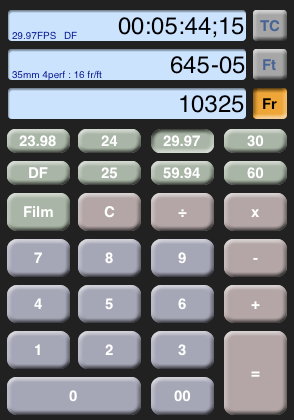
editcalcEditCalc is a new timecode and feet+frames calculator for the iPhone and iPod Touch. I’ve only had a quick look at it, but it seems quite polished, and it handles just about any frame rate or film gauge you can throw at it, including 16mm, 35/3-perf and 70/5-perf.

It does simultaneous conversions while you work — do a calculation in the time, footage or total frame fields and the others update live. It supports a wide range of video frame rates, along with drop and non-drop TC. You can also see a history of previous calculations, so you can check your work. The Avid calculator will do some of the same things, but it’s not as slick or well thought out.

