A PPO in Disguise

Posted February 22, 2009 by Steve
Categories: Uncategorized

There’s been a lot of debate about the new IATSE contract, especially regarding the requirement, in the third year, that members work 400 rather than 300 hours to get six months of coverage. What has gone almost unnoticed is the change in payment for “out of network” doctors. The plan used to pay 70% of the customary rate (more on that rate in a minute). In the new contract it’ll pay just 50%. That makes it a lot more painful to go out of network. Just a doctor visit and a few tests could set you back hundreds of dollars.

The health plan, which used to pay everything promptly and without argument, has morphed into an amalgam of a de-facto HMO (the Motion Picture and Television Fund clinics), and a PPO, Blue Shield of California.

This works fairly well for routine problems. But in special circumstances I’d like to know that I have the option to use any doctor, at a reasonable price. Many of the best doctors are now refusing to sign up with any insurer. The fact that we’ll only receive 50% of the standard rate for those docs seems at least as problematic to me as the new 400-hour requirement.

And regarding those customary rates? It turns out — big surprise — that they’re rigged. The large insurer, UnitedHealth, also owns Ingenix, the company that works out these numbers for the entire industry. This is an obvious conflict of interest and, sure enough, they have just settled with NY District Attorney Andrew Cuomo, who said the industry had engaged in “a scheme to defraud consumers” by systematically underpaying the nation’s medical bills. Details are in this NY Times article.
Sync Locks and Why You Need Them

Posted February 16, 2009 by Steve
Categories: Avid Technical Tips

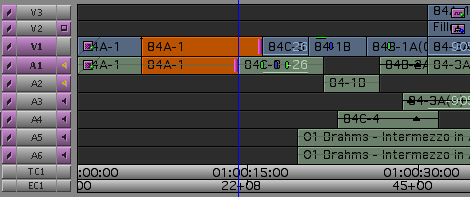
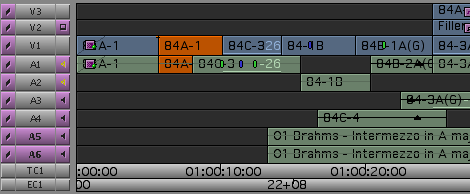
I’ve noticed that a lot of people don’t turn sync locks on in the timeline. That seems like a shame to me. In the old days this feature was buggy and many people ended up avoiding it. But now I leave them on all the time. The reason is simple — sync locks allow you to make complex trims on multi-track sequences all day long and still be in sync when you’re done.

Specifically, it means that when you’re trimming, you can ignore any track that contains black at the blue cursor. No more need to create add-edits in black and put rollers on them. And no need to get rid of those add-edits later.

You can go from the first image below to the second in one step. Even though trim rollers are only on V1 and A1, everything stays in sync, and all downstream clips move forward.

sync locks - before trim.png

sync locks - after trim.png

In some cases, the blue cursor doesn’t necessarily need to be parked over black for sync locks to work. Nearby black will be trimmed, if necessary. But it’s not always clear what’s going to happen, so it’s probably better to use them only when the blue cursor is actually sitting on black.

Sync locks also allow you to extract a chunk of material in all tracks without having to turn them all on — all you need to do is enable a single track. When you hit the extract key you’ll pull material out of all tracks with sync locks.

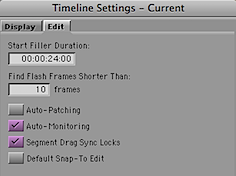
In general, sync locks don’t affect segment mode. So you should still be careful with sync when dragging clips around. A setting can help — but it’s quirky. It’s in timeline settings, under the edit tab: “Segment Drag Sync Locks.”

Timeline setting - segment drag sync locks.png

If you turn it on, sync locks will help keep you in sync in segment mode, but segment mode might not behave as you expect. For example, if you’re in yellow segment mode and you want to rearrange some picture clips, you’ll end up recutting any audio in that area — even though you’re not changing sync and you haven’t touched the sound. That’s just bad and ought to be fixed pronto. The tradeoff is that you will be able to move L-shaped picture and audio clips together, inserting black as needed to avoid unnecessarily chopping things up. That’s so tantalizing that I’ve left this setting on for months now trying to get used to it. But I’ve reluctantly decided to leave it off. Avid badly needs to take another look at this. It wouldn’t take much to make it work well.

None of this however, changes the fact that I live by sync locks. If you’re in segment mode most of the time you may prefer them off, but if you tend to be in trim mode a lot sync locks should be your friend. If you haven’t tried them lately, you might want to take another look.

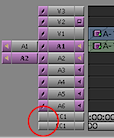
Keep in mind that sync locks are remembered separately for each sequence. So you’ll need to turn them on every time you make a new one. To turn all sync locks on at once, click the rectangle under the sync locks column in either EC1 or TC1. To turn them all off, click there again.

Turn on all sync locks at once.png

“Innovation in Hollywood”

Posted February 16, 2009 by Steve
Categories: Media and Society

Author Scott Kirsner will host a panel discussion on new technologies and how they’ve been adopted in cinema, from Thomas Edison to the present. It’ll take place this Thursday, Feb 18, at 5 pm at the Annenberg Auditorium at USC. Scott has written two valuable books on digital cinema and he’s now responsible for two blogs: CinemaTech and Innovation Economy.

Details are here: Innovation in Hollywood: Past, Present & Future

The Editors Guild’s New Available List

Posted February 8, 2009 by Steve
Categories: Editors Guild

Tags:

As most of you know, the Editors Guild supplies an “available list” to employers who request it, listing all unemployed members in a particular classification. But what you may not know is that the Guild now supplies resumes for everybody on the list. I recently had reason to use this feature, and I think the resumes are a game-changer.

The old available list only provided names and contact information. That meant that an employer had to already know your name to be interested in hiring you. At best, it created a reaction like this, “Oh yea, I know him/her. I’ll call and ask for a resume.” Editors would often call friends and read the list to them, looking for someone they knew. The resumes work differently. They allow an employer to learn about people they don’t know. As an employee, it has the potential to introduce you to a much larger group of potential employers.

Editors Guild members can create or update their credit lists at the Members Only section of the Guild website. Many people already have them. But others don’t, or haven’t updated them in years. In addition, there’s lots of room now for information above and beyond a simple credit title — editors, directors, producers, awards, comments, etc. Because many credit lists began as printed directory listings, that info is often missing.

I strongly suggest that you log on and have the site display your finished resume. Look for errors and omissions and make adjustments as needed. Assistants should be sure to include the names of the editors and directors they’ve worked for. This may take a bit of work (the site can be pretty slow), but if it gets you one job, or helps you make one new contact, it’ll be worth it.

One tip — if you’re entering your credits from scratch, be sure to input them in the correct order — and to be safe, check the display order as you go. My list was completely mixed up and fixing it was an exercise in slow-moving frustration, since you have to move each and every credit, one … position … at … a … time.

Your final step should be to list yourself as unemployed, as soon as you’re off work. (Or sooner — the site allows you to specify a date after which you’ll be unemployed.) Otherwise your name won’t appear on the list.

Moving Individual Settings Between Machines

Posted February 4, 2009 by Steve
Categories: Avid Technical Tips

Sometimes it would be helpful to transfer an individual setting pane from one system to another — without bringing in an entire user profile. It turns out that this is trivially easy, but few people seem to know about it.

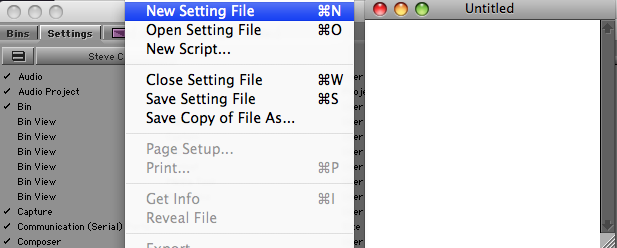
First, click the settings tab in the project window. Then select “New Setting File” from the File menu. An “untitled” window appears.

New Setting File Window

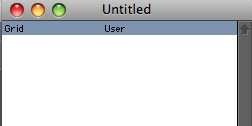
Now just drag a setting or settings from the project window to the untitled setting window. It will be duplicated into the new settings window.

Settings File

Now simply select “Close Setting File” from the File menu, indicate that you want to save it, and specify a location. This will create a .avs file on your disk. Note that you don’t want to select “Save Setting File,” because, perversely, you won’t see a Save dialog this way. The file will be saved to your Avid user folder with the name “Untitled,” and you’ll have to navigate there to find it.

Move the .avs file to another system, click on the settings tab and select “Open Setting File” from the File menu. The setting window you saved will open. Then just drag the setting to your project window. The MC will ask you if you want to overwrite the existing version of this setting or create a new one. You’ll probably want to create a new one so you can go back to your old setting as needed. Name the new setting as needed, and activate it by clicking to the left of  the name.

Note that you don’t want to double click on the .avs file. On my Leopard Mac, the OS sees the file as a Photoshop file and opens Photoshop rather than MC.

That’s it. You’ve moved a setting from one machine to another.

Technorati Tags: , , ,

Deleting a Clip in One Step

Posted January 24, 2009 by Steve
Categories: Avid Technical Tips

Back in the old ABVB days, if you wanted to delete a clip you simply selected it in segment mode and hit the delete key. But Meridien changed that. If a clip contained effects, (or, in the case of an audio clip, if it contained volume graphs), then selecting and deleting only deleted the effects. You had to re-select the clip (or clips) and hit delete again to make it disappear. The re-selection turned out to be a pain, especially if you were trying to delete several clips at once.

Well, it turns out that the Media Composer does indeed offer a shortcut for single-step clip deletion. It’s the ordinary cut command (command-x on the Mac, ctrl-x on the PC) — but with segment mode turned on. To delete a clip in one step, hit red segment mode, click the clip and then hit cmd-x. The clip goes away. (This is different from hitting cut when segment mode isn’t on. In that case you’ll cut everything between your marks.)

A couple of additional tips:

  • The cut command obeys the segment mode you’re in. If you’re in extract/splice-in (yellow) the clips are extracted. If you’re in lift/overwrite (red), they’re lifted.
  • You can use this command to delete a range of clips without selecting them all. Click the first and last clips in a group and hit cmd-x and the clips will disappear along with everything in between.
  • The material you cut goes to the clipboard. So if you want to put it somewhere else just load clipboard contents into the source monitor (with the clipboard button or the pull-down menu above the source monitor) and edit as needed.
  • Since the material goes to the clipboard, it’ll obey the paste command (command-v), inserting it at the current cursor position. If you prefer an overwrite, then select lift/overwrite segment mode first.

Technorati Tags: , , ,