What You’re Missing In Meridien

Posted November 18, 2008 by Steve
Categories: Avid Technical Tips

This is going to sound like a plug for the Media Composer, and I guess it is, but if you’re not using a new Avid (version 3.0.5 or beyond), you’re missing out on a lot of new functionality that has gotten into the system over the last couple of years. Avid has not done a good job telling editors about this stuff, but for me many of these features are now requirements — I don’t want to work without them.

If you’re still using Meridien, this is what you’re missing:

  • 16 tracks of playable audio.
  • Realtime audio dissolves.
  • Multiple tracks of realtime visual effects.
  • Select everything to the right. This function, new in 3.0.5, makes it easy to open up space in the middle of an overlapped sequence. I use it every day now. (Covered in more detail in this post.)
  • Realtime timecode burnin. Display timecode, keynumbers, footage, a title and any data you want from bin columns — without rendering.
  • Stabilize effect. It let’s you smooth out a rocky shot, or even add a steadicam look to a static shot. (Covered here.)
  • Spectramatte. One button gets you a clean, realtime, greenscreen.
  • Faster waveform display (still not perfect, but good enough to leave on most of the time).
  • Much faster saves, even with big bins. (And autosave now works correctly. In older releases of Adrenaline, autosave saved every bin, whether it had changed or not.)
  • Timeline responsiveness. Earlier versions of Adrenaline couldn’t keep up with timeline dragging.
  • Overall responsiveness. Eight-core Macs make for a fast Avid.
  • Stability. I’ve been working with a Mac Pro and version 3.0.5, with Adrenaline and Unity for five weeks now with only one crash (in standard def., mind you).
  • Scroll Wheel support. If you have a mouse with a scroll wheel, you can use it to navigate bins or the project window.
  • OS X Leopard. Complete with Quickview, Spotlight and Time Machine.
  • Improved locators. They now work the way they did in ABVB. Hit a locator button and get a locator. No need to see the dialog box anymore, unless you want to.
  • Additional improvements to segment mode. The ability to select and move any arrangement of clips; the ability, at long last, to move a stereo pair from one adjacent track to another; better preservation of dissolves when dragging clips around.
  • Improvements to trim mode. The ability to select two head or tail frames and trim them together and stay in sync.
  • Restore last trim. One button brings your rollers back where you left them.
  • High Def. The pièce de résistance. With the new Mojo or Nitris hardware, or with software-only systems, I’m told that HD now works well. (But I haven’t used it in a production setting, so I can’t vouch for that.) With today’s storage prices, and the DNX36 codec, HD just isn’t that expensive anymore.

Bottom line: It’s time to try a new Media Composer. Yes, there are still bugs, and you’ll find them. But if you’re like me, once you begin using a up-to-date system, you’ll wonder how you lived without these new features for so long.
Technorati Tags: , , ,

Taking Work on the Road

Posted November 9, 2008 by Steve
Categories: Avid Technical Tips, Laptop Editing

Many of us have been sorely frustrated by how difficult it is to pack up media for work on the road. In a typical situation you want to take a scene or a couple of scenes home and work on them on a laptop. You don’t want all the media for your show, just a small subset. You need to identify all the media for a specific bin and copy it to a portable drive.

The old and slow way to do this is to reveal file on each of your master clips and then copy those files in the Finder. It’s a laborious process and easy to screw up.

But it turns out that there’s a much easier way. It’s hidden, but when you know how to set it up it does what you want with a lot less work. It’s under the Export menu.

Open the bin you’re interested in. Select all your source clips — master clips, subclips or groups. No need to find the source master clips.

Then select Export from the File menu.

export-dialog

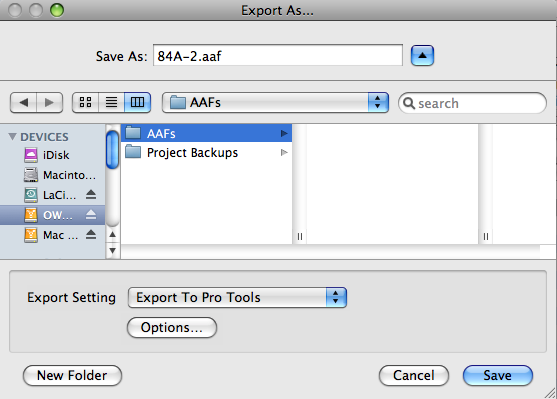
Start by selecting an export setting. The easiest place to begin is with “Export to Pro Tools.” Then click the options box.

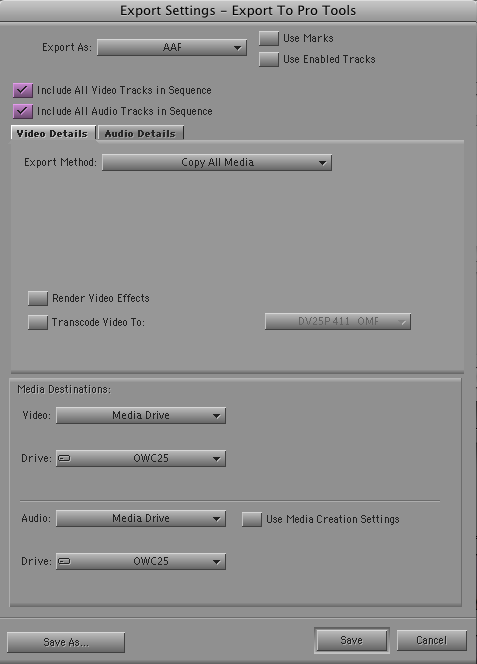
Here’s where things get counter-intuitive. For “Export As:” select AAF (or OMF). You have to make an AAF for every clip. You won’t need these files, but the MC insists on creating them. To keep them organized, ceate a folder on your export drive for them.

Then select “Include All Video Tracks in Sequence” and “Include All Audio Tracks in Sequence.” This is true even though you aren’t exporting a sequence at all.

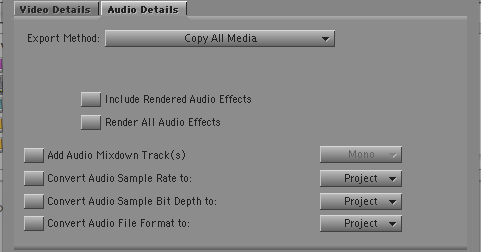
In the audio and video tabs, select “Export Method: Copy All Media.” This is the crucial step. You’re not consolidating — just copying. If you don’t, you’ll create a bunch of “.new” clips. Leave all other options unchecked. Select a destination drive (a “media drive” not a “folder”) for both video and audio.

Here’s the video tab:

export-video-tab2

And the relevant part of the audio tab:

audio-settings

When you’ve got your options set up correctly, hit Save and then select Save again in the Export dialog.

A new MediaFiles folder will be created on your target drive and the MC will copy all relevant media to it. The folder you made to hold the AAFs will get an AAF file for every source clip. You won’t need those files and, for reasons that will be clear in a moment, you probably want to delete them.

You’ll have to copy the bin (or bins) you need to your laptop manually, but that should be easy. It will automatically link to the new media — no relinking needed. (I’m told that on PC-based systems you may have to delete your media databases on the portable drive.)

One nice additional feature is that in the future, if you add a material to a bin and need to export the media again, the MC will intelligently decide which files already exist on your external drive and will copy only those that aren’t already there. And that’s why it’s handy to delete your AAFs/OMFs. If you leave them alone, the MC will ask to overwrite them, one laborious file at a time, and you’ll have to confirm a separate dialog box for each clip. It’s much easier to have the MC recreate them all.

This process isn’t exactly intuitive, but it’s easy to do once you know a few tricks. It should make it a whole lot easier for editors to take work on the road.

Technorati Tags: , , ,

Avid Sells Softimage to Autodesk

Posted October 26, 2008 by Steve
Categories: Avid

Avid announced a $66 million third quarter loss on Thursday, along with a “reduction in workforce” (that is, a layoff), and the sale of Softimage’s 3D compositing applications to Autodesk. When one-time charges are excluded, the quarterly loss was much smaller.

The details are in this press release and this Yahoo news story.

It’s not surprising that Avid has to make changes like this in the current economy, and frankly, I never saw how the Softimage 3D applications really fit in with the company’s overall strategy. But there are some key questions that were left unanswered in these news stories, namely how big the layoff was, and who was let go. Also not clarified: what’s happening with Avid DS. It appears that Avid will continue to develop the DS product line, but the press release was pretty vague.

Avid paid $268 million for Softimage in 1998. This week the sale price was $35 mil.

Technorati Tags: , , ,

Debates and Reaction Shots

Posted October 9, 2008 by Steve
Categories: Media and Society

I’ve caught all the debates so far, and, regardless of your political persuasion, I think you’ll agree that they might better be called, “How to avoid answering the question by replaying sections of my stump speech.” The candidates negotiate and sign long, multi-page contracts that specify what they and the anchor can and cannot say and do, turning these important events into something almost entirely canned.

But one critical issue that I have not heard mentioned elsewhere regards editing: Who is doing the technical direction, the live cutting? Presumably it’s one person — because as far as I can tell, all the networks are running the same feed. Are the editing choices part of the contract, too? And, if so, shouldn’t that be disclosed?

We who cut dialog for a living know only too well that the listener is at least as important as the speaker. But the debates have been woefully lacking in reaction shots, which, because they can’t be scripted, might be the only aspect of these events that isn’t controlled.

In earlier rounds, we saw a refreshing use of split screen, allowing us to look at both candidates simultaneously. And just as in a dialog scene, it was often far more interesting to see how the candidates listened and reacted to criticism, than how they talked.

But the last debate, the so called “town meeting,” included almost none of that. In the wide shots I noticed McCain wandering around the stage and grimacing from time to time, and after the debate some commentators referred to this, but at home, we rarely saw it.

The question is why. We’ve got plenty of bandwidth now. Maybe instead of running the same feed on ten channels we could devote one to each candidate. Or maybe we should have one channel (CSPAN?) run a split screen continuously. Who knows? That might get better ratings than the bland, predictable stuff we’re seeing now.

Technorati Tags:

Media Composer 3.0.5 / Select Right

Posted September 30, 2008 by Steve
Categories: Avid Technical Tips

Media Composer version 3.0.5 was released this week and, along with some key bug fixes, it offers a couple of important new features.

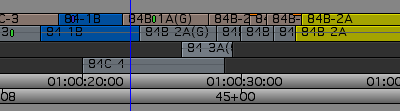
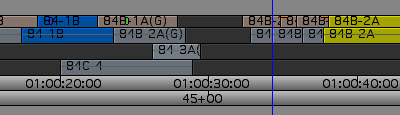
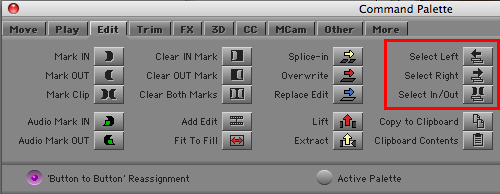
First and foremost, it allows you to select all clips to the right or left of the blue cursor, or all clips between marks. This makes it trivially easy to open up space in the middle of a complex, overlapped timeline. Just select all tracks, hit the new “select right” button and drag everything to the right. Voila, you’ve got a nice empty space in your timeline, without cutting up any clips or doing any cleanup work. Final Cut has had a similar feature for a long time, but it’s a valuable and nicely implemented addition to the MC.

Select Right makes it easy to go from this:

to this:

You’ll find buttons for these new features in the Edit tab of the command palette.

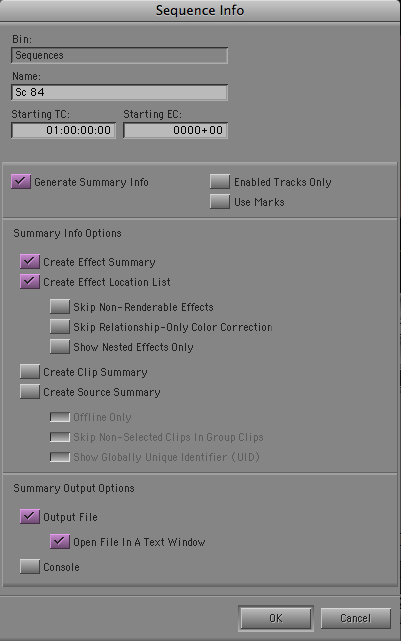
Second, you can now generate a report with lots of useful information about a particular sequence or source clip. You’ll find this in the “Get Clip Info” or “Get Sequence Info” windows, which have been expanded. For sequences, you can list all your effects or sources, among other things.

You access these reports by clicking in the source or record window and selecting “Get Sequence Info” or “Get Clip Info” from the File menu. You can also use the contextual menu — on the Mac, hold down shift and control and click on the source or record window.

Other changes in this release include a very important fix to the Save All command so that Autosave doesn’t waste time saving unchanged bins (hallelujah!), and a fix to the burn-in tool so it doesn’t crash over black segments when showing source info. There’s also a fix to trim mode so that when trimming two head or tail frames (a new feature in version 3) you’ll hear correct scrub audio. There’s a helpful fix to segment drag sync locks (in timeline settings), and a fix to the locator window so you don’t have to see it every time you create a locator.

All in all, this is a very useful release. Avid says it has only been qualified for OS X 10.5.4. I installed it on 10.5.5 and it seems okay so far.

If you’re using Media Composer software-only and you’ve already got version 3, you can download the update here. As usual, you must uninstall first. Avid really ought to fix that. The system should check for updates and do whatever uninstalling is needed automatically.

Technorati Tags: , , ,

The Virtualization of Money

Posted September 24, 2008 by Steve
Categories: Media and Society

I’ve become a news junkie over the last few weeks, and reading the financial pages, I’m starting to wonder whether it isn’t the computers themselves that have done us in. In post production, we’ve seen how the digitization of physical materials has transformed our world. The process of virtualization, of turning real things into their digital analogs, which so disrupted our lives fifteen years ago, has now insinuated itself across the culture, and most significantly, into Wall Street.

When people loaned money fifty years ago, they did it against collateral that you could touch and feel. But today, most loans are made on derivatives — complex virtual “instruments,” composed of tiny pieces of myriad other loans, made possible only in an age of ubiquitous high-speed computing. They were traded and re-traded, sliced and diced and hedged with even more complex and arcane products, with huge sums moving in “flows” and with traders handling nothing more real than a computer keyboard.

Which is all fine and good as long as nobody starts to ask the “elephant in the room” question: What’s it all worth?

It seems like traders and investors are now collectively starting to wonder whether they have sliced and diced these instruments so finely, and traded them in such complex ways, that they are really funny money — nothing more than worthless bits and bytes, suspended in the digital river only by the confidence of investors who, it seems, don’t really understand them at all.

The Fed now wants to get rid of these things by simply buying them up en masse. It’s a nice trick. Create products that the computer tells you are real. (Don’t question that computer!) And when it turns out that they represent nothing at all, get rid of them, make them disappear. There’s only one small catch. To replace the virtual thing with the real thing you need the real thing — in this case, money. And somebody has to provide it.

Technorati Tags: