Apple’s Post-NAB Roadshow

Posted May 16, 2007 by Steve
Categories: Avid vs. Final Cut, Final Cut, User Interface

It isn’t news that vision and leadership are the key ingredients in the evolving non-linear editing wars, but it was reinforced at yesterday’s “Final Cut Studio 2 Tour” at the DGA in Hollywood. I didn’t make it to NAB this year, so for me, and apparently for the rest of the audience, this was a chance to get up close and personal with the new announcements. As usual, Apple put on a great show. The presenters, led by Richard Townhill, were smart, engaging, knowledgeable, and though the show was well-rehearsed, it had a folksy quality that was very appealing.

I’m guessing that about 400 people attended — almost all of them men. (By my count there were just 11 women in the room, including two who were translating the event for the deaf.) I didn’t recognize a single editor, which means that there wasn’t much of a presence from features and long-form TV. Most attendees seemed pretty familiar with Final Cut.

The event consisted of a series of demonstrations, and there was so much to show that I often felt that features were glossed over. There was no Q&A at all, and I left with many questions unanswered.

What struck me was how willing Apple is to fundamentally re-envision basic editing features. I’ve been saying this for a long time, but it bears repeating — there is plenty of room for improvement in our tools.

What we didn’t see was much change in FCP itself. I continue to be frustrated by its anemic trim controls and I had hoped to see change in that area this year. No joy.

Details and impressions:

Motion

Motion gained some beautifully integrated 3D capabilities. You can design in a 3D world, and behaviors can be laid out in 3D space. The whole thing seemed well-visualized and wonderfully accessible. Motion also gained a slick, semi-automatic motion tracker, and a very powerful and automatic stabilizer, as well as the ability to paint with vector-based brushes.

You can now create effect templates in Motion and use them in FCP. When you modify the template, every instance of the effect in FCP is automatically updated. This means that it’s possible to create a main title and make global changes to it in a single step. Font changes within motion are also implemented in a new way. Set up your text and drag through a list of fonts and the whole text block instantly updates as you drag through the list.

Because it’s live all the time, and because you never have to look at a keyframe, motion represents a fundamentally new way to create graphics, and a testament to how intuitive and dynamic our tools can be when engineers think outside the box.

Soundtrack Pro

STP gained 5.1 panning and mixing capabilities, which I now want bad. A 5.1 mix can be represented by a single clip in the timeline, complete with 6 little waveforms. Panning couldn’t be easier.

The program also gained the ability to do automatic conforms against picture changes, something we should have had in Avid and Pro Tools long ago. (Without naming names, Townhill made an off-handed quip about how one of their competitors hadn’t been able to integrate its leading applications.) Conforms are done in a unique way, based not on footages or timecodes but on objects. The tool gives you a list of clips that were moved. The list is organized into groups, which helps, but I found myself wondering whether a big conform wouldn’t get totally unwieldy this way.

There was a new tool that helps you quickly spot hard effects (the presenter kept calling them foley) and another that was supposed to help you combine ADR readings. We were told how difficult and time-consuming it is to do this and how revolutionary (“breakthrough” was the word used) the new tools are. I found them moderately interesting, but it ain’t that hard to cut dialog and effects and Apple’s new take on this seemed pretty naive. Nevertheless, I was gratified to see the company, once again, thinking outside the box.

More useful is Soundtrack’s easily applied and very flexible fade controls. Just drag the corner of a clip to add your fade. And Soundtrack now offers a contextual tool menu that appears right under your cursor whenever you need it. Slick.

There’s also a new frequency spectrum tool that seemed much more intuitive than a graphic equalizer. And you can ask the program to mimic the sound qualities of one clip and apply that, as an EQ setting, to another — but it wasn’t very effective in the demo. You can also work on several mixes at once, each based on the same underlying cut tracks.

All changes were said to be non-destructive, and, as before, you can go from FCP to Soundtrack and back again with a couple of mouse clicks. The problem is that what comes back is just an aif file. For picture editors like me that means that we’re stuck using two programs to do basic temp mixing and when we work in our editing application all the stuff we’ve done in STP can’t be modified. Maybe there’s no way around this, but I’d sure like to have some of these capabilities (and the ability to move, cut and paste audio keyframes) in my primary editing application. I don’t want to conform my own changes!

Color

Color is an entirely new and very powerful application, almost too powerful for FCP’s core audience. Maybe it was my imagination, but it seemed like people glazed over a bit during the demo, not because of the demo itself, but because the problems Color is designed to solve just aren’t on the radar of the average FCP user. You can do full, DI style corrections, with eight secondaries per shot, powerful and easy-to-use masking and a beautiful 3D spectrum display. You can easily switch between multiple corrections for a specific shot and you can group shots from the same scene or setup and correct them together. A flowchart-based effect editor allows you to create and use complex “looks.”

Color is almost certainly going to get used for DI work and it will dramatically lower the price of entry into this field. Whether it gets used by editors remains to be seen.

Compressor

There were several changes here, including a nearly three-fold speed increase and the ability to easily link multiple computers together to create informal render farms. You can also chain jobs so that basic time-consuming work is only done once.

Final Cut Pro

As mentioned, Final Cut didn’t change much in terms of UI and editorial capabilities. But we did see some important improvements to the plumbing.

You can now combine resolutions, frame sizes and frame rates in a single timeline and the system will generally do the right thing with it in real time. But I couldn’t quite see how you’d use this in a production environment where you’re planning to conform in another box. How do you deliver a list with multiple frame rates within the same sequence? Apple can offer this because many users will never conform anything, or they’ll conform in FCP itself.

Apple also introduced their ProRes 422 codec, which is more or less analogous to Avid’s DNxHD, allowing you to work with “mastering quality” HD but with lower storage and bandwidth requirements. Aja introduced the IO HD box which allows you to compress to this format in hardware for only $3500. That will give Adrenaline HD some serious competition.

Final Cut will also now deal natively with 4K compressed material from the Red camera. You can load this material and actually cut with it because the codec is wavelet-based and allows you to “peel off” a lower-res version from the full-res file in real time. What the performance will be like remains to be seen. They screened Peter Jackson’s new 12 minute WWI short, shot with a couple of prototype Red cameras. It was impressive, but to my eye it didn’t really look like film. Whether that matters anymore is an open question.

Last Thoughts

Final Cut Studio will be shipping in the next few weeks (the presenters said it would ship by the end of this month, but rumors today say it might happen a bit later). I expect that some of the excitement will get tamped down when people actually get their hands on these applications and see what their limits are.

Hardware needs may be pretty severe. The demo was done on an eight-core Mac Pro with a lot of RAM (“probably 8 gigs”) and a Radeon X1900. Everything looked quite responsive in the demo, and nothing ever needed to be rendered, but I heard one of the presenters say that Color and Motion are dependent on the video card for realtime processes and that you should invest some money there. Everything is supposed to work on an Intel laptop, but what kind of performance you’re going to get remains to be seen.

Richard Townhill claimed that they’ve now got 800,000 users. That’s formidable. Apple is pushing the technology and finding new ways to make our work more intuitive and responsive. I won’t use everything that was shown, but the fact that they are aggressively thinking of new ways to support the creative process was gratifying, to say the least.

Technorati Tags: , , ,

Tip Grab Bag Part 2

Posted May 15, 2007 by Steve
Categories: Avid, Avid Technical Tips

Here are a few more tips I picked up at the Keycode demo.


Scroll Wheel Joy

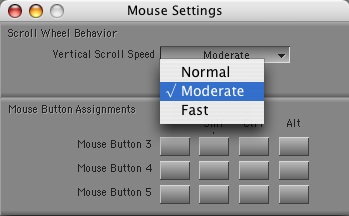
If you’re like me, you’ve become dependent on a mouse with a scroll wheel (my favorite is the Microsoft Intellimouse Optical). But until Adrenaline, this didn’t work in the Media Composer, and even in Adrenaline, scrolling speed was so slow as to be all but useless. Version 2.7 changes that. Scrolling is now quite effective, and once you start using it I suspect you’ll soon wonder how you did without it all these years. If you don’t like the default scrolling speed you can change it via Mouse Settings. I would have preferred somewhat finer control — normal was a bit slow and moderate was too fast — but regardless, your scroll wheel is now functional. You can assign other mouse buttons to Media Composer functions, as well.

Mouse-Settings


Horizontal Scrolling

If you’re working on a late model Mac laptop, you can now scroll horizontally with the track pad. Drag two fingers left or right and you can scroll bins and even the timeline itself. The catch, unfortunately is that you’ll scroll backwards. This makes a certain kind of sense in the timeline (try it to see what I mean) but in windows it’s pretty unnerving. (If your Mac doesn’t permit two-finger scrolling from the trackpad you can add it with iScroll.)


Matchframe Without Selecting a Track

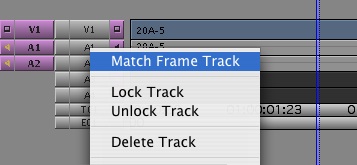
You can quickly matchframe on a specific track without first selecting it, using a contextual menu pick. Just park your cursor over the track light for the track you want to match to and right click (on a Mac without a two button mouse, use control-shift-click). A menu pops up. Select “Match Frame Track” and you’ll match that track only.

matchframe-track.jpg


Enter Text for Several Clips at Once

Set-Comments

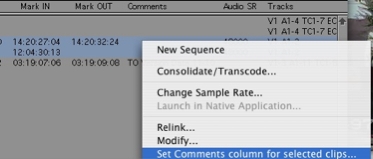
Suppose you want to enter the same text in a certain column for a group of clips. You can now do that in a single step. Select the clips, then put your mouse over the column in question. The cursor turns into a double-headed arrow. Now right click and a contextual menu appears. Choose “Set Comments column for selected clips…” Another window opens and you enter your text. Voila, that text is entered in that column for all the selected clips.

Technorati Tags: , , ,

Tip Grab Bag Part 1

Posted May 12, 2007 by Steve
Categories: Avid, Avid Technical Tips

At Keycode’s ScriptSync demo last week Michael Krulik described several smaller improvements that have been recently introduced, and I noticed a couple of others. It seems that Avid has been steadily incorporating such changes, but hasn’t done a good job of telling anybody about it. Hopefully, we’ll see more seminars like this one in the future.

Along with the major improvements introduced in version 2.7, these represent some additional reasons to upgrade.


Segment Drag Sync Locks

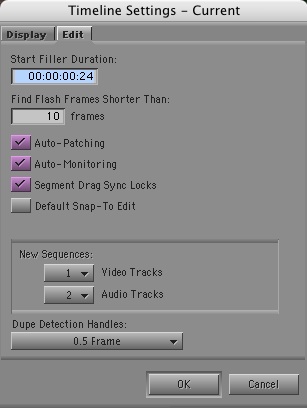
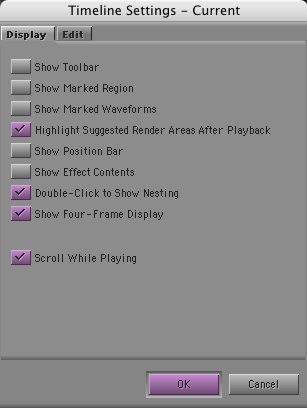
I always leave sync locks turned on when I’m cutting. This feature inserts or deletes black in trim mode to keep you in sync. But for as long as I can remember, it hasn’t worked correctly in segment mode. Rather than simply fix the problem, Avid has made the fix a preference — in the Timeline Settings. I tried it briefly and it seemed to work.

Timeline-Settings


Auto-Patching

The same settings panel offers another choice, which many editors seem to be unfamiliar with: Auto-Patching. If you turn this on, your patching will automatically follow your track selection. As you select your tracks patching follows automatically. It’s quick and intuitive and might work for you.

Auto-Patching


The Return of the Scrolling Timeline

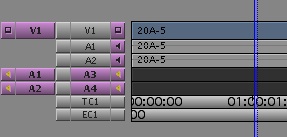
Meridien’s scrolling timeline disappeared in Adrenaline, but it’s back. Just select “Scroll While Playing” in Timeline settings and the timeline will move under a stationary cursor.

scroll-while-playing.jpg

In general, timeline performance is much improved in 2.7, and dragging through the timeline feels extremely responsive. This had been a big problem in some early versions of Adrenaline.

I’ll continue with more tips tomorrow.

Technorati Tags: , , ,

ScriptSync Demo

Posted May 11, 2007 by Steve
Categories: Avid, Avid vs. Final Cut, User Interface, Workflow

I just returned from a two-hour introduction to ScriptSync, put together by Keycode Media and presented by Avid’s Michael Krulik. The demo was quite well thought out, with laptops available to everybody present and a good projector so we could follow along. Krulik did an excellent job and, as a bonus, went over several other new or recently added features. I’ll go over some of that in an upcoming post.

I came away impressed with the scripting features, but not totally convinced. The technology is slick, simple and intuitive. You export your script from Final Draft and import the resulting text file into the Media Composer. You then select a portion of your script and drag clips to it, and the script gets “lined” with those clips. Then you simply turn on ScriptSync, and it automatically listens to the sound, reads the script and marks everything up.

The process is quite quick — over 20x real-time in a very informal test I did. Once the script is lined you can use it to select takes or readings and, if you’re game, cut from it. Once you’ve got a rough cut you can navigate to any point in the sequence and, with a keypress, jump to that portion of the script and compare takes. All in all, it’s quite functional, and I imagine that for certain shows it’ll be a lifesaver.

There were a few caveats. ScriptSync can’t deal with dialog that isn’t in the script. If an actor goes back and repeats a line or section ScriptSync won’t figure that out. You have to create a subclip for the repeat, or you’ve got to mark (or “mimic”) that section by hand. And it can’t deal with adlibs. The solution is to enter the adlib a word processor, cut and paste it to into your script and then do your mimic — you can’t actually edit the script itself. In addition, ScriptSync puts several marks in each hunk of dialog, one for every line of text. So, if a speech is five lines long, you get five marks and you have to delete them by hand. Finally, ScriptSync works best with a very well formatted script, where all the dialog is indented properly. If there are mistakes in the indentation there will be mistakes in the mimic.

These aren’t fatal problems, but they mean that script entry is still going to require some hand work. Nevertheless, the people in the class who had used Avid’s old manual script features thought the new version was miraculous and would save a lot of time.

Bottom line: if you like the idea of working directly from the script, it just got a lot easier to do. I’m eager to try it. Line-by-line editing feels pretty rigid to me, but having the script organized this way might get interesting for recutting, especially when you want to quickly compare alternate readings.

Technorati Tags: , , ,

McChesney and Reynolds on the Future of Journalism

Posted May 9, 2007 by Steve
Categories: Media and Society

This week, the L.A. Times is running a surprisingly thoughtful, five-part series on the future of journalism. It’s framed as a debate between Robert McChesney (one of the seminal thinkers in the media reform movement, founder of Free Press, author of many books, including the excellent, The Problem of the Media, and host of the radio show and podcast, Media Matters) and Glenn Reynolds (founder of the site Instapundit, and author of several books including “An Army of Davids,” released this year).

Both contributors believe that our sources of news are not serving us well, but McChesney focuses more on policy issues while Reynolds tends to be a free-marketer. The series makes for some very interesting reading and has implications for media as a whole, not just news.

A couple of quotes:

McChesney: “The crisis we face is that our smartest capitalists, not just the dumb ones, have determined it is not good business to do what our society needs in the way of journalism. The commercial news system has failed, and so far there is little indication that it is going to be resurrected in the digital world.”

Reynolds: “…traditional media organizations are still in a much better position overall to cover actual news than citizen journalists. They’ve got the infrastructure, the training, and the experience. But those advantages are eroding daily as technology shifts in favor of smaller operations, and as citizen journalists gain experience and audience.”

The series is available on the L.A. Times site. Part 1 is here. Links to the other segments are at the bottom of the page. The articles are also available at Free Press, linked from this page.

Technorati Tags:

Premiere Pro

Posted May 8, 2007 by Steve
Categories: Adobe Premiere

There’s been quite a bit of talk about Premiere Pro lately. In a comment here, Martin Baker mentions that the BBC is moving toward making it a standard for PC editing. In Hollywood, penetration seems to be just about zero, and Adobe has not done much to push it into long-form environments. Nevertheless, it’s an interesting application. Based on info from Adobe’s site, here’s a very basic first impression.

Advantages:

  • Real time timeline. Cursor stays centered or jumps forward, as desired, while sequence plays.
  • Fast, project-wide search.
  • Project Manager helps you archive a project.
  • Nested sequences.
  • Possible to color-correct source clips so corrections ripple through sequences.
  • High quality, integrated title tool.
  • 5.1 audio.
  • Sample-level editing.
  • Bezier keyframes for audio and video.
  • Can count in feet and frames.
  • 16×9 preview on 4×3 monitors (real-time letter-boxing).
  • Multiple audio filters on clips without rendering.
  • Direct to disk recording from camera.
  • Tools to help create material for mobile devices (phones).

Problems:

  • No film information in the system.
  • Very crude trimming.
  • Ugly interface — as geeky and ‘windows-y’ as it gets.
  • In bins, clips must be arranged in rigid grid layout.
  • No AAF export on Mac systems (ouch — talk about DOA!)

The lack of film information and the inability to export in AAF or OMF makes the system a non-starter for any project I might do. But many other features are intriguing, and Adobe seems invested in aggressively improving the program. It’s now available as a free beta on Mac-Intel.

Technorati Tags: