Abandoning the Fans

Posted July 10, 2011 by Steve
Categories: Adobe Premiere, Apple, Avid, Avid vs. Final Cut

In a recent Creative Cow podcast (on i-Tunes), Walter Biscardi and Richard Harrington go into vivid detail about why FCP-X won’t work for them as professional editors. Matthew Levie makes some similar points in a five-part diary describing his first experiences with the program. Though their comments represent the earliest of first impressions, the fact that these long-time FCP users had so many problems has to be taken seriously in Cupertino.

Whatever you think of Apple, Jobs and company sure have a knack for stirring things up. Depending on your background and your prejudices, Final Cut Pro X is either a stroke of genius, modernizing and expanding the company’s dominance in the semi-pro world, or a classic blunder, alienating some of its most loyal customers, who owe their careers to the democratization that FCP brought with it. The new program has many problems: no compatibility with FCP7, no import or export beyond Compressor and Motion, no provision for site or volume licensing, no good way to use multiple monitors, minimal support for tape I/O, a metaphor based on “events” and “projects” rather than media and sequences, a single on-screen viewer rather than the traditional source/record windows, and a powerful resemblance to iMovie. All of which says to existing professional users, “We don’t see you as our customers anymore.”

Apple is working a playbook it knows well, the same one it used with the original FCP: democratizing and enlarging the market by going after a group of customers that the other guy doesn’t know exists. But the first time, they were seen as a savior, a Pied Piper. This time, they have an existing user base. Those people have already pinned their hopes and built their businesses on Apple. All that accumulated experience now will have to be relearned.

This undoubtedly represents big opportunity for Avid and Adobe. But as pro users migrate to other applications, Apple’s competitors would do well to remember that FCP1 was also seen as a toy. Avid didn’t seem to take it seriously until the growing customer base began to suck the oxygen out of the post production environment. And despite the initial problems, FCP-X contains plenty of real innovation. At the end of the day, it’s the innovation that matters — the company that makes the best musical instrument, the one that lets me produce the sweetest music and have the most fun doing it, is the one I want to use.

As creative professionals, we all rely on an implicit, long-term collaboration with the developers of the applications we use. Did Apple made a business decision to accept defections at the top of the market in exchange for more customers further down the food chain? Or did its legendary secrecy cause it to underestimate the push-back it would encounter for changing so many basic features? It may take some time to sort that out. But one thing seems clear: the relationships we create with our favorite software applications may be more one-sided than we think.

Avid Reinstates FCP Cross-Grade

Posted July 1, 2011 by Steve
Categories: Avid, Avid Agility, Avid vs. Final Cut

In the wake of Apple’s perceived abandonment of the professional editing community, and the desire of many FCP users to take fresh look at the competition, Avid will reinstate their Final Cut Pro “cross-grade” offer on July 5th, making it possible once again for licensed users of FCP (through version 7) to purchase a copy of Media Composer for $999, and find out why so many Media Composer editors would rather fight than switch. For details, see this message from Avid CEO Gary Greenfield. If you’re a student, you can take advantage of Avid’s academic pricing and get MC for $300, or you can download it for a 30-day free trial.

If you’re moving to Media Composer from Final Cut, I recommend that you take a look at my book Avid Agility. It’s your best way to get the most out of MC, and do it quickly. As one reviewer put it, it’s “the quickest path to becoming a Media Composer Jedi Master.” Check out additional reviews and sample pdfs here or order it from Amazon.

FCP-X and the Pain of Democratization

Posted June 27, 2011 by Steve
Categories: Adobe Premiere, Apple, Avid, Avid vs. Final Cut, Final Cut

Avid editors looking for a bit of shameless gloating will enjoy the latest installment in Kanen (John) Flowers’ podcast “That Post Show” (iTunes). Dormant for some two years, the show has reappeared with a new episode featuring four longtime Final Cut editors talking about FCP-X — and they are not happy. In their view, Apple has turned its back on professionals, creating a program they can’t use to make a living and leaving them with little alternative but to switch to Premiere or Media Composer. Some of the features they mourn: a source monitor, multi-cam editing, bins, windows that can be broken up onto multiple monitors, trim mode (they reserve special scorn for FCP-X’s “precision” trimmer, pointing out that FCP-X is inherently imprecise), the ability to cut from one sequence into another, OMF/AAF export, EDL support. The show was recorded soon after the release and is thus based on the earliest of first impressions, but it makes for some entertaining listening.

There are plenty of serious limitations in FCP-X — but there were huge limitations in FCP1, too. The pain of democratization is always wrenching, and this release of Final Cut will be no different. Every new release, it seems (including the appearance of the first Media Composer), has made editing more accessible and expanded the base of editorial talent. But by seeming to abandon its existing customers, Apple has confronted many editors with a choice they never wanted to make, and forsaking the company that once empowered them, or accepting a program that doesn’t serve their needs. Whatever you think of Avid’s performance over the last decade, new management has been doing its level best to listen to and work with editors.

None of this should cause us to overlook the fact that most of the innovation in FCP-X is focused not on workflow, but on editors and the editing process. Randy Ubillos is nothing if not creative when it comes to the experience of editing, and I, for one, want some of those features now: waveforms that don’t constantly redraw; background saving and rendering (rendering has gotten all the press, but saving will mean more to me); background proxy creation (and the ability to switch from proxy to full-res media with a click); “clip connections” that let you drag music or sound effects with the picture it’s synched to; compound clips that allow you to collapse and uncollapse portions of a sequence; “audition” groups that let you cut more than one option and quickly switch between them within the sequence, and of course, excellent timeline performance with long-GOP media. I understand the mixed reaction to the magnetic timeline, but I’d love to have it as an option.

Short term, FCP users are facing a difficult choice, which is good for Adobe and Avid. But long term, FCP-X represents a new challenge, appealing to a whole new audience of media creators and offering them features that nobody else has. Yet.

For those of you who are thinking about making a switch to Media Composer, I encourage you to take a look at my book Avid Agility (now available in print or for Kindle). If you want to get the most out of Media Composer and do it quickly, it’s your best resource.

FCP-X Enters With a Bang

Posted June 22, 2011 by Steve
Categories: Avid, Avid vs. Final Cut, Final Cut

Apple released Final Cut Pro X yesterday with only a press release on its home page, but it arrived to a big chorus of boos in the App Store. From the first rumors, this application was destined to be controversial, and the first day has provided plenty for would-be early adopters to chew on.

Chief complaints: no ability to open projects created in FCP7, no multi-cam, no native support of R3D or XDCam, no bins as we know them, no source monitor, no EDL, XML or OMF support (though Automatic Duck will help you with OMF). Capturing from tape is supported only over Firewire; if you need other formats, you’ll have to use software provided by your capture card, which is probably still in beta, at best (Aja’s white paper suggests a dual boot system for now). External monitoring is likewise left to third parties and not yet fully baked.

Soundtrack Pro and Color are gone, with at least some of their functionality rolled into Final Cut, where they should be, but Motion and Compressor remain, and are now available on the app store as downloads. They seem irresistible at a mere $50 each.

Folks who are coming to FCP with a clean slate and no legacy projects to support, seem to like it better, and, needless to say, there’s a lot to like: native support for tough media formats, 4K support, a slick color corrector, an audition module, a way to nest editorial options within a single clip, freeform linking of picture and sound so that they drag together in the timeline, background saving and rendering, and performance that will be the envy of the industry. Many of these things have been on the Avid wish list for years.

Apple has embraced keyword-based search as a way to organize media of all kinds, and Final Cut is no exception. Like iMovie and iPhoto, it organizes your work into “events” and encourages you to add keywords and create smart collections —  groupings that update live as you add material. Whether editors, particularly editors of tightly organized, scripted shows, are going to find that appealing is an open question.

Apple is running a game plan they know well, which worked for them with the first Final Cut — expand the user base by appealing to customers the other guy didn’t know existed. Final Cut originally focused on DV and Firewire and radically forced prices down. FCP-X is designed to do the same thing for file-based media. The company has the moxie to obsolete all previous versions, and while they will piss off many editors, they will undoubtedly find lots of new customers at the same time. FCP-X was Apple’s biggest download yesterday, and at $299, all the controversy is probably doing as much to help sales as hurt them.

For more about the new release, check out the videos and feature list on Apple’s FCP site. Many key questions for pros are addressed by Philip Hodgetts’ on his blog. The next installment of the Terence and Philip podcast, hosted by Phil and Terry Curren, will be focused on the new Final Cut and should be available shortly. Phil is also offering a low-cost pdf book about Final Cut Pro metadata, available here.

A Third Way to Make Titles

Posted June 20, 2011 by Steve
Categories: Avid, Avid Technical Tips

Most Avid editors know that the system offers two ways to create titles: the venerable Title Tool and Marquee. But there’s also a third way. It’s one of Avid’s best kept secrets, but also maddening because of some key omissions. It’s called the SubCap effect.

Designed for subtitling, you apply the effect to a clip of filler, open the Effect Editor and simply type in your text. Changes happen in real time — no rendering is needed. You can also create a series of titles all at once by importing a file containing text and timecode values. Best of all, you can change the characteristics of all the titles in a track or sequence simultaneously.

My initial thought was, “this would be great for a main title!” But the subcap is crippled in several ways. First, you can’t add a carriage return to text by hitting return. You have to enter an obscure escape sequence (&a;). Second, and much more damning, you can’t have different fonts or sizes within a title. You can’t make “Directed by” smaller than “John Doe,” for example. And finally, you can’t create a soft drop shadow.

Those limitations have prevented me from using this powerful tool for any real-world main title. But it’s still found a home in my cutting room. I recently used it to make a series of titles describing missing shots. As the scene changed, I quickly changed the text, without re-rendering.

You’ll find the SubCap effect in the Generator category. Drag it to a clip of filler. Open it in the Effect Editor and use the disclosure triangles to make changes. Type your text in the Caption Text area, then change the font and size by making selections in the Text Appearance category. Add an outline and/or drop shadow, and adjust the size of the text bounding box, as needed. (Click the image above to enlarge it and make the options easier to see.)

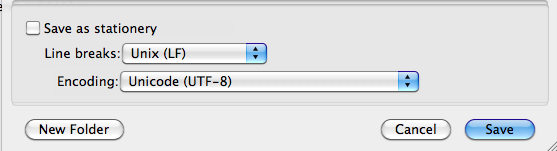
To import text from a file, create your file as is a standard text file (.txt). On the Mac, a good way to create the file is with the free (and terrific) TextWrangler. Save your file as follows:

Format the text with start and end timecodes for each title, like this:

<begin subtitles>
01:00:00:00 01:00:03:00
Directed by Roderick Jaynes

01:00:05:00 01:00:08:00
Produced by Louis B. Mayer

01:00:11:00 01:00:14:00
Edited by John Doe

<end subtitles>

Drag the effect to a segment long enough to handle the titles in your file. (Make sure it covers the master timecode values in the file.) Then click Import Caption Data and navigate to your file. The subcap effect will break the filler into title cards according to your list.

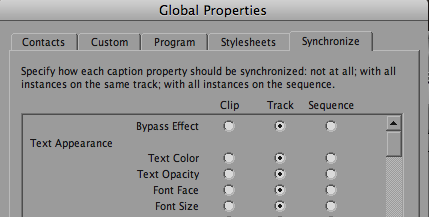
To synchronize your titles, first format one title the way you want it. Then click Edit Global Properties and synchronize all titles to match the one you formatted. You can also create stylesheets and use them to create different looks.

For additional details about the SubCap effect, check out this video on the Avid Community site. (It’s also available on Youtube, and for some reason, the audio is much cleaner.)

Source Track Names in the Timeline

Posted June 11, 2011 by Steve
Categories: Avid, Avid Technical Tips

With the proliferation of multi-track audio recorders, most of us are now dealing with multi-track sources when editing. In Media Composer that used to present a problem. Once you’d made a cut, it was hard to tell which track you’d used. If you wanted to go back and use the same track, you often had to figure out which was which by looking at a waveform, or by listening. Not anymore. Starting with Version 5, a simple timeline menu pick will display source tracks for all clips in the timeline, alongside the clip name. It’s a small thing, but it’s significantly simplified the way I work with multi-track audio.

If you assign the Clip Tracks menu pick to a keyboard button, you can display source data with a quick tap, and then hide it just as easily.