Archive for November 2009

Media Composer Makes Nice with Snow Leopard

November 23, 2009

Avid released Media Composer version 4.0.4 this afternoon. The big news is that the new release is certified to work with Snow Leopard (OS X 10.6.2). The bad news is that Avid recommends a clean install of Snow Leopard, not an upgrade.

Here’s the relevant section from the ReadMe (page 4):

This release has been qualified with Mac OS® X Snow Leopard® v10.6.2.

You cannot perform an upgrade from the Leopard to the Snow Leopard OS. You must perform a clean install of Snow Leopard in order for the editor installer to install properly. See your Apple documentation for information on performing a clean install.

The upgrade is also reputed to fix a critical bug with Nitris and Mojo DX systems, where Fast Scrub would cause much-too-frequent waveform redraws. See this post for details. MC 4.0.4 will also work with Leopard, version 10.5.8.

Avid at the FCP User Group

November 19, 2009

I spoke at a very interesting meeting of the LA Final Cut Pro User Group last night, along with Walter Murch and Shane Ross. Walter talked about moving back to MC after years with FCP and described in fascinating detail the relative merits of each application. Shane went over Avid Media Access, which makes it possible to work with file-based media without conversion, and offered an impressive demo of Avid’s Mix and Match capability, putting all kinds of material into a single timeline and playing it without a hiccup. I gave a brief introduction to Transition Preservation, Advanced Keyframes and Trim Mode, and I tried to convey my sense that Avid is a renewed company that is innovating aggressively. In other words, there was plenty of substance to chew on.

For me, the main takeaway was that the world is becoming a lot more balanced. A couple of years ago the Final Cut community was unanimous in its disdain for all things Avid. Last night was far more open. There was a powerful sense that both applications are worthy of consideration, that they have different strengths and weaknesses, and that newbies would be well advised to know both.

This can only be good for us as editors. Our internecine rivalries can be fun, but we should always remember that regardless of the tools we use, our shared goal is to create beautiful and compelling cinema, to shape space and time, to move audiences. We may prefer one tool or another, but the big win is that we have a choice. These applications aren’t finished — there’s plenty more to do. And as the manufacturers leapfrog each other, we editors can only benefit. I hope to see more events like last night, where content is king and bias is minimized. I learned a great deal, and I hope those of you who were present did, too. Please share your comments. I’m eager to know what you thought.

My special thanks go to Mike Horton, the heart and soul of LAFCPUG, for hosting this meeting. The group is a terrific resource and a critical part of the Los Angeles editing community. Video will be uploaded soon at this page on the Open Television Network and I’ll link to it when it’s available.
Final Cut User Group on MC v4 – Wednesday

November 15, 2009

This month the Media Composer will take center stage at the Los Angeles Final Cut Pro User Group (lafcpug). I’ll be making a presentation, along with Shane Ross and Walter Murch. I plan to cover some of the new editorial features in Version 4, namely Transition Preservation, and I’ll also do a quick overview of the Advanced Keyframe model and why I love trim mode. Shane will go over Avid Media Access (AMA) and the new Mix and Match frame rate capability, and Walter will describe his experiences returning to the Media Composer after so many years on Final Cut. It promises to be a very interesting evening and will probably be sold out by the end of the weekend.

The meeting takes place at the Gallery Theater in Barnsdale Park — 4800 Hollywood Blvd (between Vermont & Normandie). It’ll start at about 6:45 pm. Details and travel directions are here.

Admission is just $8. I’ve been given three free tickets to distribute. They’ll go to the first three people who add comments to this post. I’ll be able to see the name and email address you registered under, and you’ll present that at the door to pick up your tix. See you there!

Collapse the Composer Window

November 13, 2009

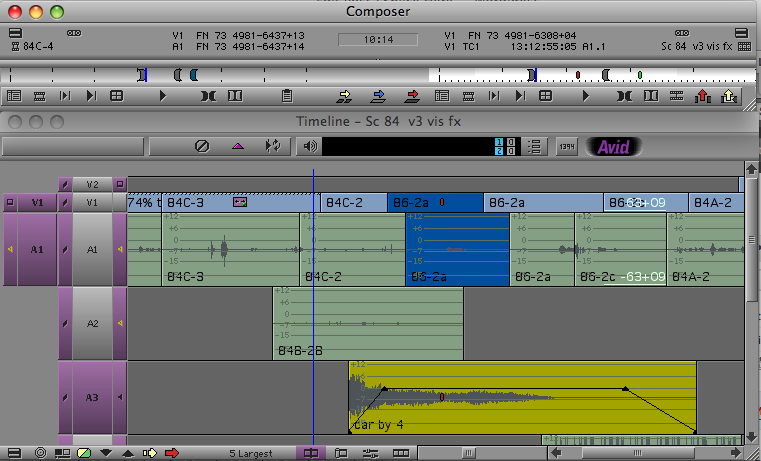
I explained in the last post how you can hide the Source Monitor, but you can also collapse the  Composer window, hiding video entirely and showing only buttons, menus and tracking information. This can expand your screen real estate mightily, making room for a much-enlarged timeline with plenty of room to manipulate audio keyframes and see waveforms. If you’ve got a client monitor, you’ll view video there.

mini-composer-2

This view was once called the “mini-composer.” To invoke it on a Mac, simply hit the the green “+” button at the top left of the Composer window. Or right-click on a video image and select “Hide Video.” To go back to your regular Composer view, hit the plus button again or deslect Hide Video.

You can do anything in the mini-composer that you could do in the regular composer. Trim mode is available, for example, and works as you’d expect. You can even drag from a bin to the source or record monitor. Just drop your clip onto the mini-composer window.

Of course, you wouldn’t work this way all the time, but for audio work, it can be very useful. I make it part of my Audio Toolset. (For more about Toolsets see this video post.)

Hide the Source Monitor

November 8, 2009

You probably know that the Composer Window can be resized, but did you know you can completely hide the source monitor? This can be very helpful if you’re short on screen real estate and want to work on a visual effect where you need to make things big — an Animatte, for example.

hide_source_mon

To hide the source monitor, Option-click (or Alt-click) the Source/Record Mode button at the bottom of the timeline. Then enlarge the Record monitor by right-clicking it and selecting Full Size Video. Or you can simply resize the Composer window by dragging its bottom right corner — if you drag it into a roughly square shape the source monitor will disappear.

To restore the source monitor, option-click the Source/Record button again, or drag the monitor into a wide rectangle.

You’ll probably want to memorize your custom window setup in a Workspace or Toolset. See this video tip for details.

DVR Love at the Networks

November 2, 2009

In another blow to conventional wisdom, the networks are now embracing the DVR. Yes, you read that right. The long-feared recorder, the device that was going to kill television as we know it, is now being seen as something of a savior. Why? Because we are finally measuring its effect. Instead of counting the number of people watching the show, Nielsen now measures something called “commercial plus three” — the number of people watching the commercials — within three days of airing. Well, it turns out that roughly half of the people watching recorded shows are not skipping the commercials. TV watching is a passive activity. We all knew that, but the folks at the networks just didn’t believe it and resisted the rating change.

What the new ratings show is that the DVR is increasing TV ratings — which now means the number of people watching the commercials — by 10 to 20%. In fierce network competition that’s a big number.

TV was supposed to kill cinema, the VCR was supposed to kill TV, and the DVR was supposed to kill network TV. Unintended consequences are always stronger than we think. Which is another way of saying that our ability to predict almost anything is pretty darn limited.

The details are here: DVR, Once TV’s Mortal Foe, Helps Ratings

