Archive for the ‘Avid Technical Tips’ category

Installing Media Composer 3

July 31, 2008

The deed is done. I have Media Composer version 3.0 running on my Mac laptop. The upgrade wasn’t trivial, partly because I moved from Tiger to Leopard at the same time, and I’ll attempt to explain for the uninitiated.

First, there are now two current versions of MC. Version 3.0 is for Leopard. Version 3.01 is for Tiger. Why would you want to run Tiger? Because there is a known bug in the Leopard Firewire code that makes using Adrenaline and Mojo boxes unreliable, especially for digitizing. Avid says this has to be fixed by Apple, and no fix has appeared. If you want to use your existing Adrenaline or Mojo with MC version 3, you need to stick with Tiger and use 3.01. If you’re using the newer Avid breakout boxes, namely the Mojo DX or Nitris DX, you’ll be fine in Leopard.

Here’s what I did:

  1. Uninstall Media Composer (in my case, v 2.8) and all other Avid applications. You do this using the Avid uninstaller aps. They’re here: Macintosh HD/Applications/Avid Uninstallers. There’s a separate uninstaller for every application you’ve got. I had to run the uninstaller seven times.
  2. Check out your system and back up. I started by running Disk Utility and checking my internal drive. Then I did a complete system check (including a surface scan of the drive) with TechTool Pro. And finally, I ran Cocktail to rotate the system caches and repair permissions. Then and only then did I clone the internal drive using SuperDuper. You’ll need a drive that’s at least as big as your system disk to do this. Confirm that your copy is good by booting from it.
  3. After doing all this system maintenance, I upgraded to Leopard using the standard Apple procedure (shove in the DVD and do what it says). There’s a school of opinion that says you should do an erase and install, which wipes your drive and starts over, and then use Migration Assistant to bring back all your files and applications from the SuperDuper clone. I’m told this works well, but I decided to go the easy way first. I could always do the erase later.
  4. Download and install all Apple upgrades via System Preferences/Software Update. I’m told that this is critical because if you were updating Tiger regularly some of your applications will actually get rolled back during the upgrade to Leopard. The updater will solve that.
  5. Test the Leopard installation. I used it for three days before I decided it was okay. A couple of programs had to be updated, but nearly everything worked fine, including a lot of old applications that I was worried about. I do regular speed tests using a benchmarking utility called Xbench and I was initially dismayed to see that disk speeds had gone down after the upgrade. But it appears that this was the result of Spotlight indexing the drive. As time went on, disk speeds improved.
  6. Install Media Composer 3. First, insert the Media Composer DVD, and do a regular install. Then, following directions on a yellow card that came with the upgrade, go to avid.com/upgrade, register your upgrade and request a dongle updater. This will be emailed to you or you can download it. Locate your DongleManager software (it’s not where the card tells you, it’s here: Macintosh HD/Applications/Utilities/Avid Utilities/DongleManager/DongleManager) and hit the update tab. Then open the file and update.
  7. After that, you should check that your MC runs. If it does, go ahead and do additional installations. I was eager to see Avid FX, so I installed that. I’ll also be installing EDL Manager and FilmScribe.

That’s about it. The whole process took several days, much of which involved the move to Leopard. But the Avid part of the upgrade could have been a lot easier. The company has spent many years dealing with a priesthood of certified tech people, and it needs to get better at talking directly to editors.

First, Avid badly needs a create a “Welcome to Version 3” document that clearly and simply walks you through the whole process. Instead, you get three separate sheets that are confusing and rate a zero for graphic design. (You can also go to this page for more info.) And the installer needs to get a whole lot smarter. There are way too many steps and too many opportunities to make a mistake. The installer should be responsible for the uninstalls — or at least there ought to be a single, unified uninstaller. The various elements of the suite, especially those made by Avid, ought to be installed together. The dongle should be updated automatically. And the MC, like every other modern application, ought to go out to the net and determine whether it is up to date.

In any event, I have now moved my machine into the present. I’ll talk about my impressions of version 3 after I’ve had a chance to play with it for awhile.

Technorati Tags:

SuperDuper

July 14, 2008

As a lot of you probably know, SuperDuper is a great Mac backup application. I recently used it to restore a laptop with a dead drive, and I was reminded of just how good it is. Even if you’re using Apple’s Time Machine, you ought to check it out.

SuperDuper clones your drive. That’s all. But because it can do an incremental clone, something the company calls “Smart Update,” the software becomes a sort of all-purpose backup solution. In many cases, especially with the failure of physical media, it’s exactly what you want.

It can either clone your drive to another physical drive — creating a fully bootable, identical copy — or it clone it to a disk image, a single file that can co-exist with other data on a drive. Either way, you can use Smart Update to compare the copy to the source and only update the changes. This takes just a few minutes.

I the case of the laptop I resuscitated, I used a disk image. With a new, working drive installed, the procedure goes like this: plug in the backup drive, boot the machine with the OSX installer DVD, open Disk Utility, open the disk image, and click the Restore tab. Drag the image to the source well and the disk to the destination well. Click Restore. That’s it.

In an hour and a half I had the computer working again.

SuperDuper is really handy when you’re going to do a big system upgrade. If things don’t go well, it’s trivial to get back to where you were before the change.

The basic version is free and you can use it to do normal backups. To use Smart Update you’ll have to pay $28. I call that a bargain.

Technorati Tags: , ,

New Avid Training Site

May 20, 2008

Harry Miller, who has done great work on post production technology at the American Cinema Editors, has been posting video screen-captures on a new site that promises to become a real resource on the Media Composer. Harry’s videos are concise and very useful. Check them out here: Editor Demos

Technorati Tags: , , ,

Multi-format Timeline Gotcha

April 5, 2008

As you all know, I’ve been experimenting with animated titles created in Motion and imported into the MC. And yesterday I got hit with a new and arcane gotcha, shortly before a big screening (of course).

I’ve been importing the Motion titles at 1:1, even though my project is 14:1. This creates cleaner keys. The Media Composer has been happy to play these 1:1 titles without rendering — until we built the individual reels of our show into a long sequence. That’s when the titles started freezing. Nothing we could think of would solve the problem. The titles played fine in a shorter sequence. But once the timeline got to be over an hour or so, they’d freeze and stutter. Rendering the titles didn’t make any difference.

An hour of experimentation produced no improvement. Restarting the machine and the DNA, rebuilding the media database on the render drive, re-rendering to another drive, recreating the sequence — nothing helped. After a lot of adrenaline (of the biological kind), and with the hour of our screening rapidly approaching, we finally figured out what was happening — thanks to the insight of Josh Rizzo at Wexler. Even though our project was 14:1 and we thought we were rendering at 14:1, those titles were being rendered at 1:1. And thus playing them, even in their rendered state, still meant using the MC’s real-time multi-format capabilities. And it was those capabilities that were choking on the long timeline.

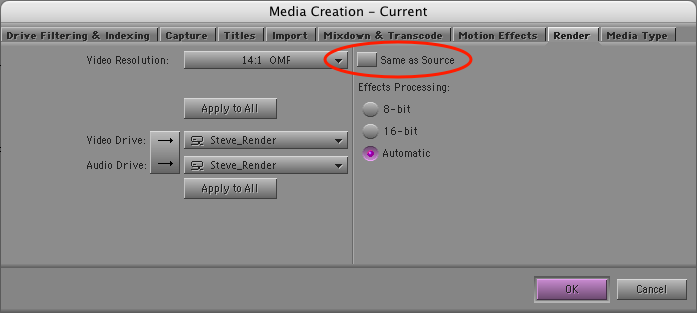
The solution is in the Media Creation settings, under the render tab. Even though you’ve selected “14:1,” there’s a checkbox that tells the system to render effects at the resolution of the underlying source. There’s no explanation for the meaning of this setting — and it’s checked by default — so we’d left it alone. Here’s the setting dialog. Be sure you de-select the circled checkbox.

Render Settings

With “same as source” deselected, I re-rendered the titles. And voila! — they played fine, no matter how long the timeline was, because now they were rendered at 14:1. This didn’t seem to hurt the quality of the titles much. The effect isn’t nearly as severe as bringing them in at 14:1 in the first place. (But I’ll be doing more experimentation with this in the future.)

Bottom line — watch out for that multi-format timeline. It’s wonderful when it’s working, but when it chokes, figuring out what happened can be awfully confusing.

Technorati Tags: , ,

Making Titles with Motion

March 30, 2008

This week, I finally gave up on using the Avid title tool. Nothing’s changed, of course. It still does what it always did, all the way back to the early ’90s. But back then, a main title meant a series of cards fading in and out. Today, title animation is so common that I felt compelled to try and find another way. And yes, I’ve made a good faith attempt with Avid Marquee, making all my titles with it on at least one show, but it’s way too techie and so badly integrated with the MC that sometimes it’s laughable (for more, check out these posts “Fixing the Title Tool” and “More on the Title Tool.”)

I know that some of you use After Effects, and I realize that it’s very powerful, but for me, it seems to require an awful lot of meticulous attention to keyframes.

Enter Apple’s Motion. Motion offers “behaviors” — canned combinations of keyframed parameters that can be stretched and shrunk to make your animations do all kinds of things that would take hours with other applications. And Apple helpfully allows you to preview these behaviors, and to mix and match them if you don’t see what you want. It is also completely real-time. You never render anything, and that makes it feel very responsive. You can also let it play your animation as a loop and change parameters while it’s running, which makes it seem even more spontaneous.

So I just completed a first draft of a main title with Motion. Though the learning curve was much steeper than I had initially expected, I was able to do things that I couldn’t even contemplate with the MC. Specific impressions follow.

Pros:

  • All real-time. No rendering. Lots of canned effects.
  • Easy to do impressive things quickly, but fine-tuning takes longer.
  • Integrates with the MC fairly well, as long as you’re willing to export and import and you know a few tricks.
  • Good on-line manual. There’s plenty of conceptual explanation, so you can get a high-level look at what you’re trying to accomplish and then dive into the details. Contrast this with MC’s online help, which gets to the nitty gritty, but often skips the big picture.

Cons:

  • Maximum resolution is HD, so it’s not appropriate in a film/DI environment. I’m working on a show that will deliver HD, so it’s not a problem, but I want to use this on film shows, too.
  • Not particularly stable. Crashed regularly and with no warning, making me value Adrenaline’s comparatively bullet-proof performance.
  • Not good with two monitors — I didn’t see a way to split the timeline from the viewer, for example.
  • Despite Apple’s heroic attempt to shield you from keyframes, you’re eventually going to need the program’s keyframe editor. And because it graphs keyframe values in 2D space, it needs lots of screen real estate and isn’t particularly intuitive for AE or MC users.

Tips:

  • If you’re working in a traditional offline/online environment, be sure to set up your project at the screen resolution that you’ll deliver at. Talk to the people who will online your project and work out the specifics before you start.
  • You’ll have to experiment with export choices a bit. I exported at the Motion project resolution, using the default settings, and imported the resulting Quicktime into the MC with “invert alpha” at 1:1 resolution. That created cleaner keys. It helped that my standard-def Avid project is 16×9 squeezed. Thus the aspect ratio in the Avid and in Motion matched. (See this post for more.)
  • I chose to “export selection,” which meant that each title came over as a separate item. If you want to move your entire Motion project into the MC, you can just drag the little icon at the top of the Motion project window directly into an Avid bin.
  • I was able to install MC software and Motion on my laptop and didn’t see any conflicts. But our rental company insisted on creating a dual-boot setup for our Adrenaline systems. That isolates the MC for safety, but it’s awkward.

Bottom line — Avid needs a new title tool. Though I like Motion, I didn’t much enjoy going back and forth between the two programs, and rendering all the mattes in the MC is a pain. Making a small change means going back to Motion and then doing the export/import thing again. The integration is better in the Final Cut environment, but you still have to leave FCP to do your titles. Avid has an opportunity to build a better title tool, and to put it where it belongs — in the editing application.

Technorati Tags: , , , ,

New Tutorials

February 28, 2008

Harry Miller, who runs the tech blog for the American Cinema Editors, has posted some very useful, detailed and slickly-produced video tutorials on the Media Composer. Check them out here. Two are up so far, one covers Audio Suite plugins, and the other, the audio mixer.

Technorati Tags: , , ,