Archive for the ‘Avid’ category

Zoom Your Keyframe Graph

August 26, 2010

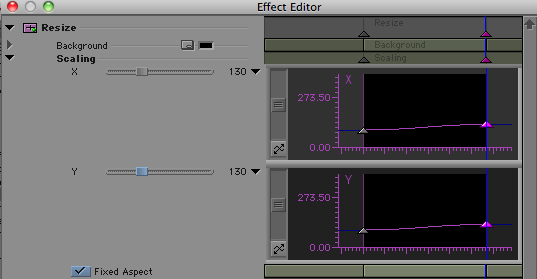
To properly control advanced keyframes, you need to see your keyframe graph clearly. Here’s an example. Let’s say you’re adding a push-in to a shot. You apply a resize effect, add a keyframe at the beginning and end, and increase the scaling at the tail keyframe. Then you play the effect. Instead of a smooth push from head to tail, your move starts slowly and comes to a stop at the end. What’s going on?

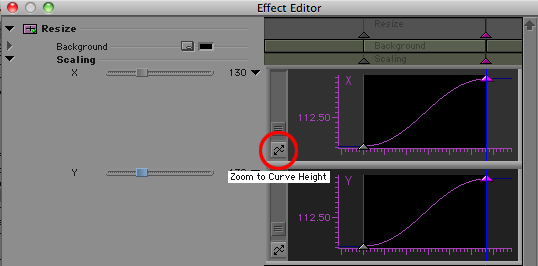
To figure it out, display the keyframe graph. It looks like this:

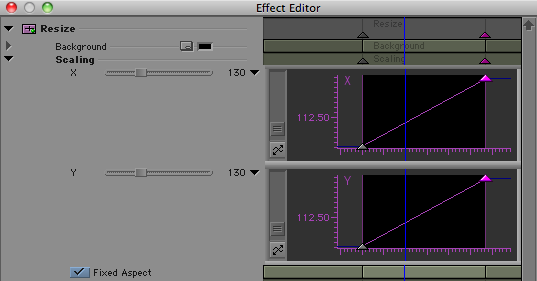
It sure looks like the zoom is continuous. But it’s not so. The problem is that your keyframe graph is so shrunken vertically that you can’t see what’s going on. The fix is to hit the Zoom to Curve Height button. This expands the display vertically to fill the graph. Now you can see what’s going on.

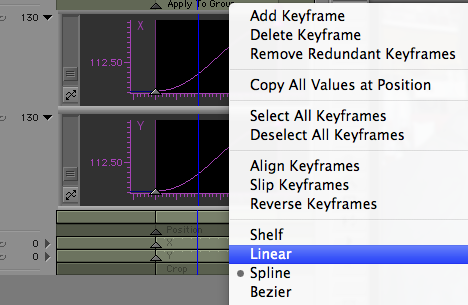
Advanced Keyframes default to spline interpolation — you get a smooth curve between keyframes, but motion stops at the beginning and end of the effect. In this case, you want Linear interpolation — the way traditional keyframes worked. Make your change by right-clicking in the Scaling track and selecting Linear.

The result is is a straight line between keyframes, and continuous motion head to tail. Now your push-in won’t stop at the end of the effect.

Stabilization on Steriods

August 24, 2010

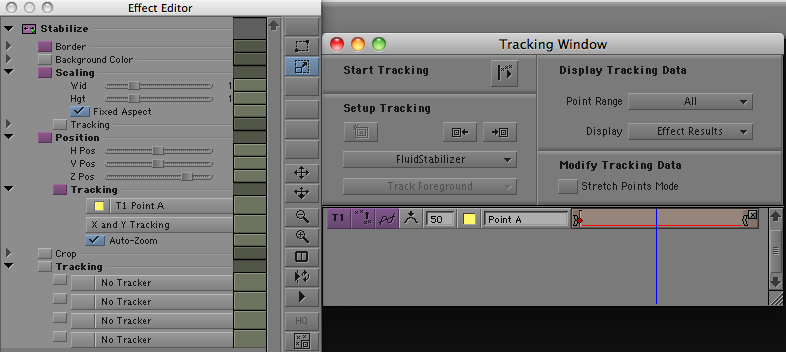
Media Composer has included a very powerful stabilize effect for years now, but putting all that power to work was not easy. You needed significant training to get up to speed with it. (I posted a introductory video back in ’08 that should help. It’s here.) But now, with version 5, the stabilize effect is one-button simple. Yes, there are still lots of controls, but for most purposes, all you need to do is drag the effect to a clip and watch while it automatically tracks and stabilizes the shot, blowing it up as needed. You don’t need to identify a location for a tracker because the effect analyzes motion across the entire image.

With the default options, camera moves are preserved, but small jittery motion is eliminated (Avid calls this SteadiGlide). In most cases, that’s exactly what you want, and no further adjustments are required.

When it works, the effect can seem almost miraculous, fixing problems in an organic way that used to be impossible in a picture editing room. I’ve sometimes found myself checking the original shot just to make sure I’m not imagining the improvement. And best of all, the result plays in real time. No rendering needed.

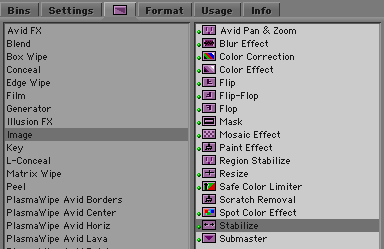
Try it. I think you’re going to like it. It’s one of the best small features in MC5. You’ll find it in the image category.

Installer Love

August 22, 2010

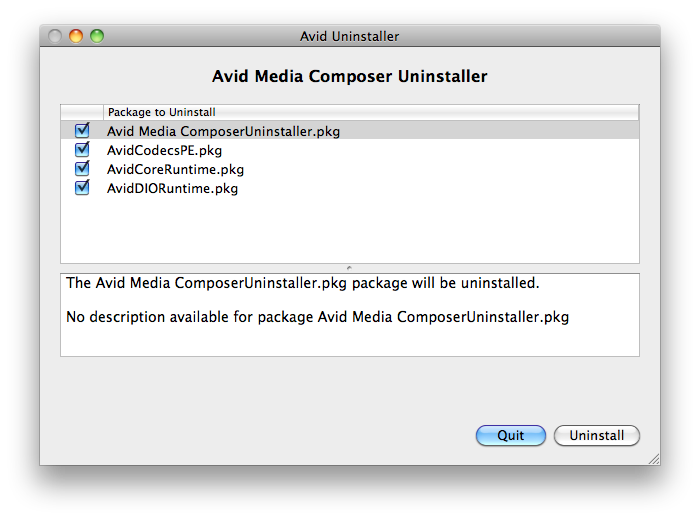
It might seem strange for a person to want to yell “Eureka” during a simple software install, but that’s exactly what happened to me recently. Avid has always required you to uninstall before upgrading. And in the past you had to uninstall each of your Avid applications separately, and then install new versions one at a time. This was slow, prone to error, and just plain blockheaded. But with Media Composer 5.0.3, Avid has quietly updated the Mac install process, creating a single uninstaller and unified installer. The uninstaller searches for all your apps, finds them quickly, and with a single click, removes them. The installer is similarly fast and one-button easy, allowing you to install MC and all the helper apps simultaneously (EDL Manager, FilmScribe, etc.). Be sure to click the Customize button — that’s where you’ll find the helper apps.

Media Composer used to be maintained exclusively by trained technicians. Today, many editors own their own systems and do their own maintenance. The new install process is a small thing but it will make a big difference to that audience.

The next step, hopefully, is a combined installer/uninstaller, which checks for updates over the net and downloads them in the background. When that happens, you’ll hear an even bigger “Eureka” from my editing room.

Here’s the new uninstaller:

And the new installer:

Making a Right-to-Left Wipe

August 13, 2010

For those of you using Version 5 for the first time, one of the biggest changes is the need to deal with advanced keyframes for most visual effects. This represents a big leap in functionality, but for people unfamiliar with the interface, there will be some inevitable speed bumps. I’ve put up an video introduction to the subject, here. (The video is slightly out of date in that you no longer have to promote effects — they’re advanced by default. But it should be helpful, anyway.)

I discovered another hidden feature the other day: The Reverse Animation button, which appears in some traditional visual effects, is missing in action in the advanced interface. You might use it, for example, to create a right-to-left wipe. Avid’s standard wipe is left-to-right. In the past, to switch it, you just hit Reverse Animation.

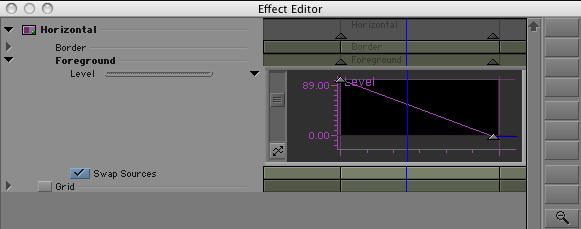
But in Version 5, when you apply a horizontal wipe, it opens the advanced keyframe interface, and the button isn’t available. It turns out that the feature is there, however, hidden in a contextual menu. To find it, right click on the effect track. Then select Reverse Keyframes.

Note the keyframe graph above. After selecting reverse keyframes, the graph inverts and the Swap Sources button is automatically selected, as shown below.

Voila, you have created a right-to-left wipe.

The Fourth Paradigm

July 27, 2010

In my working lifetime, I’ve seen three major workflow paradigms. First was pure film — we edited with workprint and mag film, we made visual effects with an optical printer, we mixed with mag dubbers, we cut negative and made an answer print. It was artsy-craftsy, there were lots of quirks, long experience taught you the tricks, and there was only one way to get the job done. Linear tape was next: editing with 3/4″ U-matic machines, dubbing your cut material until you could barely see an image, cleaning a list and onlining. Digital non-linear merged all those processes together: shoot film, telecine workprint, edit digitally, conform film, cut negative — a hybrid, with lots of alternatives, which we slowly figured out over a good 15 years. DI conforms eventually replaced negative cutting for most productions.

Now, with the advent of file-based cameras, we are seeing the fourth paradigm, where everything, from camera to cinema screen, is a file. No film, no videotape, no audiotape. All media is digital and it all lives on hard drives (or flash drives). Some of us have boldly jumped into this new world, but I’m not sure if the full import of the change has hit home yet. It means that in theory you can do everything that needs to be done with an ordinary desktop computer in a tiny office.

I just started a show that’s shooting on Red and Canon 5D. Red files are converted to Avid media via RedCine-X, synched in a Media Composer, and shipped to us on 1T drives. No digitizing, no tape, no decks. Conceptually, this is the simplest workflow ever, but in reality, the number of permutations has gone through the roof, there are no standards and everybody skins the cat differently. Planning is critical, but even with two weeks of daily phone calls and meetings to set up our workflow, there were surprises once the train began to roll.

This is the workflow of the future, of course. Tape and film may linger, but in the end, it’s all going to be ones and zeros. I hear myself talking now and have to laugh at all the acronyms: MXF, DNX, DPX, LTO, WAV, R3D, RMD. This is the new vocabulary of the editing room, and if you don’t know what those formats are, well, you will soon. And that only skims the surface, because the real question is what you do with those files, what software you need to manipulate them, what kind of drives will play them and how you’re going to look at the images. I’ll try to offer some hints about all this as we move forward, but for now, welcome to the brave new world of end-to-end digital production, where you can do anything in the privacy of your own editing room — and where every mistake is potentially yours alone.
Introduction to the Smart Tool

June 10, 2010

Today is release day for Media Composer 5, Avid’s biggest update in years. Let me offer a big, hearty, “congratulations” to everybody at Avid who made this possible. You all are doing great work.

Avid is listening to editors again, for the first time in many years. There are workflow enhancements in this build, to be sure, but there are also long-overdue changes to the editing model. To mark the day, I’ve posted a new tutorial, offering a brief introduction to the Smart Tool, Avid’s new timeline palette that merges Trim Mode and Segment Mode into an always-on interaction model that should appeal to people who prefer a more segment-based, grab-and-drag editing style. This doesn’t begin to cover all the new features, but it should get you started. Avid has also created some videos of their own, here and here.

I’ll be demoing many of the new features at the Los Angeles Final Cut Pro User Group (LAFCPUG) meeting next Wednesday, June 16th at 6:45 pm. Meanwhile, I’m making final changes on my upcoming book, Avid Agility. With luck, it’ll be available at Amazon sometime in July. I hope you’ll find it essential reading.

Check out the tutorial below. A larger version is available on Vimeo.