Archive for the ‘User Interface’ category

Another Multi-Touch Rumor

August 10, 2007

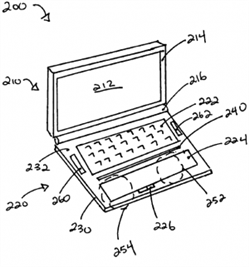
Ars technica reported yesterday on a new Apple multi-touch patent, this time for a laptop equipped with a wide touch pad stretching across the bottom of the entire keyboard. I find this particularly tantalizing because most multi-touch implementations are based on the idea that you’d touch the screen itself. That presents some real problems about where you’d want to put the screen. Is it angled like a drafting table? Is it hanging in the air? Either way, you end up with awkward body positions and fatigue and you can’t use a mouse. I expect that we’re going to see some kind of hybrid environment where you’ll use your hands to manipulate some things (like scrolling and scrubbing video or grabbing and moving trim boundaries) and a mouse for more precise control. This filing gives a hint of what such an interface might look like. It’s an incremental change and seems like it might be usable sooner rather than later.

For those of you are wondering where I’ve been this week, I was speaking at the University Film and Video Association Conference at the University of North Texas. Norm Hollyn and I did a “conversation” to kick off the event, focusing mostly on issues of collaboration. Partly because editing software now seems to allow you to be a one-man band, it may be that film students are not always learning the collaborative skills they’ll need on big productions. Of course, collaboration is always, in some way, ineffable — every relationship is different and rules are hard to come by. No editor wants to be a “pair of hands,” as we used to say, but, on the other hand, we rarely have complete control. Finding a happy middle ground is at least half the job, maybe more.

More Scroll Wheel Tips

July 19, 2007

Avids now make much better use of a mouse with a scroll wheel. But many editors don’t know it. I’ve mentioned this before, but thanks to Greg Staten at Avid, I’ve discovered a few additional uses for your favorite computer rodent.

  1. You can use the scroll wheel to move up and down through text view bins, the project window, or the timeline. The scroll wheel is much more sensitive now and works the way you expect. And the sensitivity can be adjusted through the mouse settings panel.
  2. If you hold down the control key and scroll through a bin in text view you will move horizontally through the columns.
  3. If you first select a clip and then hold the control key down and scroll through a bin (in text view), you’ll move vertically through the list of clips, selecting individual items in turn. When you’ve got the item you want, hit return to load it into a monitor. Add the shift key and you can select more than one item. (This also works in frame view, but it’s hard to control.)
  4. If you use a mighty mouse or trackpad, you can scroll horizontally in the timeline. This moves the timeline to the left or right. This is a terrifically useful feature, but it’s marred a bit by the fact that scrolling works backwards relative to other programs (try it to see what I mean).
  5. If you hold down the control key while you’re scrolling horizontally in the timeline, you’ll move the blue bar a frame at a time. Hold both control & alt and you move by ten frames.
  6. In effect mode or color correction mode, you can select a slider or control point and, with the control key held down, change its value by scrolling. Add the option key and you’ll change values by ten instead of one.

All in all, very useful and intuitive.

Technorati Tags: , , ,

Tab Between Open Windows with Witch

July 2, 2007

Witch Screen Shot

Thanks to a suggestion from Mark Burton (on this page), I’ve been experimenting with a little OSX utility called “Witch” for the last week or so — and I like it a lot. It allows you to quickly switch from one window to another, much as you now switch from one application to another using command-tab.

With Witch installed, you switch between windows with option-tab (or whatever keystroke you prefer). If you hit it once, you go to the last window you used; if you hold it down you can choose from a menu of open windows. It’s simple and intuitive, and on a laptop Avid, where screen real estate is at a premium and overlapping windows are the way to go, I find it really useful.

Witch is free, but if you like it, send the author, Peter Maurer, a donation.

Technorati Tags: , , , ,

Heads Up Displays

June 28, 2007

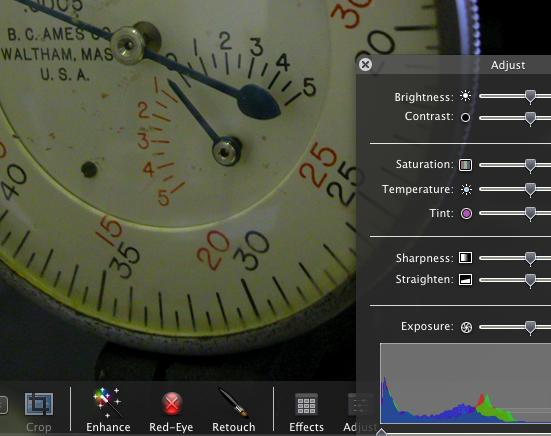
Heads Up Displays in iPhotoMany of the new Apple applications employ what the company calls “heads up displays.” These are control panels that are translucent and appear over the image you’re working on, fading in and out as needed. You can see them in iPhoto, Aperture, Motion and Quicktime. They look cool, but more important, they’re functional, because they let you do useful work on a full-sized image. They’re particularly helpful for small (ie. laptop) displays, where screen real estate is at a premium.

As I use my laptop more and more for cutting, I’m starting to see how valuable such displays could be in a mobile editing environment.

Because, in the laptop environment, the Media Composer definitely has some rough edges. When I’m working with the laptop itself, I want one window layout. But when I plug in to a bigger monitor and use the laptop screen as a bin monitor, I want another. The MC can handle this, but it takes a lot of fiddling around. And even when you have your workspaces all set up the way you want them, the system often does the wrong thing.

In general, the MC needs some tweaking around the issue of window activation. For example, when I double-click on a sequence I want the Composer window and the Timeline to activate and move forward. But now, only the Composer window does so. I also want the ability to quickly tab from bin to bin.

And that leads me back to the subject of heads up displays. How about this? Wouldn’t it be nice to work in full screen mode (video playing full screen) — but with a translucent timeline supered over it? The timeline (and maybe the editing controls from the bottom of the composer window — what Avid calls the ‘mini–composer’) would appear when you move the mouse, and they’d disappear when video plays for a moment. That sure would make for a slick, small-screen editing environment.

Heads up displays would also be great in a redesigned full screen title tool, much as they now allow for full screen editing in iPhoto.

What else could you do with this kind of interface?

Technorati Tags: , , ,

The Bill & Steve Show

June 11, 2007

If you’re interested in the history of the personal computer revolution you owe it to yourself to check out the Steve and Bill show from the D5 conference two weeks ago. Gates and Jobs were on stage for a 90-minute interview moderated by Walt Mossberg and Kara Swisher of the Wall Street Journal. You can listen to it or watch it from the iTunes store, see a highlight reel here, or check out a transcript. I listened to the audio yesterday, and though it doesn’t reveal anything radically new, it offers a unique perspective on the way these two leaders think and provides a few tantalizing hints about the future.

Gates referred at least three times to what he calls the “natural interface,” presumably a more general description of multi-touch. He clearly thinks it’s the wave of the future, and given that it’s the basis of the iPhone, so does Jobs.

Here’s a relevant quote:

I think natural user interface is particularly applicable here because the keyboard, you know, we’re sort of warped in that we grew up using the keyboard and so it’s extremely natural to us, but things like–and that’s partly why when we showed the Surface computer, I showed it privately to a bunch of CEOs a couple weeks ago, I was kind of stunned by how blown away they were. But their ease of navigation is just not the same. And when they saw that, the idea that they could organize their photo album, it meant more to them than it did to me.

Bill even talked briefly about editing a movie, a surefire sign that what we do is now totally mainstream.

Technorati Tags:

Multi-touch Coming Soon

June 2, 2007

Microsoft’s “Surface” technology, announced on Tuesday at the Wall Street Journal’s “D: All Things Digital” conference, is a multi-touch point-of-sale device for stores and casinos — a computerized coffee table that houses a little DLP projector and cameras to sense the positions of your hands. Priced at five to ten thousand bucks, they envision people using it for shopping and photo browsing, but over time, the form factor will evolve and the price will come down. Take a look at these links and tell me that you don’t want something like this for editing.

Popular Mechanics Video
PC World Story

Ars Technica Story

MS Surface Site

Microsoft implies that they invented it, and Apple, using related technology in the iPhone, does, too. But the original ideas came from university labs. I’ve talked about it before, here. Check out this video demo by NYU’s Jeff Han from last year’s TED conference.

Multi-touch offers multiple simultaneous points of interaction with the computer, as opposed to a mouse, which offers only one. And it allows for direct manipulation, where you physically touch the display. You get much more sensory bandwidth to the device, and, as a result, it feels more organic and intuitive. Microsoft’s system can also interact with tagged objects that are placed upon it.

I sure don’t want to edit hunched over a coffee table, but in the right form factor this might really be a slick way to work.

Technorati Tags:

