Stabilization on Steriods

Posted August 24, 2010 by Steve
Categories: Avid, Avid Technical Tips

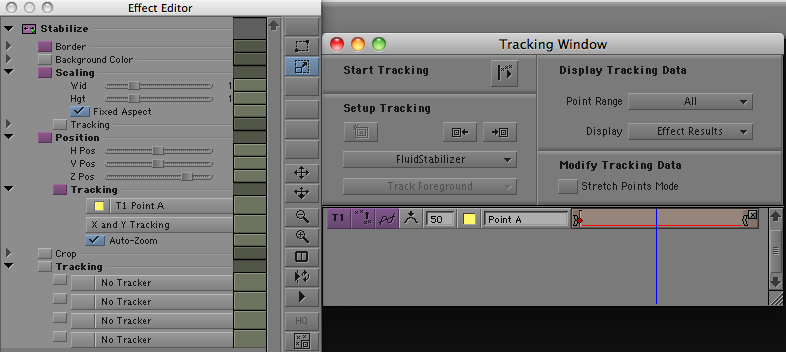
Media Composer has included a very powerful stabilize effect for years now, but putting all that power to work was not easy. You needed significant training to get up to speed with it. (I posted a introductory video back in ’08 that should help. It’s here.) But now, with version 5, the stabilize effect is one-button simple. Yes, there are still lots of controls, but for most purposes, all you need to do is drag the effect to a clip and watch while it automatically tracks and stabilizes the shot, blowing it up as needed. You don’t need to identify a location for a tracker because the effect analyzes motion across the entire image.

With the default options, camera moves are preserved, but small jittery motion is eliminated (Avid calls this SteadiGlide). In most cases, that’s exactly what you want, and no further adjustments are required.

When it works, the effect can seem almost miraculous, fixing problems in an organic way that used to be impossible in a picture editing room. I’ve sometimes found myself checking the original shot just to make sure I’m not imagining the improvement. And best of all, the result plays in real time. No rendering needed.

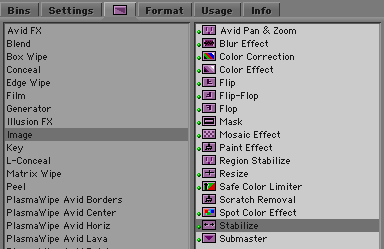
Try it. I think you’re going to like it. It’s one of the best small features in MC5. You’ll find it in the image category.

Installer Love

Posted August 22, 2010 by Steve
Categories: Avid, Avid Technical Tips

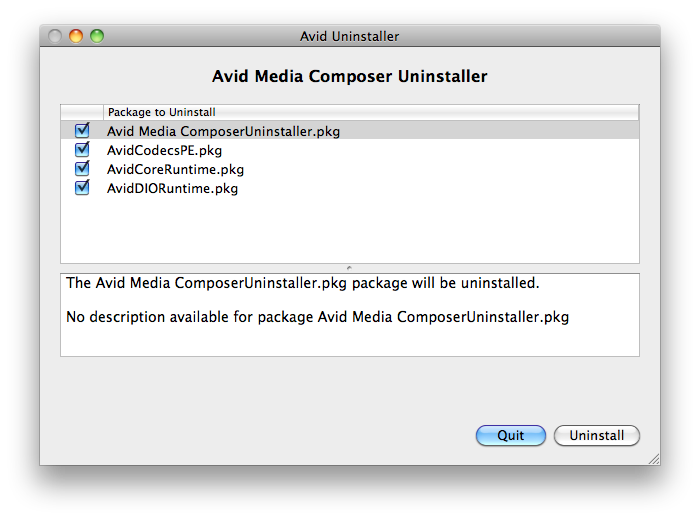
It might seem strange for a person to want to yell “Eureka” during a simple software install, but that’s exactly what happened to me recently. Avid has always required you to uninstall before upgrading. And in the past you had to uninstall each of your Avid applications separately, and then install new versions one at a time. This was slow, prone to error, and just plain blockheaded. But with Media Composer 5.0.3, Avid has quietly updated the Mac install process, creating a single uninstaller and unified installer. The uninstaller searches for all your apps, finds them quickly, and with a single click, removes them. The installer is similarly fast and one-button easy, allowing you to install MC and all the helper apps simultaneously (EDL Manager, FilmScribe, etc.). Be sure to click the Customize button — that’s where you’ll find the helper apps.

Media Composer used to be maintained exclusively by trained technicians. Today, many editors own their own systems and do their own maintenance. The new install process is a small thing but it will make a big difference to that audience.

The next step, hopefully, is a combined installer/uninstaller, which checks for updates over the net and downloads them in the background. When that happens, you’ll hear an even bigger “Eureka” from my editing room.

Here’s the new uninstaller:

And the new installer:

Making a Right-to-Left Wipe

Posted August 13, 2010 by Steve
Categories: Avid, Avid Technical Tips

For those of you using Version 5 for the first time, one of the biggest changes is the need to deal with advanced keyframes for most visual effects. This represents a big leap in functionality, but for people unfamiliar with the interface, there will be some inevitable speed bumps. I’ve put up an video introduction to the subject, here. (The video is slightly out of date in that you no longer have to promote effects — they’re advanced by default. But it should be helpful, anyway.)

I discovered another hidden feature the other day: The Reverse Animation button, which appears in some traditional visual effects, is missing in action in the advanced interface. You might use it, for example, to create a right-to-left wipe. Avid’s standard wipe is left-to-right. In the past, to switch it, you just hit Reverse Animation.

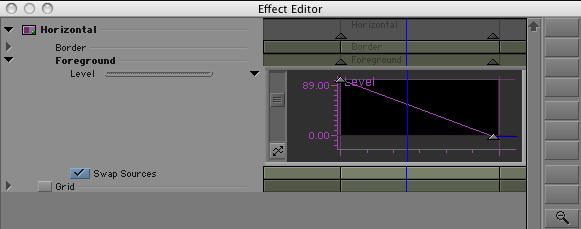
But in Version 5, when you apply a horizontal wipe, it opens the advanced keyframe interface, and the button isn’t available. It turns out that the feature is there, however, hidden in a contextual menu. To find it, right click on the effect track. Then select Reverse Keyframes.

Note the keyframe graph above. After selecting reverse keyframes, the graph inverts and the Swap Sources button is automatically selected, as shown below.

Voila, you have created a right-to-left wipe.

The Fourth Paradigm

Posted July 27, 2010 by Steve
Categories: Avid, Workflow

In my working lifetime, I’ve seen three major workflow paradigms. First was pure film — we edited with workprint and mag film, we made visual effects with an optical printer, we mixed with mag dubbers, we cut negative and made an answer print. It was artsy-craftsy, there were lots of quirks, long experience taught you the tricks, and there was only one way to get the job done. Linear tape was next: editing with 3/4″ U-matic machines, dubbing your cut material until you could barely see an image, cleaning a list and onlining. Digital non-linear merged all those processes together: shoot film, telecine workprint, edit digitally, conform film, cut negative — a hybrid, with lots of alternatives, which we slowly figured out over a good 15 years. DI conforms eventually replaced negative cutting for most productions.

Now, with the advent of file-based cameras, we are seeing the fourth paradigm, where everything, from camera to cinema screen, is a file. No film, no videotape, no audiotape. All media is digital and it all lives on hard drives (or flash drives). Some of us have boldly jumped into this new world, but I’m not sure if the full import of the change has hit home yet. It means that in theory you can do everything that needs to be done with an ordinary desktop computer in a tiny office.

I just started a show that’s shooting on Red and Canon 5D. Red files are converted to Avid media via RedCine-X, synched in a Media Composer, and shipped to us on 1T drives. No digitizing, no tape, no decks. Conceptually, this is the simplest workflow ever, but in reality, the number of permutations has gone through the roof, there are no standards and everybody skins the cat differently. Planning is critical, but even with two weeks of daily phone calls and meetings to set up our workflow, there were surprises once the train began to roll.

This is the workflow of the future, of course. Tape and film may linger, but in the end, it’s all going to be ones and zeros. I hear myself talking now and have to laugh at all the acronyms: MXF, DNX, DPX, LTO, WAV, R3D, RMD. This is the new vocabulary of the editing room, and if you don’t know what those formats are, well, you will soon. And that only skims the surface, because the real question is what you do with those files, what software you need to manipulate them, what kind of drives will play them and how you’re going to look at the images. I’ll try to offer some hints about all this as we move forward, but for now, welcome to the brave new world of end-to-end digital production, where you can do anything in the privacy of your own editing room — and where every mistake is potentially yours alone.
The Power of Editing

Posted July 25, 2010 by Steve
Categories: Media and Society

With all the coverage we saw last week of the Shirley Sherrod story, one thing stands out for me: the whole episode, the truncated video, the firing, the rehiring, the apologies — it’s all an object lesson in the power of editing, not just to change movies, but to change lives. And it’s a reminder, too, that media illiteracy knows no social or cultural boundaries. How many powerful people saw that snippet without thinking, “hey, maybe there’s a context”? We all want to believe that cinema tells the truth. And so we are constantly fooled by what passes for reporting. We hear a lot about improving schools and creating national achievement standards, but there’s precious little talk about media education, about teaching kids how to interpret the deluge of images they are assaulted with every day. If this episode tells us anything, it’s that the adults need some media education, too — starting with an understanding of the power of editing.

If you’re curious, here’s Sherrod’s full speech. And the edited version.

Machines Don’t Get Simpler

Posted July 19, 2010 by Steve
Categories: User Interface

The UI designer’s hardest task is to create an interface that is at once simple and powerful, which says “come play with me” to the beginner while offering maximum power to the sophisticated.

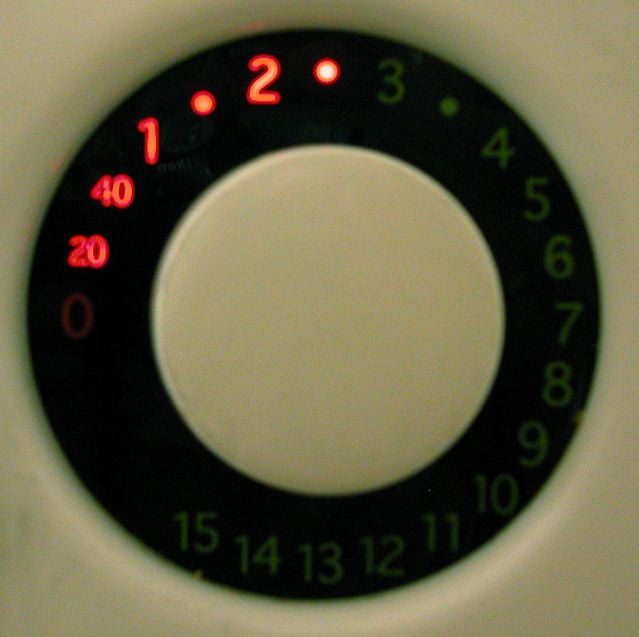
Here’s an object lesson: I’ve had the same little microwave oven for a decade. It has exactly one control — a dial for cook time. You close the door and turn the dial to the time you want. You don’t even press start.

The dial is trivially easy to use because it represents time with rotational distance. It’s based on an analog, organic, functional metaphor, which a child could learn in a few seconds.

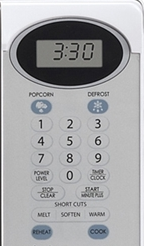
This microwave died recently and I replaced it with its modern equivalent, from the same manufacturer. The guts seem to be the same. But the control panel now features a total of nineteen buttons, four of which serve multiple functions. It is impossible to use this thing without referencing the manual, which I now have to keep handy.

Does it do more? Yes and no. The old one didn’t allow you to set a power level. That was okay with me because it was only used to heat things up and didn’t have much power anyway. But mainly, what all those buttons do is make the thing look cool.

For example, there’s now a dedicated “popcorn” button. But it doesn’t change much. With either microwave, you’ll initially have to do a bit of experimentation to find the right setting for your brand. With the old oven that setting was a number — how many minutes you want to cook. With the new one, it’s also a number — how many times you hit the popcorn button! But you’ll have to remember that every additional punch of the button reduces cooking time rather than adding to it.

For me, the new oven is not much more capable, but far more complicated, than the old. Maybe that’s a principle of UI design — complexity accretes like barnacles and doesn’t go away until you blow everything up and start over.

We just don’t spend money on simplicity. We spend it on the impression of power and complexity. We want to know that our tiny little microwave can make a souffle, even if all we ever do with it is heat up leftovers.