Tip #9 – Scroll Wheels

Posted November 22, 2006 by Steve
Categories: Avid Technical Tips, Avid vs. Final Cut

Later versions of the Media Composer and Xpress finally make decent use of a mouse with a scroll wheel. Many editors don’t know this because they are using older mice that don’t have them, but the scroll wheel is great for moving quickly through large bins, navigating in the project window, or even scrolling up and down through your tracks in the timeline. Even better, if you have a scroll wheel that functions in two dimensions you can use it to move the timeline left and right. Apple’s standard Mighty Mouse works well for this purpose — the scroll wheel is a little ball that can go up and down or left and right.

Recent Apple laptops have trackpads that allow you to scroll by dragging two fingers on the trackpad surface. If you don’t have that capability you can create scroll areas on the side and bottom of the trackpad with a piece of shareware called SideTrack. I’ve been using it for several months and like it a lot. (Apple distributes something called FFScroll which allows older machines to do a two finger scroll, but I haven’t tried it.)

Scrolling in the timeline is instantly addictive because the scroll wheel produces a result that’s proportional to the amount of turning you do. Clicking and holding on an on-screen button is ‘dimensionless.’ You have to watch the result to see how far to go. But with the scroll wheel, your input (how far you roll the wheel) and the output of your action (the movement of the timeline) are proportional and that means you can do it with less conscious attention. It feels more organic, more like an extension of your body.

However, I still prefer my favorite mouse, the venerable Microsoft Intellimouse Optical (available at Amazon), because I can program the right button to be a double click. That one feature has eliminated a persistent pain I had in my forearm and has probably saved my wrist. But the Intellimouse has an ordinary scroll wheel, and that means I can’t use it to scroll horizontally.

For that and other reasons, I wish Avid would go a step further and add a setting that would allow us to control a scroll wheel. It would be great to be able to use that up and down wheel, in the timeline, to move left and right. And it would also be great if we could adjust the sensitivity of the scroll wheel. I can set the sensitivity in System Preferences, but unlike every other program I’ve got, the Media Composer ignores it. Windows always scroll at the same speed no matter what you do and often that speed is too slow.

And last but not least, it sure would be wonderful if we could scroll the timeline while video continues to play.
Wish List #2 – The Live Interface

Posted November 11, 2006 by Steve
Categories: Avid, Avid vs. Final Cut, Avid Wish List & Bugs, Final Cut

What I find most frustrating about both the Media Composer and Final Cut these days is the static quality of the interface. We’re so used to this now that we don’t notice it, but if you play around with Apple’s Motion you might start to think differently. Even iTunes feels more live than our beloved picture editing programs.

What makes Motion different is that it’s designed to modify your animations while they continue to play. This may not sound like much but using it on a fast machine can feel liberating. You get instant feedback on whatever you are doing. There’s less waiting, less mousing around; you get a much clearer sense of connection to the material.

The Media Composer was born at a time when playing a sequence took all the horsepower the thing had. So it was designed around the idea that you’d press play, look at your work, press stop, change something, and then press play again. The Media Composer was so rigid in this regard that once you pressed play you couldn’t click the mouse anywhere without stopping video. That was how it was in 1991 and that’s how it is today, a decade and a half later.

Though it was designed more recently, Final Cut isn’t much better. But it does offer one huge advantage over the MC, namely the ability to scroll and zoom the timeline while video plays. Once you try that, you never want to go back.

That kind of dynamism, where nothing stops you, where you’re always making decisions based on moving images and sound and where you get live feedback on your changes, is the basis of the user interface of the future.

Here are some initial thoughts about what that might consist of. Some aren’t completely fleshed out — they’ll take some experimentation. But I hope they’ll be food for thought. Please contribute your suggestions.

  1. The timeline continues to play while you resize it.
  2. The timeline re-centers itself automatically when you play off either end.
  3. Windows can be resized or moved around while video continues to play.
  4. Rendering should happen in the background. In fact, whatever the machine is doing, it should do it in the background. You should never be stopped by the pinwheel cursor.
  5. Mixing moves, reverb, EQ, all should work while audio is playing. It should be possible to identify a portion of a sequence and play that material as a loop while you manipulate various effects.
  6. The same should be true for video effects. You should be able to apply and change them and see your changes while video plays. And you should be able to change parameters for transition effects while the transition plays as a loop.
  7. Finally, you should be able to independently play several video and audio sources at once. For example, it should be possible to gang the source and record monitors and play them simultaneously. It should be possible to audition music against picture by cueing the music in a popup monitor, playing your timeline and then hitting play in the pop-up. It should be possible to play dailies in the source monitor while you scroll around in the timeline or do other work.

The old paradigm was “make a change, press play.” The new paradigm is “press play, make a change.” A system that can do this is going to make our current machines seem quaint.

Edit Lite

Posted November 3, 2006 by Steve
Categories: Editors Guild, Quality of Life

As our tools have become cheaper and more ubiquitous, competition for editing jobs has increased. The result is that some picture editors and assistants are getting squeezed pretty hard. But it seems like music editors have it worse, and I’m starting to wonder whether they aren’t the proverbial canary in the coal mine.

Since they’re often paid directly by the composer, it’s not uncommon to see the them working non-union on otherwise fully union shows, working long hours for a flat rate. They often work out of their houses, using their own equipment, without an assistant. The expectations, time pressure and technical responsiblities can be very high. And if you don’t like the money or the working conditions, there’s often no support from the rest of the crew. The crew is you.

I wonder whether these aren’t the kinds of conditions that picture editors will face in the next few years, at least on lower budget shows. As our equipment gets more portable it’s easier to work at home. As the technology gets simpler and more efficient, crews shrink.

Dovetailing with this situation, Verizon and AT&T just got the right to deliver TV over telephone lines in California. That means we’re soon going to see dramatically faster Internet speeds. It’s going to make all kinds of things possible.

But with this, as in so much of the digital revolution, the law of unintended consequences bites us in the butt. Working at home is a great idea, right? Sure, until you realize that if you work at home you never get to GO home. Cheaper equipment is a great idea, too — until you factor in the idea that you’re going to be buying it yourself, upgrading it, and doing your own tech support. Videochatting with your director over a super-fast Internet connection is wonderful, until you realize that the same connection can be used with anybody in the world, and you’re competing with a whole lot of people you’ll never see.

So what do we do? No doubt, the Editors Guild has a pivotal role to play. We’ll never prevail if we don’t work together and get ahead of these trends. But just saying no won’t work. It’s essential that we think about these issues in the broadest and deepest possible terms. If we don’t want to be forced to be cheaper then we have to be smarter.

And as individuals? It’s much the same. The only thing we can do is to get ready by improving our skills.

That long learning curve that we’ve been climbing for the last decade and a half? It sure doesn’t look like it’s going to flatten out any time soon.

Tip #8 – Cut and Paste in the Timeline

Posted October 30, 2006 by Steve
Categories: Avid Technical Tips

This won’t be news to some of you, but over the years Avid has made it easier to cut and paste clips in the timeline. Not everybody is aware of this feature and it may appear quirky, but in certain situations it can be a godsend. For example, if you need to make a series of similar titles, just make one and copy and paste it where you want the others. Then simply change the text on the copies. All the formatting remains intact.

Here are a few pointers:

Copy obeys tracklights and marks. So first select the tracks you want to copy, then mark the timeline where you want the copy to start and end. Then select Command-C. The material you’ve marked goes to the clipboard.

But paste (Command-V) doesn’t obey marks or tracklights. When you paste, whatever was in your clipboard is inserted at the blue bar position, regardless of where your marks are, and in the same track(s) from which it was copied. A paste typically works like an insertion, a yellow edit. That generally isn’t as useful as an overwrite (red edit). To do that, you must select red segment mode before pasting.

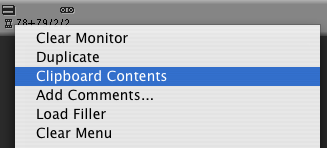
If you want to paste copied material into a different track, you have to put your copy into the source monitor, patch your tracks, and insert or overwrite. In Media Composer the easiest way to do this is by selecting “Clipboard Contents” from the menu above the source monitor.

Clipboard Contents Menu Pick

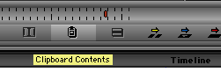
Xpress doesn’t include that menu item so you must use the command palette to do it. The button is in the Edit tab and is called “Clipboard Contents.” Put it under your source monitor and click it to load whatever you’ve last copied.

clipboard_contents1.png

Even simpler, you can copy something from the timeline directly to your source monitor simply by marking it, selecting tracks and then option dragging from the record monitor to the source monitor. Voila, you’ve got a copy of that material, ready to be edited somewhere else. But note that this feature broke at some point and could corrupt your timeline. I’m told that it’s fixed now, but you should use it at your own risk.

Finally, note that every time you lift or extract something, a copy of the material automatically goes to the clipboard. If you want to use it somewhere else, just paste it directly or load it into the source monitor.

______________________________

Wish list:

  1. In most Mac applications, including the Finder, you can duplicate an item by option-dragging it. A copy is created wherever you end the drag. Pro Tools allows you to do this in the timeline, and sometimes it sure would be great if the Media Composer did, too.
  2. Allow the editor to choose the type of edit a paste defaults to. I almost never want an insert. I almost always want an overwrite.

MC Speed

Posted October 25, 2006 by Steve
Categories: Avid

Right now I’m working with Xpress Pro (with Mojo) at work, and I’ve been playing with the new software-only Media Composer on a laptop at home. One thing I’m loving about MC software is how fast it puts frames on the screen.

One of my biggest gripes about Adrenaline has been how slow it felt when dragging through the timeline. Every frame hung on the screen for too long. You could drag through a reel and miss entire sequences. This is hard to explain in words, but it can make you feel like you’re dragging through molasses.

In the past, and to my surprise, I found Xpress faster than Adrenaline in this regard, but the comparison wasn’t totally fair since the Adrenaline system was connected to Unity and the Xpress machine wasn’t.

So far I’m finding that the new Media Composer, at least with local storage, is a real rocket ship in this regard. It feels so responsive when dragging that it’s actually sort of fun to just play with it.

In other respects, MC software feels pretty sluggish on the laptop: when scrubbing audio, opening big bins or working on long sequences with a lot of tracks. But I think it’ll work a lot better on a faster machine. I’m eager to see what it’s like with Unity.

Bottom line, I think there’s no longer any reason to hesitate about Adrenaline, and I’m talking about on the Mac. I would choose it every time, if for no other reason than that it lets you have 16 tracks of audio and does real-time audio dissolves. Get a fast machine with ample RAM. And consider using Mojo hardware rather than Adrenaline, or even software only. You may find that you like a lighter, simpler setup. I do.

Finally, don’t rule out Xpress. There are half a dozen things you’ll have to work around, but none were show stoppers for me. And it’s fast and stable on the Mac.

Wish List #1 – Audio

Posted October 17, 2006 by Steve
Categories: Audio, Avid, Avid Wish List & Bugs

I’m going to change the channel a bit with this post and talk not about what is already in the Media Composer, but what I wish was there. Much of the basic feature set has been with us for a decade or more. These functions typically work very well because they’ve been battle-tested over the years. But the editing world has evolved in that time, and there’s lot of capability that, it seems to me, is now missing.

I’ll start with audio and follow up with other subject areas in the future. I’m eager to hear your feedback. Please add comments.

  1. The ability to move, trim, slip and slide audio keyframes.
    How many times have you carefully mixed some music under dialog, only to learn that you need to trim that music or start it on a different phrase? What you want in that case is to trim or slip the music but leave the keyframes where they are. There’s no way to do that now. You must laboriously move every keyframe, one at a time. And since you can’t move them numerically, you have to guess at the distance. There are other times when you might want to do the reverse, namely trim the keyframes without trimming the automation. Current trim rollers trim a clip and its automation at the same time. What I’m proposing are special rollers that would trim one or the other, but not both.
  2. Better caching of waveforms.
    Avid’s waveforms are terrific. Very clear, lots of detail, and you can scale them vertically so you can always see what you need. They’re faster than they used to be, but they still take a long time to get on the screen and every time you move the timeline or resize it, you’re in danger of having the system go out to disk and resample everything, which means you’re going to wait. Worse yet, if you happen to have waveforms on and select “show entire sequence,” you’re in for a very long wait, and often, there’s nothing you can do during that period because you can’t stop the waveform draw.
  3. Redesign the audio mixer.
    We can play 16 tracks. But we can’t see them in the mixer. In fact, the thing always comes up with only four tracks showing. Moreover, the mixer insists on trying to “help” me see the tracks I want by turning faders off and on when they are activated/deactivated in the timeline. This produces an endless amount of confusion. Isn’t it time that this piece of the UI get a refresh? The mixer ought to show 16 tracks all the time, and if we ever get the ability to play more then it should show those, too.
  4. Volume automation should record fewer keyframes.
    When you’re doing realtime mixing in the MC, you generate hundreds of keyframes. That’s fine if your never plan to recut your show, but who works that way? Every picture change means moving keyframes, and since the MC can’t move multiple keyframes at once, all those keyframes is just going to create chaos. Final Cut lets you lay down what I’d call “sparse” keyframes: either just a few, or only at inflection points (the top and bottom of a curve). The MC ought to have the same capability.
  5. Track level mixing.
    How many times have you wanted to change the level of an entire scene? This might happen because the scene was recorded low, for example, or because you’re now laying music over it and need it louder so it doesn’t fight the music. Or you might want to add reverb to a dialog track only to find that the reverb starts and stops at every cut. There’s no good way to deal with these kinds of problems other than to change the level of every clip (a lot of trouble) or to make an audio mixdown (and thus lose track of your source clips). It ought to be possible to treat a track as a track and apply audio effects and level changes to the track itself, not just the clips within it.
  6. Nested stereo pairs.
    Every time I cut a piece of stereo music I wonder why I have to look at both tracks. I inevitably put the same keyframes on them at the same levels. If you’re mixing multiple pieces of music each of those stereo pairs represent another track that you have to trim when you make changes, or that can get out of sync. It ought to be possible to deal with a stereo pair as one clip.
  7. Allow for movement of stereo pairs from odd to even tracks.
    Have you ever noticed that if you grab a stereo pair in segment mode, the system won’t let you drag it vertically to the next adjacent track? Due to a feature that’s been with us since the early daays, the system insists that if a cue is in track 3 and 4, you must want it to stay in an odd/even track pair and it won’t let you drag it to 4 and 5 — you have to go to 5 and 6. I’m sure that some people want to see their tracks laid out this way, but I’m not one of them. This “feature” ought to be a preference.
  8. Drag and drop from iTunes.
    Until Avid makes it possible to play two clips “asynchronously” (that is, play the timeline, and then play the source without stopping the timeline) we’re going to need a way to audition music. iTunes is it. But to import material from iTunes we have to drag clips to the desktop first. It ought to be easier than that.
  9. Import audio at standard levels.
    Anything imported from CD, AIFF, or MP3 comes in way too loud and has to be turned down.
  10. Imported clips should come in with full clipnames.
    If I import a sound effects clip with a long, descriptive file name, the MC creates a clip with that name — but with the name truncated and typically has to be re-entered. There’s no need for this. Unlike filenames, clipnames can be as long as we need them to be.

