Tip #7 – iTunes for Music and Effects

Posted October 7, 2006 by Steve
Categories: Audio, Avid Technical Tips

iTunes_soundtrack

If you work with temp music and effects and you haven’t started using iTunes as an adjunct to the Media Composer, you owe it to yourself to try it. Once you get used to the way it works, I think you’ll wonder how you got along without it. It’s great for two reasons.

First, iTunes makes it very easy to organize your sound effects and music. Most of the commercial sound effects libraries are now part of the Gracenote database, so when you load those CDs into iTunes the tracks get labeled and organized automatically. Once your effects are loaded, you can easily do a keyword search and find everything with the word “splash” or “gunshot” or “wind” in the description and listen to them with a simple double click. (Unlike the MC, iTunes keeps playing even as you move around in a clip, which makes it great for browsing.)

Second, iTunes can play things simultaneously with the Media Composer. This makes it a terrific tool for experimenting with temp music. You park the MC at the beginning of a sequence where you need music and press play. Then switch to iTunes and press play there. You are now playing music against picture, and you can move your cursor around in iTunes or the MC and try different synch positions easily. This is much quicker and easier than trying things out using CDs or, worse yet, within the MC itself.

Here are some tips that will make this process easier:

You don’t want to have to listen to iTunes through the tiny speakers on your computer. So make sure that the audio output of your Mac or PC is routed through your mixer. Then you’ll be able to adjust the level of iTunes just as you would a CD player.

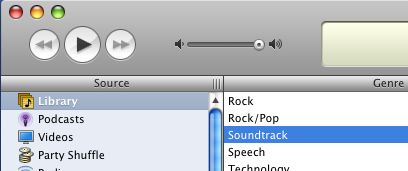
Even though the Gracenote database now gets most CD tracks labeled correctly, it does make mistakes. Be sure to check the labeling, including the “genre.” You want scores labeled “Soundtrack” and sound effects labeled as “Sound Effects.” That’ll make it a lot easier to find things later.

Be sure you load your material into iTunes in an Avid-friendly way. The Media Composer won’t import “variable bit rate” MP3s, nor will it accept AAC-encoded files. So you must load iTunes using the MP3 encoder, preferably at a high bit rate, like 192 kbps. Better yet, load your audio as AIF files, which aren’t compressed at all. This takes up the most space but yields the highest quality. You’ll find these settings in the iTunes Preferences under Advanced > Importing.

Most important, the MC won’t import from iTunes directly. You can’t drag and drop from iTunes into an Avid bin. This is frustrating, and I hope Avid engineering will do something about it, but there’s a fairly simple workaround. Just drag from iTunes into folder on your desktop first. This creates a copy of the sound file and leaves the original in iTunes. Then drag that copy into a bin.

Once the file has been successfully imported into the MC you can delete the copy from the finder. You also probably want to adjust the level of the source file in the MC. For some reason, things that play properly in iTunes will come into the MC much too loud.

Finally, I suggest that you tell the MC to sample rate convert your audio during input. Though the system will now play any sample rate in the timeline, it will insist on rendering these files when you attempt to make a digital cut. That’s awkward and messy. It’s easier to let the MC do all of that during input. You’ll find these settings in Import Settings > Audio.

Once you start using iTunes for work, you may find yourself wanting to create more than one iTunes music library. Check out the program Libra. It does a good and simple job of helping you switch from one library to another. You’ll find it here: http://homepage.mac.com/sroy/libra/
Tip #6 – Enlarge Waveforms

Posted September 28, 2006 by Steve
Categories: Audio, Avid Technical Tips

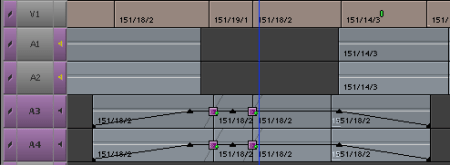
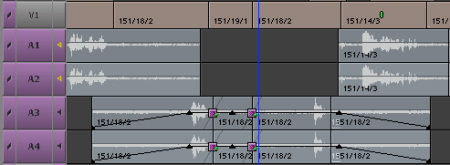
The Media Composer still doesn’t display audio waveforms fast enough, but speed has improved considerably over the years and I now leave them on quite often. One problem that comes up regularly is that quiet sources can be hard to see unless you make your tracks tall, which hogs screen real estate.

The trick is to enlarge the waveforms only. Just select the track and instead of hitting command-l, which enlarges the track, hit command-option-l. The waveforms get taller, but the track size remains the same.

Here’s a section of a timeline with waveforms displayed. The audio is so soft you can’t see anything.

normal_waveforms.png

Here’s the same section after hitting command-shift-l a few times:

big_waveforms.png

Voila, you can see!

To shink the waveforms again hit command-option-k. To get your waveforms back to standard size hit command-option-k several times, until they won’t shrink any further.

Tip #5 – Extend Trim View

Posted September 20, 2006 by Steve
Categories: Avid Technical Tips

I do an awful lot of assymetrical trimming, especially when after I’ve started to build sound effects and music into a sequence.

After a cut is trimmed this way, I naturally hit play transition to look at it. But sometimes that isn’t enough. I need to get a longer run at the cut to evaluate it — go back a few shots and play from there. To do that I have to exit trim mode, check the cut and then, if I don’t like it, I have to set up the trim again, which can be time consuming.

There are two ways around this. One way is to use “recreate last trim.” This puts your rollers back where they were the last time you were in trim mode. You invoke this by holding down the option key and hitting the trim mode button. So you’d make your trim, exit trim mode, check the cut, and then return to trimming by hitting option+trim.

But you can also simply move one roller and fool trim mode into playing more of your timeline than it would otherwise.

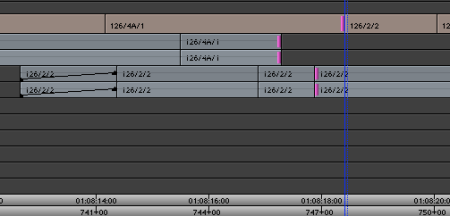
Here’s a typical assymmetrical trim:

Normal Trim

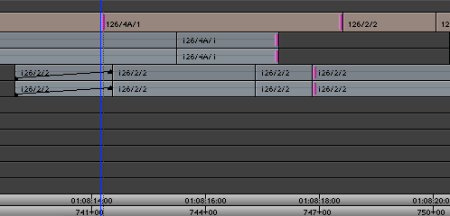
But let’s say you want to see the entire previous shot play before coming to the cut you’ve been working on. Easy — just add one more roller, by shift clicking on an earlier picture cut, like this:

Extend Trim View

Now the Media Composer plays from before the first picture roller to after the second one. When you’ve seen what you need, deselect that roller by shift clicking and you’re ready to make additional changes.

Tip #4 – Trim to Fill

Posted September 17, 2006 by Steve
Categories: Avid Technical Tips

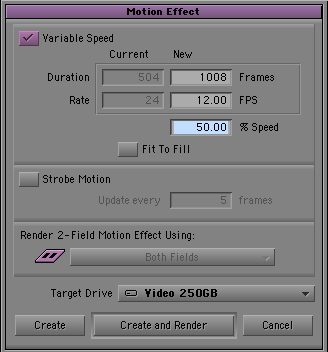
Most of us have been making our motion effects the old fashioned way, using Avid’s trusty “Motion Effect” dialog box. This is reliable and predictable, especially for work that has to be reproduced on film with an optical camera. But today, most of us are working in environments where effects get conformed digitally, and that means we no longer have to restrict ourselves to integer speeds (1/2x, 2x, 3x, etc.).

Standard Motion Effect Dialog Box

The alternative is to use Avid’s Timewarp tools. They allow you to create motion effects at any speed you like. Modern effects workstations can conform these things very cleanly in most cases.

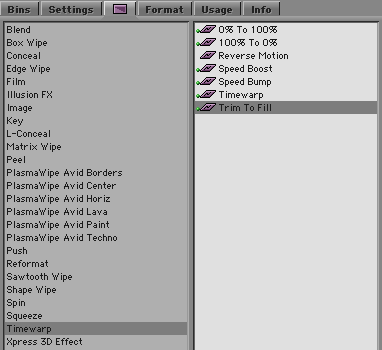
The easiest timewarp to use is the “Trim to Fill” effect. It’s initially a bit counterintuitive, but once you’ve tried it, I think you’ll find that it becomes a standard part of your toolkit.

Trim to Fill Effect

First, cut the clip you want to slow down or speed up into your sequence. Then drag the “Trim to Fill” effect icon to it. Now go into trim mode and grab either end of the clip and stretch or shrink it. You’re not actually trimming the clip. It’s first and last do not change. Instead, you’re adjusting the speed of the clip. If you lengthen it, you slow it down. If you shorten it, you speed it up. To reflect the change, a percentage gets apended to your clip name. “27A-1” becomes “27A-1 (150%).” Note that the percentage refers to speed, not length. 200% means the clip is running at double speed. 50% means it’s running at half speed.

You can use all the standard tools to trim the clip and thus create any speed you like. Depending on your hardware, you may have to render the effect to see it play properly. That’s a disadvantage, but the old motion effects had to be rendered, too.

There is one surprise, though. Since trimming the clip changes its speed, if you really do want to trim it, you’ll have to remove the effect, make your trim, put the effect back and readjust the speed.

Trim to Fill is a subset of the “Timewarp” effect. The full timewarp option allows you to ramp your speed changes, gradually speeding a shot up or slowing it down. But it isn’t needed in most cases. Avid also offers other timewarp presets including a reverse motion effect and a 50% slow motion effect.

Note that even the simplest effect created as a timewarp looks smoother than the equivalent effect made the old way. That’s because timewarps do “motion interpolation,” creating additional frames as needed to smooth things out. If you make an old “print every frame twice” effect and compare it to a 50% timewarp, you’ll see the difference instantly.

Tip #3 – Measuring Effects

Posted September 13, 2006 by Steve
Categories: Avid Technical Tips

Xpress Pro doesn’t offer a center duration display, so to measure things you have to display “I/O” over the monitors. It turns out that this offers a subtle advantage when working in effects mode, which also doesn’t offer center duration.

I try to keep things as simple as possible when I make visual effects and when possible attempt to make the distance between keyframes an even number. It’s easier for the effects house to replicate my work if I make a fade 3 feet long, rather than, say 46 frames. But doing so isn’t as easy as it should be.

The trick is to display I/O above your record monitor. Then, when you are measuring an effect, make only one mark in the timeline. I/O will then show you the distance from the mark to the blue cursor position — and it will update as you drag your cursor around.

For example, if you want to make a three foot fade out in a super, put a mark out at the end of your fade, then put a keyframe roughly where you want to fade to begin. Click on the keyframe — as long as you have only one mark in the timeline, I/O shows you the distance to your mark. Now drag your keyframe around. As you drag, the distance to the mark updates, so you can put it exactly where you want.

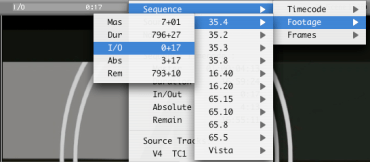
Here are the cascading menu picks you’ll need in order to show I/O in feet and frames.

Selecting I/O Display

Note that you can do the same thing over the source monitor, but in Xpress you have to load a sequence into the source for the menus to offer these choices.

Tip #2 – Toolsets and the Full Screen Timeline

Posted September 9, 2006 by Steve
Categories: Audio, Avid Technical Tips

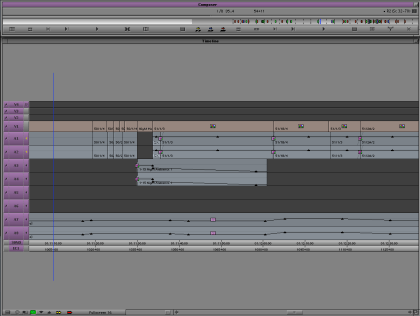
We’re all cutting more tracks these days and there just doesn’t seem to be enough screen real estate to manage them. Ever since the early 90s, the Media Composer has offered a way to maximize the size of the timeline window, but few people seem to know about it.

To shrink your source and record monitors and create a view something like you see below, simply click the button at the top right corner of the Composer Window. (On newer systems the green “maximize” button at the top left does the same thing.)

Full Screen Timeline

The images are gone from your source and record monitors, but nothing else has changed. All your editing controls continue to work as you’d expect. If your system includes a client monitor, I think you’ll find it easy to get used to this setup, especially if you’re working only on sound.

Once your source and record monitors have been been resized, you’ll want to adjust the size of other windows and then save this configuration as a Toolset.
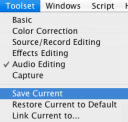
First, have the system memorize your normal configuration, so you can get back to it. From the Toolset menu, be sure “Source/Record Editing” is selected and then choose “Save Current.”

Then select “Audio Editing” from the Toolset menu. The system will shift to a default audio editing view, and open the audio mixer. Your job is to customize this view until it suits you. The first step is to invoke the Mini-Composer. Click the green maximize button or the button at the window’s top right corner.

Then manually resize the timeline to fill the rest of the screen. And move your windows around until the interface is set up to your liking. If you prefer to see the audio tool then leave it where it is (you can even switch it to show 8 channels and have that memorized, as well). When you’re satisfied, select “Save Current” from the Toolset menu.

Toolset Menu

Now try out your toolsets. Select “Source/Record Editing” and you should see a normal display. Select “Audio Editing” and you’ll go to the magnified timeline.

The final step is to associate a timeline view with a Toolset. That way, when you select “Audio Editing” you’ll not only see the enlarged timeline, but you’ll also switch to a track view that’s appropriate, with taller track sizes.

Just set up the timeline view as you normally would and memorize it by selecting Save As from the popup under the timeline.

Timeline View Menu

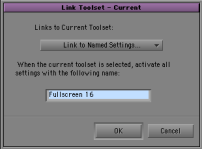
Then link that view to your Tooset. Get yourself into the Toolset using the Toolset menu. Then, from the same menu, choose “Link Current to…” In the dialog box that follows, type the name of the Timeline View you’d like to associate with that Toolset.

Link Tooset Dialog Box

(You can always change your timeline view while working. All this does it bring up a specific timeline when you choose your toolset.)

That’s all there is to it. Now, with one menu pick you can shrink the composer, enlarge the timeline and enlarge your timeline tracks. And you can get back to where you were just as easily.