Archive for the ‘Avid’ category

Improving the Look of Your Titles

September 28, 2010

Avid’s venerable Title Tool has come in for a lot of criticism over the years, but despite its limitations, it’s often the best way to get a simple titling job done, and it has many hidden features that many people don’t seem to know about. Here are a couple of my favorites.

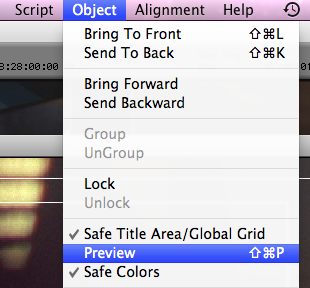
First, when you’re creating a title, the tool normally defaults to draft mode, which makes your titles look crude and aliased until the title is actually created. That made sense in years past when processors were slower, but today you can work just as quickly in what Avid calls Preview Mode, and your work will look exactly as it will when your title is rendered. You’ll find the Preview command in the Object menu.
Here’s a title in draft mode:

And here it is in Preview mode, looking just like it will when edited into the timeline.

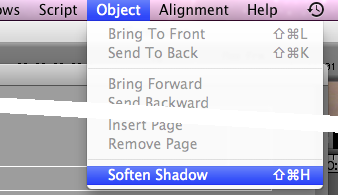
Second, Media Composer normally creates harsh and crude drop shadows — but you can soften them with a simple menu pick, and if you do, they’ll look a  lot more subtle. This option is also in the Object menu.
Here’s a standard drop shadow:

And here’s the same shadow, softened:

Finally, when you open the title tool, a font is selected by default. On the Mac, it’s Geneva, which is rarely what you want. You can’t permanently change the default, but as long as there’s no title present in the title tool, the font and size selections you make are “sticky” and will persist as the default until you quit. If you want to make a series of titles in 24 pt Helvetica, for example, start by selecting those options — before making your first title.
Avid Agility at Amazon / PDF Samples

September 25, 2010

For those of you curious to get a look at the merchandise, I’ve uploaded some sample pages from Avid Agility. To make the files small, image quality is somewhat degraded, but I think you’ll get the idea. You can purchase the book from the publisher, CreateSpace, and now from Amazon, as well. (Amazon’s “look inside” feature will be live in a couple of days.)

• Table of Contents

• Chapter 7 – Trim Mode – first pages

• Chapter 11 – Audio – stereo tracks and clips

• Chapter 12 – Visual Effects – advanced keyframes

The Book Arrives

September 19, 2010

Today, I’m pleased to announce the release of my new book, Avid Agility. It’s the culmination of nearly two years of work, and represents a big fraction of what I know about about the Media Composer. Whether you’ve just upgraded to version 5 or or are still using version 4, I would humbly suggest that you need this book. There’s so much in it, so many tips and so much clear explanation, that I’ll wager that whatever your level of expertise, you’ll learn things from it that will be well worth your time. My first book became something of an underground classic in the early days of the nonlinear revolution. I hope this one will, too.

Long time Media Composer users will find detailed discussion of the new features in version 5, along with material about hidden features you may never have heard about. People who are relatively new to the system, or moving to it from Final Cut or Premiere, will find clear, straightforward explanations of basic Media Composer concepts and techniques. Fair warning: it’s not a beginner’s book, and it doesn’t cover everything. But if you’re looking to get more out of Media Composer, you should check it out.

The style is similar to this blog, so if you like the writing here, you’ll feel at home with the book. You’ll find chapters on timeline editing, visual effects, mixing, stereo audio and audio effects, trim mode, multi-camera editing, titles, color correction, film and film lists, settings, workspaces and lots more. Because so much of the MC interface is color-dependent, the book is printed in color. I’m especially proud of the illustrations, all 500 of them. Editors are by nature visual people and the images go a long way toward making the book easy to absorb and use.

In general, if you’re using Media Composer and want to get the most out of the system, this book is for you. It’s available now from the publisher, CreateSpace (a division of Amazon) and will be available through Amazon itself in a couple of weeks. I hope you get as much out of reading it as I did writing it. But most of all, I hope it helps you create work you’re proud of.

Purchase Avid Agility Here

Keeping Your Client Monitor in Sync

September 15, 2010

If you’re using an HD TV as a client monitor, you’re probably familiar with the dreaded “out-of-sync-on-the-big-screen” problem. This is the result of the fact that most consumer-level TVs introduce a video delay —  the time it takes the TV’s video scaling hardware to do it’s job. If you use the same TV at home, you’ll be listening to audio through the TV — and the TV contains hardware that delays the audio, as well, and keeps you in sync. But when such a TV is used in an editing room, audio is typically run through a mixer and big speakers and isn’t delayed. The result is a sync problem on the TV — the Avid’s composer window looks good, but the on the big screen audio is advanced relative to video, often by as much as two frames and sometimes more. What to do?

You typically have two choices: run your audio through the TV and then back out to your speakers, or purchase and use an audio delay box. Neither approach is ideal: running audio through the TV is awkward, limits you to two tracks, and may degrade quality, and delay boxes are fairly expensive.

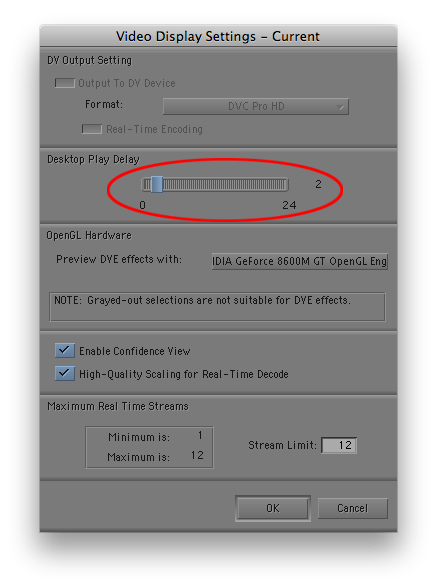
But there’s a third alternative that I discovered recently: Avid’s Desktop Play Delay setting. It was designed for output to a DV device where video and audio are delayed by the latency in the device. But it can also work effectively to put your Avid audio in sync with a client monitor. Just select a frame offset in the setting panel: the number of frames you enter is the amount audio will be delayed. You’ll have to experiment a bit to get it right: on our LGs, a two-frame delay seems best.

Sadly, you can’t be in sync on both the Composer window and the big screen, so you’ll have to choose — no delay for perfect sync on the Composer, or your preferred offset for perfect sync on the client monitor. I tend to leave the setting at zero when I’m working alone, but make the adjustment when I have people in the room, or when we’re screening. Also note that because this feature was designed for DV, it  causes video to jump when you press play or stop, by the number of frames you’ve selected. That’s not a show stopper, but it’s another reason to set the delay back to zero for the bulk of your work. There’s another quirk, as well: You can’t create two settings panels, one with an offset and one without, and then switch between them. For some reason, whatever you do to one panel affects the other.

But despite these problems, the Desktop Play Delay setting has solved a big problem in my cutting room. And if video didn’t shift on play and stop, I might leave it on all the time.

Four-Frame Display

September 6, 2010

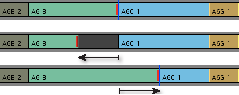
When you drag clips around in the Media Composer timeline, the Composer window adjusts to show you what you’re doing. Instead of displaying the usual side-by-side images, it shows four frames: the A and B sides of the two cuts you’re adjusting as you drag. In some cases, this is super-slick and allows you to make quick and precise changes. But the fact that those video images have to update can slow down the drag, especially as it begins, and that can make editing this way feel like you’re moving through molasses.

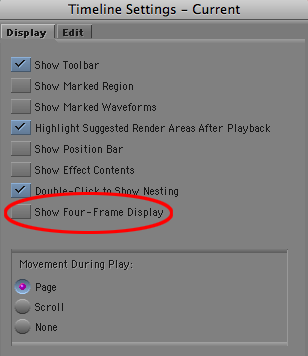
There used to be a way to suppress the four-frame display on a case by case basis. You held down a modifier key while you dragged and the images wouldn’t appear. We seem to have lost that in Version 5, but you can still turn off the four-frame display with a setting. You’ll find it in timeline settings. Deselect “Show Four-Frame Display” and you may find that timeline dragging is a lot more responsive.

Name Change Coming Soon

September 5, 2010

Due to an unfortunate trademark controversy with a post house in Minneapolis, the Splice Here blog will shortly be rechristened Splice Now. I’ll be doing a minor redesign to go with the name change, but in other respects, the blog won’t change. The content will continue to be a mix of technical tips and thoughts on digital editing, along with a dash of media criticism. Your old links will continue to work, at least for a while, but for safety, you should update your bookmarks and RSS subscriptions. More on that when the change goes live.

For those of you who remember the SMPTE academy leader, the words “Splice Here” were printed on the frame where the leader attached to the body of the show — and many of us cut and spliced a whole lot of Splice Here’s over the years. The new name doesn’t resonate the same way, but I like to think it expresses something deeper. Physical splicing is mostly gone, but putting video and audio together at exactly the right moment is, and always will be, the essence of what we do.

I hope Splice Now suggests that splicing is an idea, above and beyond its physical manifestation. Whether we use glue, scotch tape, or ones and zeros, at the end of the day we are shaping performance and story, space and time, juxtaposing images and ideas. This blog is mostly about the technique of editing, but none of it means anything if it doesn’t allow us to create stories that affect audiences.

The new url will be splicenow.com. It’ll work today, and the name change will be official very soon.