Working to bring back some of the professional customers that have left Final Cut in droves, Apple released an upgrade to FCP-X yesterday, which includes support for a new XML format and a way to export audio (or video) stems. FCP doesn’t allow you to control track assignments, but the new release will create stems based on metadata you’ll add to your clips. The new release also allows you to set a timecode start for a sequence, a glaring omission in the original release. The announcement also includes a note that they’ll offer multi-cam support and something they are calling “broadcast quality video monitoring” in 2012.
Archive for the ‘Avid’ category
Apple Updates Final Cut
September 21, 2011Remembering Track Activation
September 17, 2011In the days of mono Nagras, production mixers mixed their mics into a single audio track. But multi-track digital recorders have made that idea seem quaint, and today, editors typically cut from two-track source clips (if not from four- or eight-track clips). Through version 4, Media Composer helpfully remembered source track activation. Which meant that if you loaded a particular clip into the source monitor, selected track 1 for editing and deselected track 2, when you came back to that clip at some point in the future, those tracks would still be highlighted, ready for your next cut.
In version 5, that feature broke. Reload a clip and all tracks were automatically highlighted. No memory.
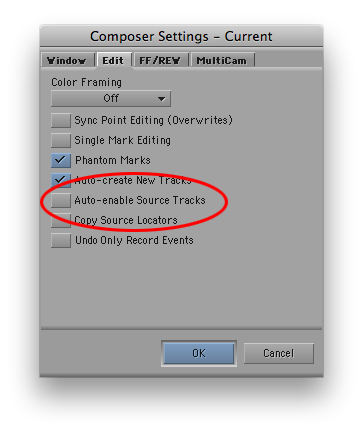
I recently learned that the feature returned in MC5.5 — but only via a setting. It’s called “Auto-enable Source Tracks,” available in the Edit tab of Composer Settings. It’s enabled by default — which turns off activation memory. If you want your source track selection remembered, be sure to disable it.
Also note that changing track activation does not trigger an autosave. You must do something else to the relevant bin (make a mark or move a clip, for example) to ensure that the track status gets saved.
For more tips like this, check out my book Avid Agility, available in print or for Kindle, from Amazon.
Dealing with Big Monitors
September 6, 2011This is a little one, but it’s made an outsized difference to my work. Some of you are undoubtedly cutting on laptops, but for those sitting in front of a couple of 24″ screens, a common complaint is that so much screen real estate makes it easy to lose track of the mouse cursor.
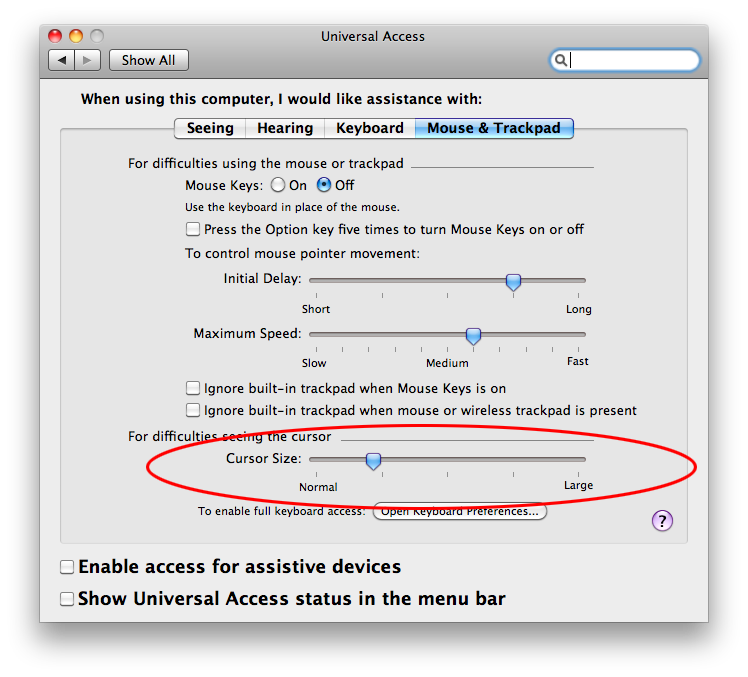
Though many people don’t seem to be aware of it, you can easily change the cursor size with an OSX control panel. Go to System Preferences > Universal Access > Mouse and Trackpad Tab. You’ll see a Cursor Size slider. Bump it to the right and your cursor will get a whole lot easier to locate. It’ll look a bit more aliased, but that’s a small price to pay for greater usability. (You can do the same thing in Windows with the Mouse Control Panel.)
For more tips like this, check out my book Avid Agility, available in print or for Kindle at Amazon.
“That Post Show” on Editing Applications
August 25, 2011 If you’re looking for some thoughtful and provocative discussion about the future of editing applications, and specifically about Final Cut vs. Media Composer vs. Premier, check out yesterday’s episode of the podcast, “That Post Show.” Hosted by Kanen Flowers, participants were Paul Del Vecchio, Scott Simmons, Paul Zadie, Shane Ross and me. The episode is entitled “Unstoppable Hydraulic Pressure,” which is a quote from something I said about the power of market share in the post landscape. You can get it for free from the iTunes store.
Real-Time Freeze Frames
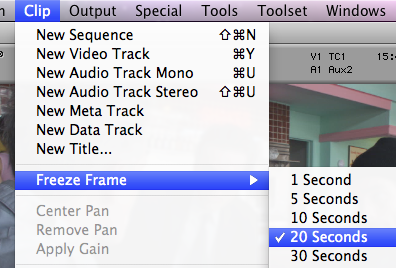
August 14, 2011The traditional way to make a freeze frame in Media Composer is with the Freeze Frame menu pick. You park on a frame in the source monitor, match back till you’re looking at a master clip, then select Clip > Freeze Frame and choose a length. This generates a clip of the frozen frame and media for it. You can then cut it anywhere you want.
But there’s an easier way — using the Timewarp effect. Instead of creating a clip in the source monitor, you apply the effect in the timeline and make a speed adjustment from 100% to 0%. The trick is to specify your keyframe type — to create an instantaneous change rather than a ramp.
First, identify the frame to freeze and add a locator so you can find it easily. Then drag the Timewarp effect to the clip, park on it, open the Motion Effect Editor, and display the Speed Graph.
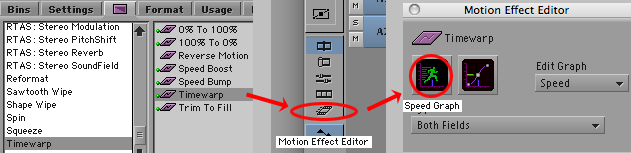
Move the position indicator to your frame and add a keyframe. Then — and this is the crucial step — right-click on the speed graph and select “Shelf.”
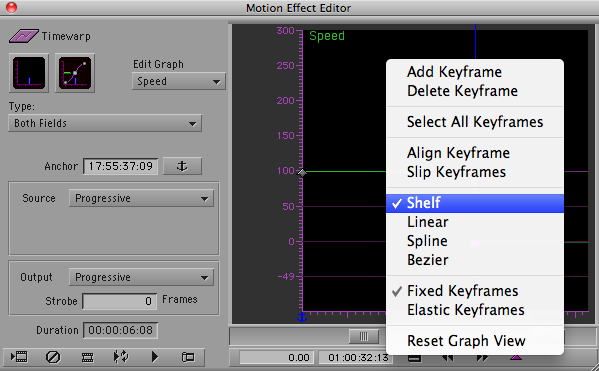
Enter a speed for your new keyframe — 0%. The result is a speed graph with a hard right angle at your keyframe — an instantaneous change from normal speed (100%) to a frozen frame (0%).
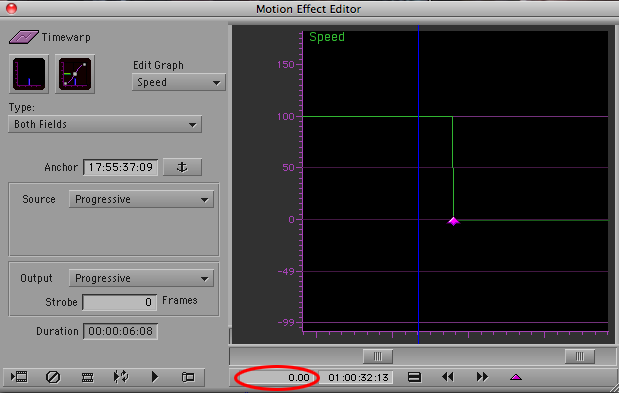
That’s all there is to it. Keep in mind that this is a real-time effect. It typically won’t require rendering, and you can overlay other effects on top of it. Because it’s real-time, it’s easy to change. If you prefer a different frame, just open the Motion Effect Editor and move your keyframe. (To ensure that you don’t change the speed, hold down Option and Shift while you drag.)
For more tips like this, check out my book Avid Agility, available at Amazon.
New Tools for Music Editing
August 5, 2011Avid’s new stereo tracks and Real Time Audio Suite effects are both liberating and frustrating. Introduced in Version 5, stereo tracks allow editors to handle stereo pairs as single objects in the timeline, and control them with a single set of audio keyframes. RTAS effects let you apply up to five real-time audio filters to each track, quickly and easily. That’s the good news. The bad news is that you can’t automate these effects in any way — you can’t turn them on and off, and can’t change their values, anywhere within a sequence. Nor can you edit them from one sequence to another — you have to copy to a bin first.
Stereo clips are problematic, too, because they can only reside in stereo tracks. You can’t put a clip wherever you want, you have to dedicate a track to these clips, again, throughout your show. Meaning that if you have only a few such clips, you’re wasting a whole track for them. And since Media Composer only plays 16 tracks, a couple of stereo tracks — each equivalent to two mono tracks — can waste resources big time.
But despite these limitations, I’ve been using both features to good effect, mostly for editing music. The technique I’ve come up with is to dedicate two stereo tracks to temp music, and one to reverb. That’s right — a whole track to reverb — the same reverb throughout the show. For picture editors used to conserving track space, this seems almost absurd, but once you’ve wrapped your mind around it, it can be effective. End your music wherever you want, then cut the last beat to the reverb track. Voila — you’ve created a ring out. (In some cases, you’ll need to add short dissolves or fades to smooth out the transition.) Avid’s new AIR reverb plug-in, included with MC 5.5, is particularly good for this purpose. Unlike the old D-Verb, AIR reverb is more easily controlled and sounds better. You can simply set a duration (Reverb Time), measured in seconds. You’ll also want to adjust the Mix parameter, which controls how much of the original, dry audio is combined with the reverb (50% is a good starting point).

Avid could make some improvements to this situation. Automation for RTAS is essential. Likewise, the ability to edit RTAS effects when cutting from one sequence to another. And the AIR plug-ins, good as they are, include presets in Pro Tools, which are missing in MC. Finally, if we’re going to segregate stereo and mono clips into specialized tracks, then we need more tracks — 24, at least.
For more tips like this, check out my book, “Avid Agility,” available from Amazon.



 Splice Now

Recent Comments